This article will guide you through the process of creating a Discount on Booking.com
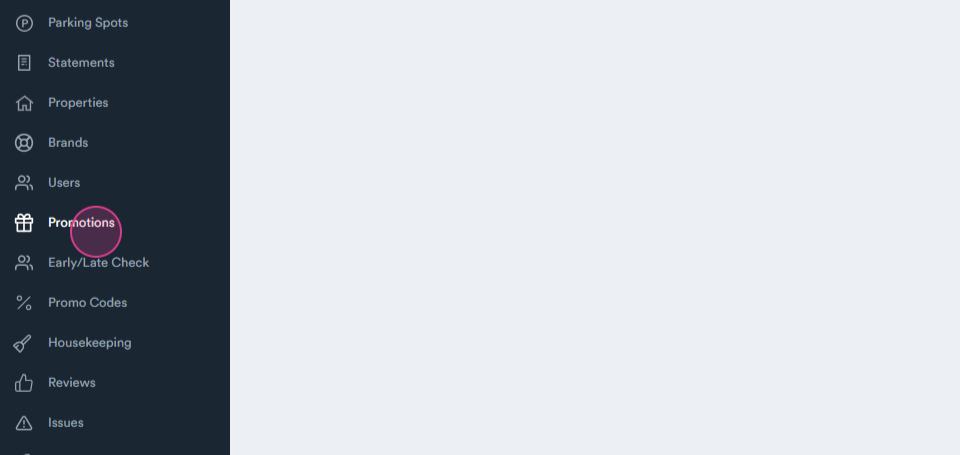
Step 1: Click on Promotion.
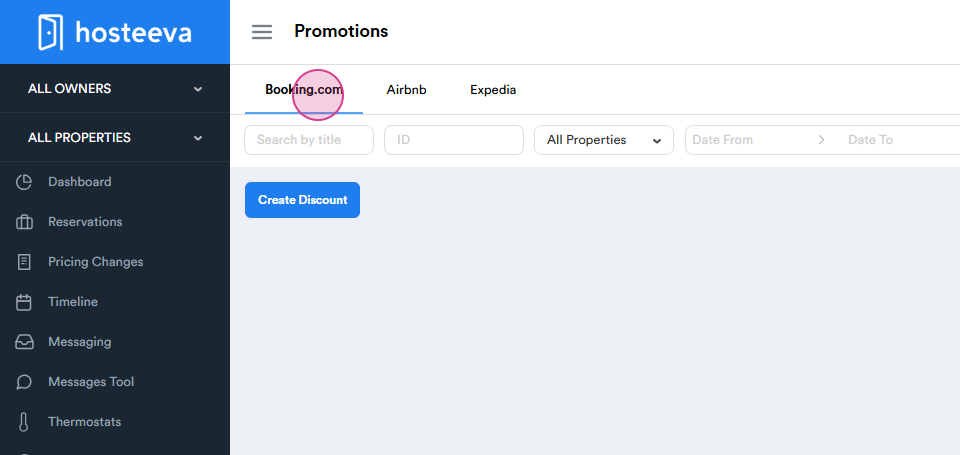
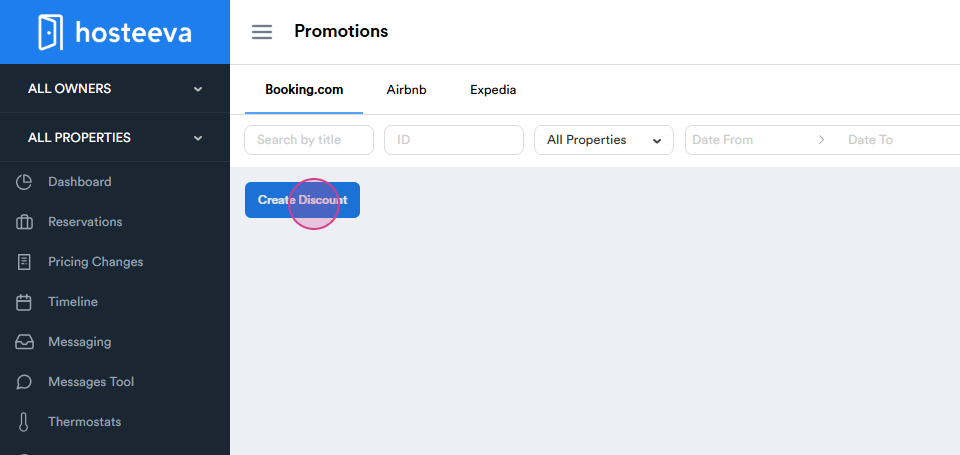
Step 2: Navigate to Booking.com and select the Create Discount button.
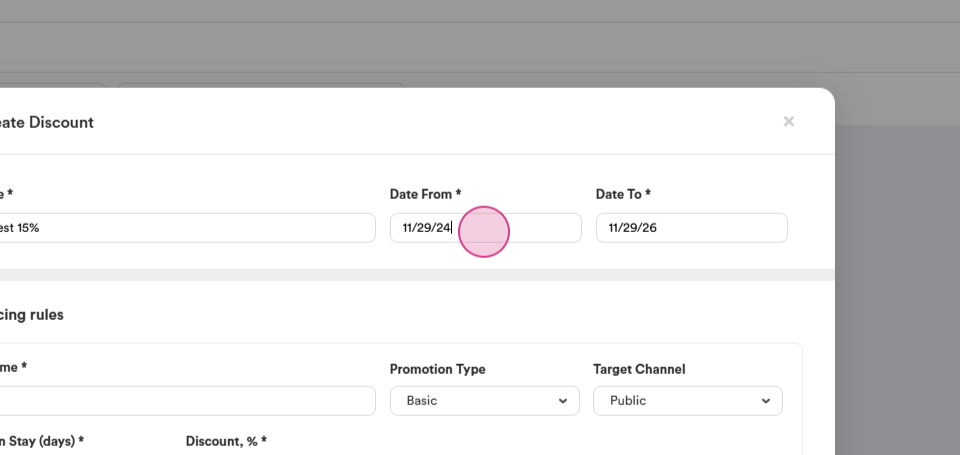
Step 3: Enter a title for your discount and set the validity period.
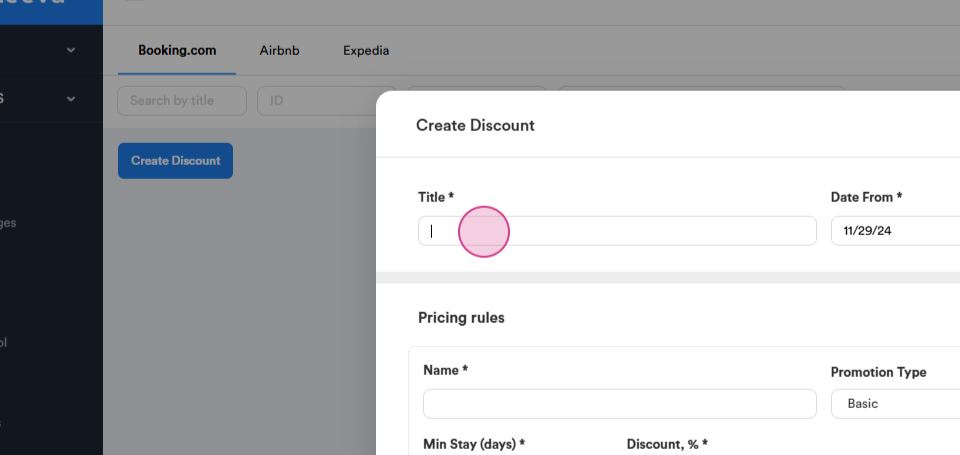
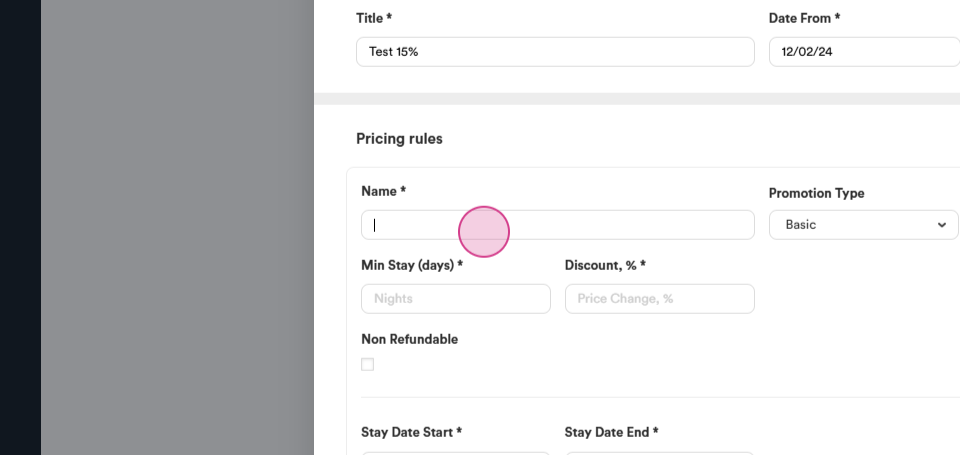
Step 4: In the Name section, input the name of your discount.
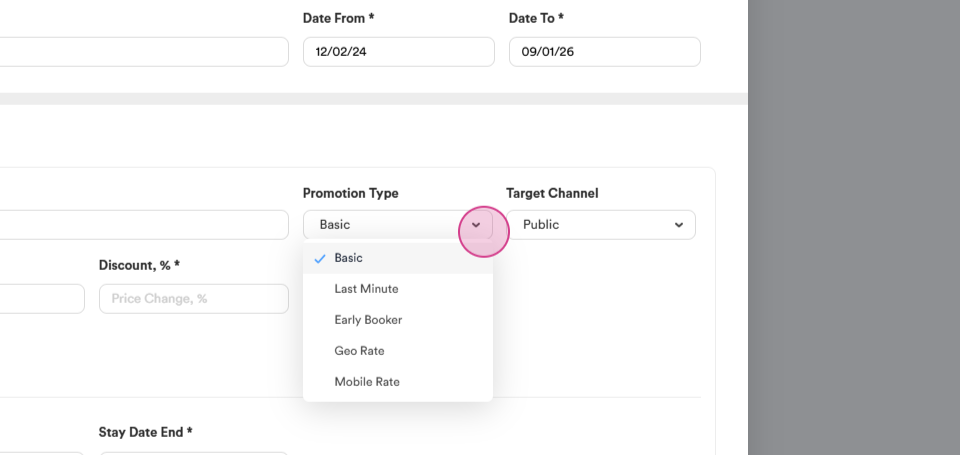
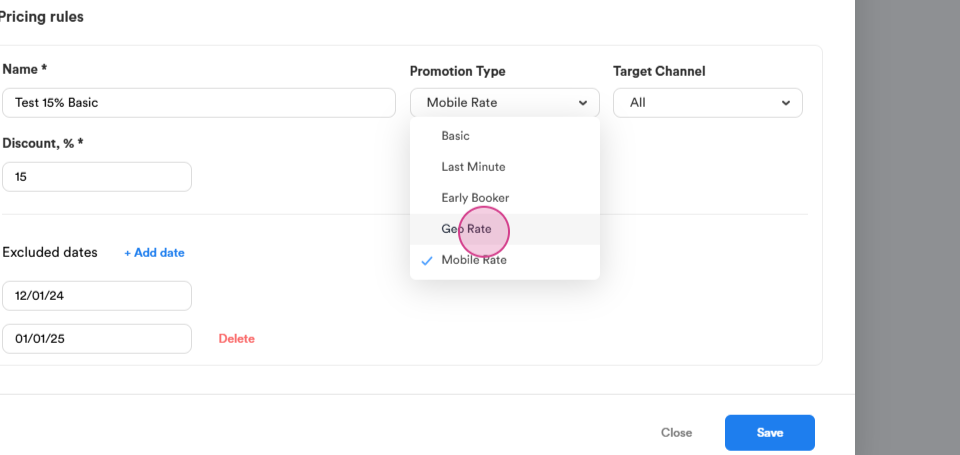
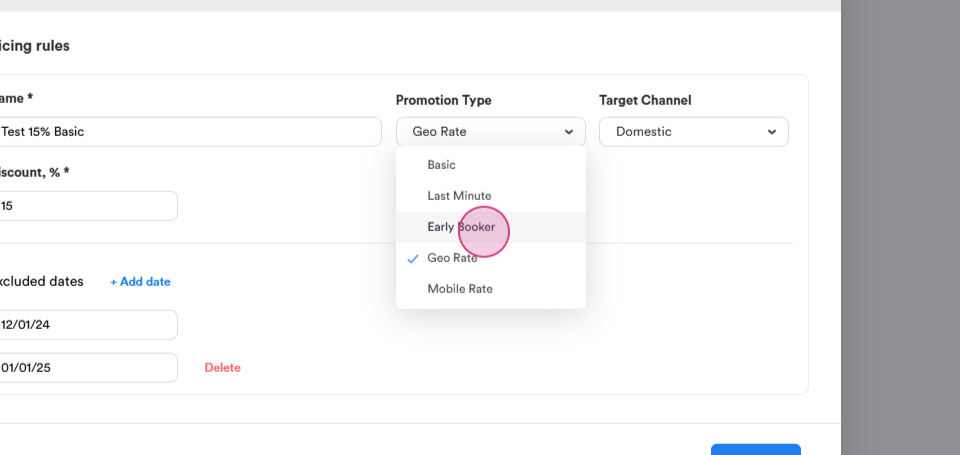
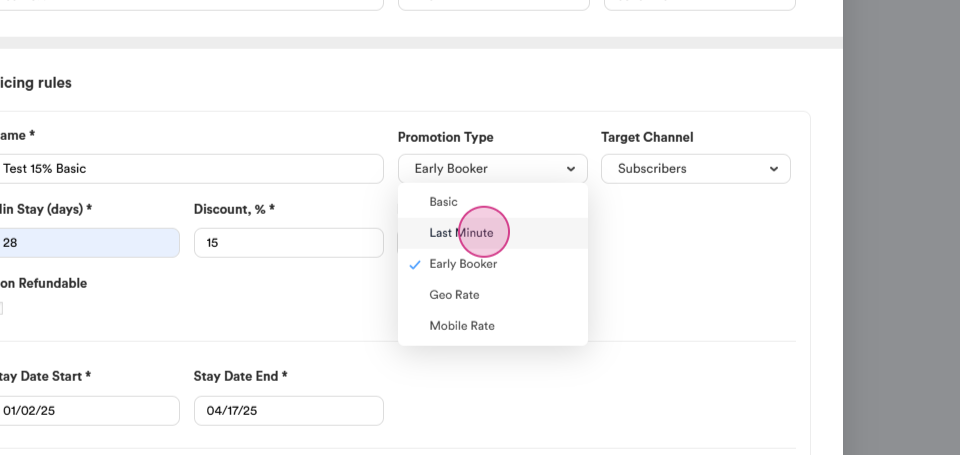
Step 5: Go to Promotion type and select the type of discount you want to offer.
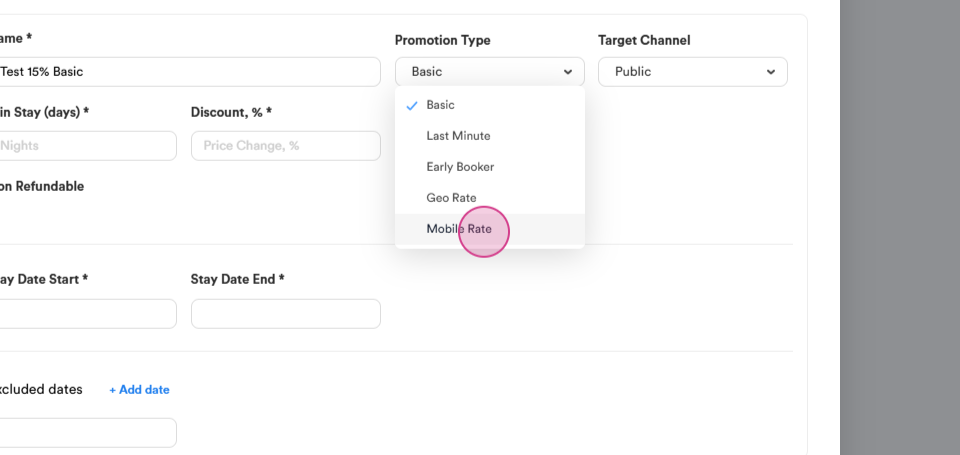
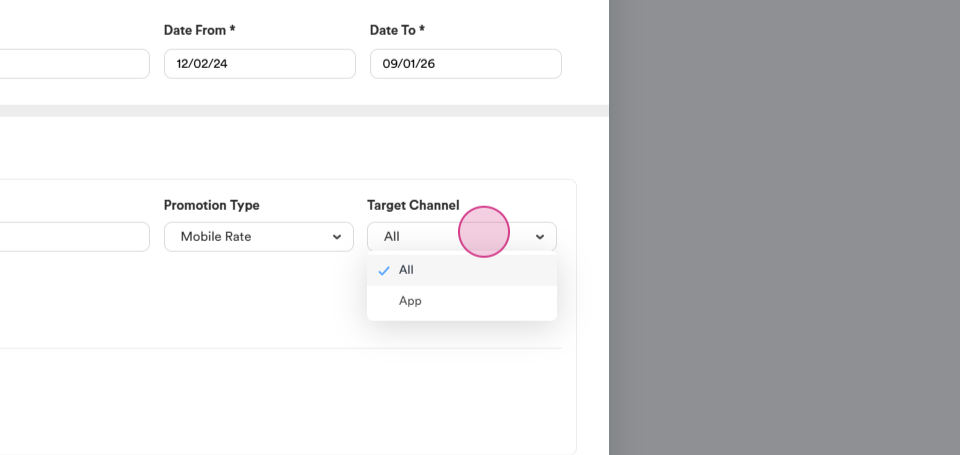
Step 6: For a Mobile Rate discount, choose whether it applies to all bookings or only those made through the mobile app.
Let's select all. Then, specify the discount percentage.
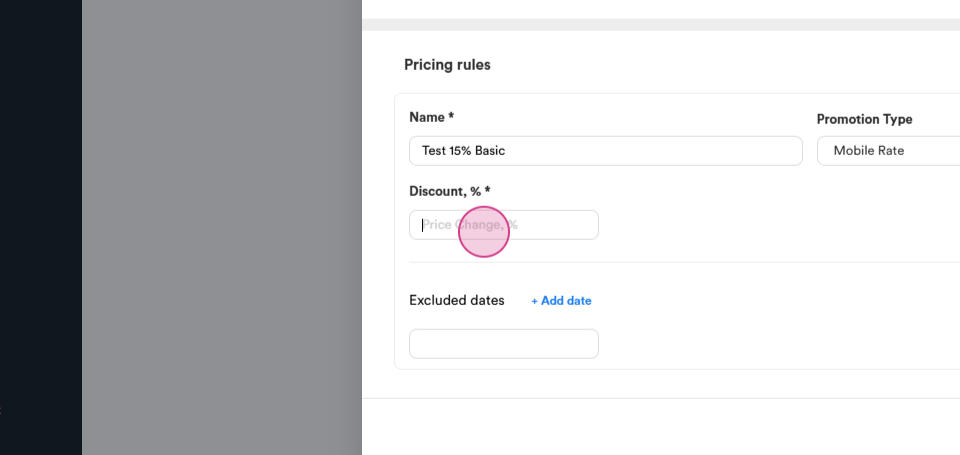
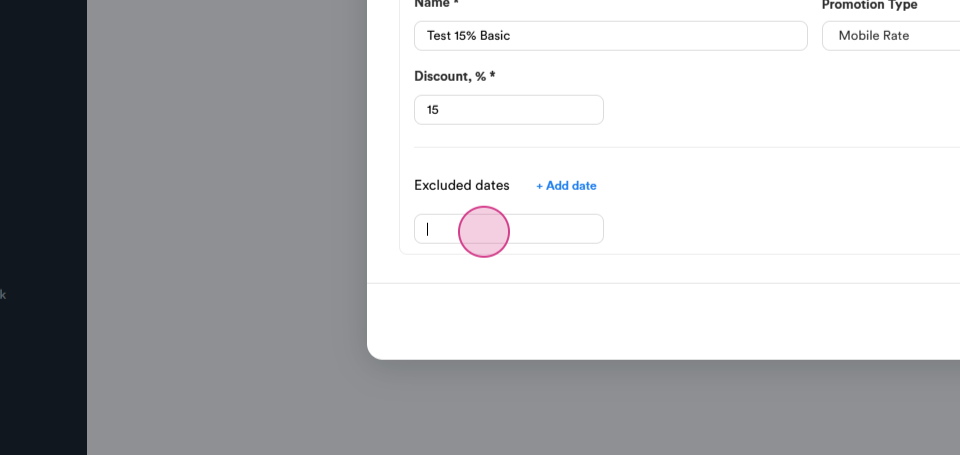
Step 7: If necessary, exclude specific days from the discount.
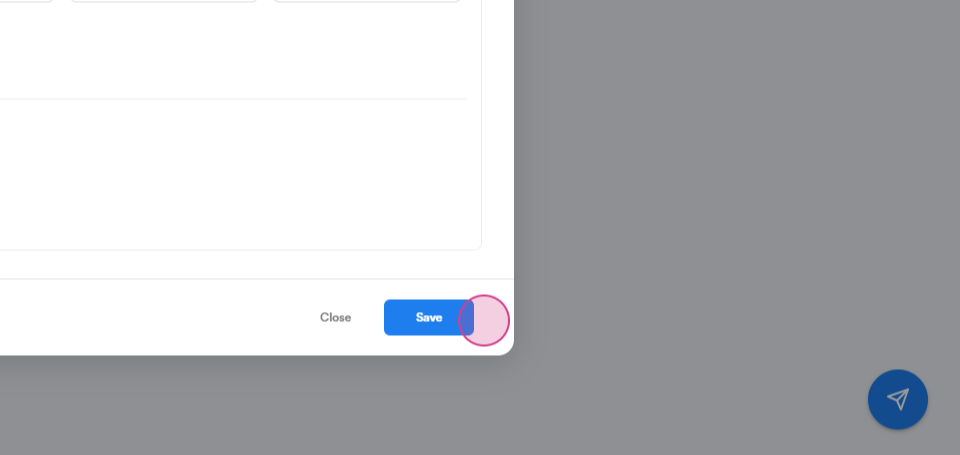
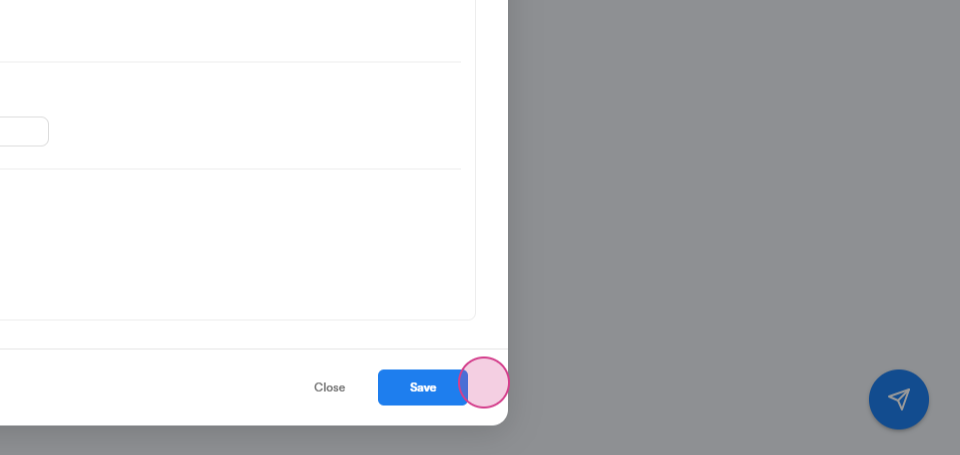
Step 8: Save your discount by clicking the Save button.
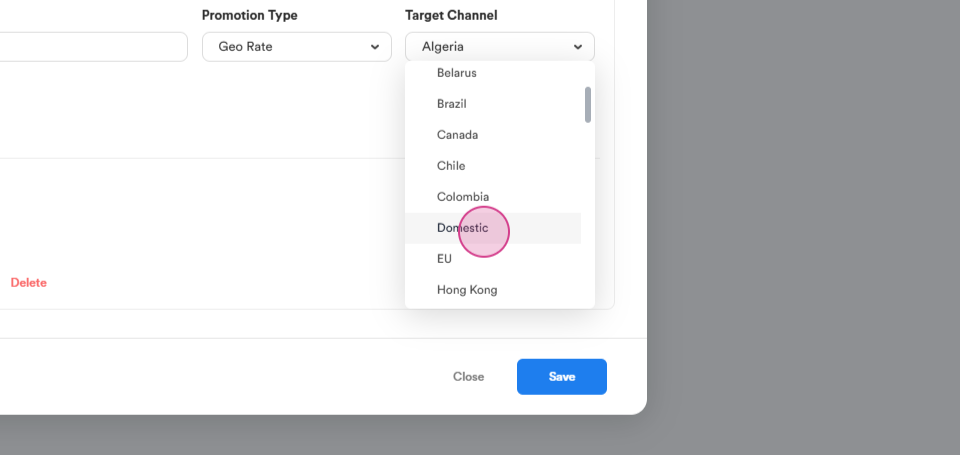
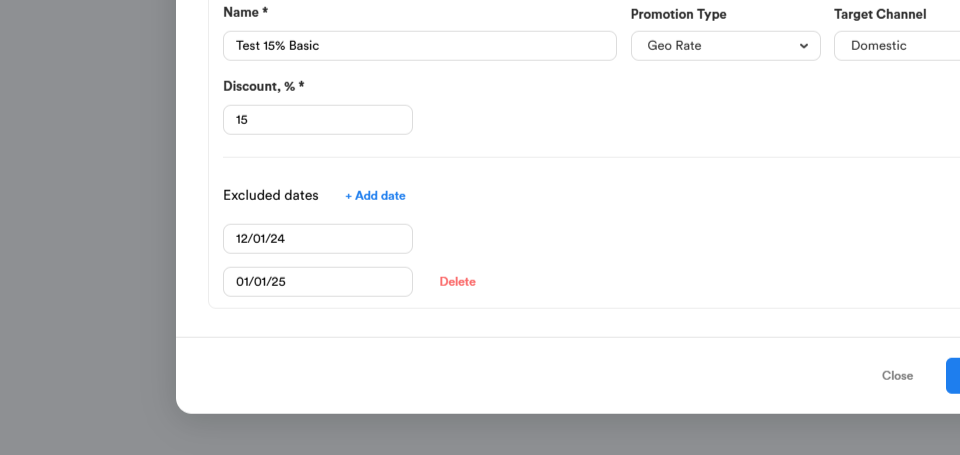
Step 9: For a Geo Rate discount, set the location where the discount will be active. Let's select Domestic.
Then, enter the discount percentage.
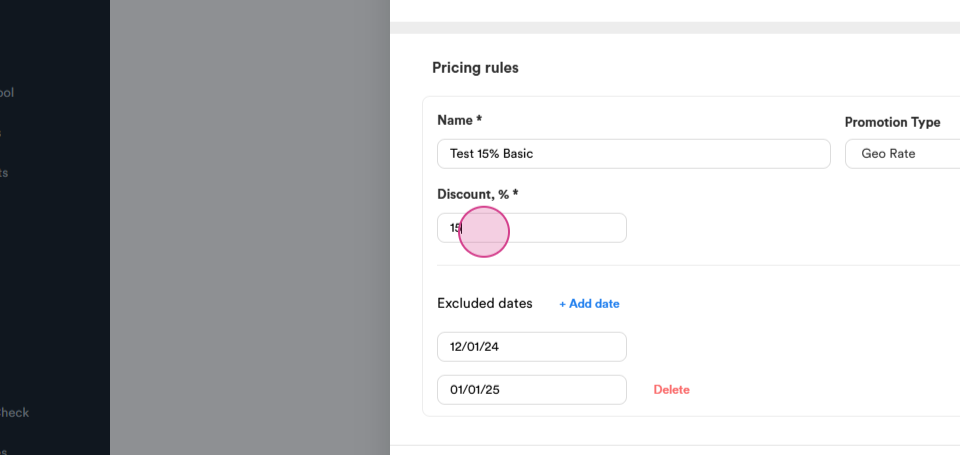
Step 10: If necessary, exclude specific days from the discount. Save your discount by clicking the Save button.
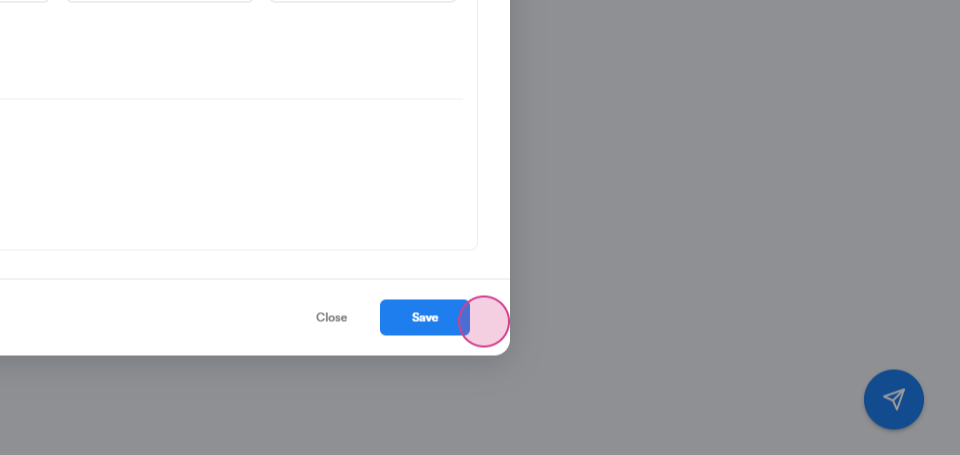
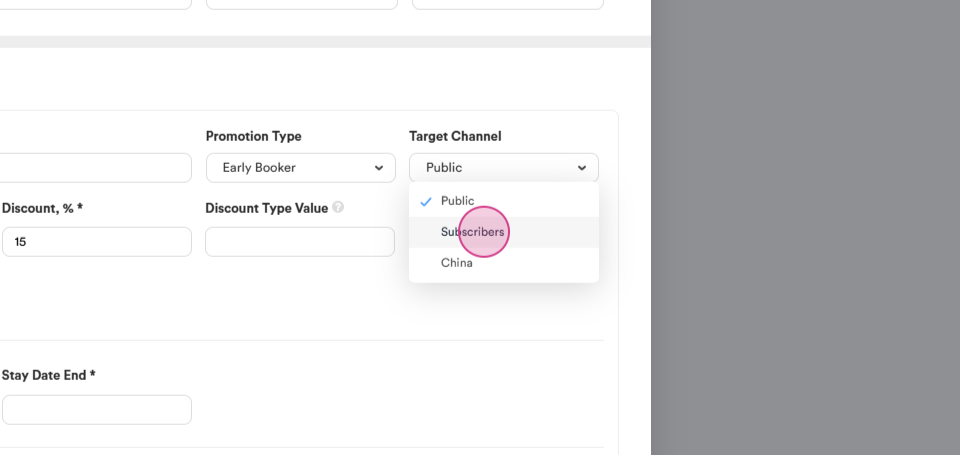
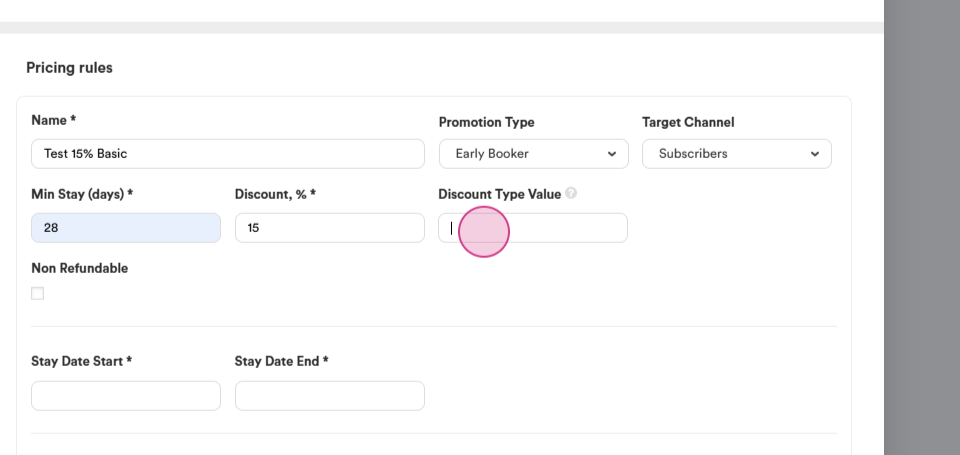
Step 11: For an Early Booker discount, select who the discount will be active for.
Let's choose Booking Subscribers.
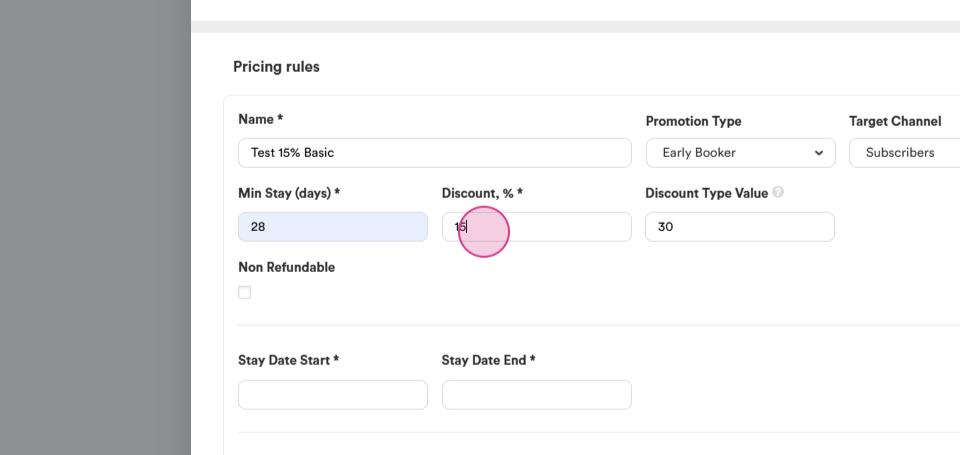
Then, choose the minimum number of booking days.
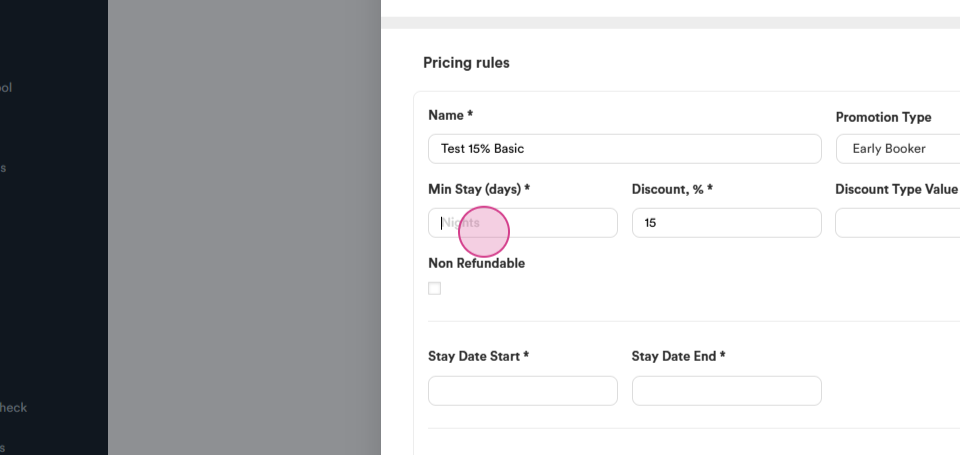
Specify the minimum number of days a booking must be made in advance to receive the discount,
and the discount percentage.
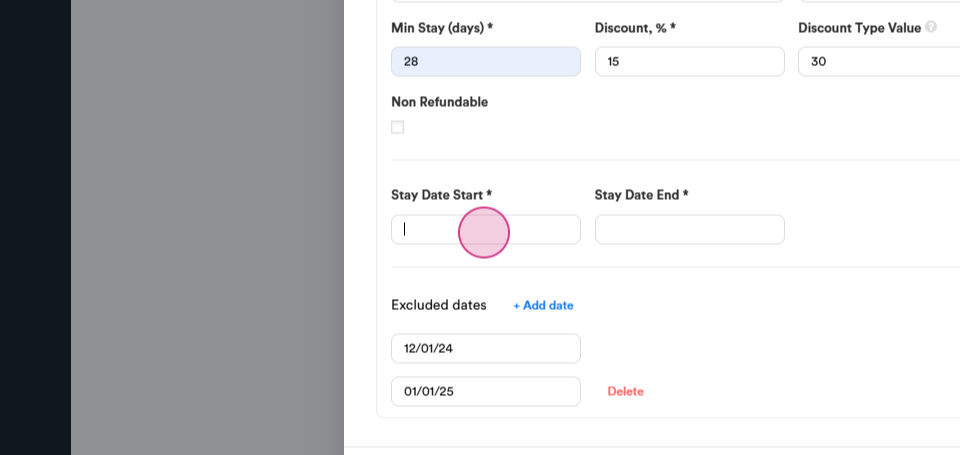
Step 12: If necessary, exclude specific days from the discount. Save your discount by clicking the Save button.
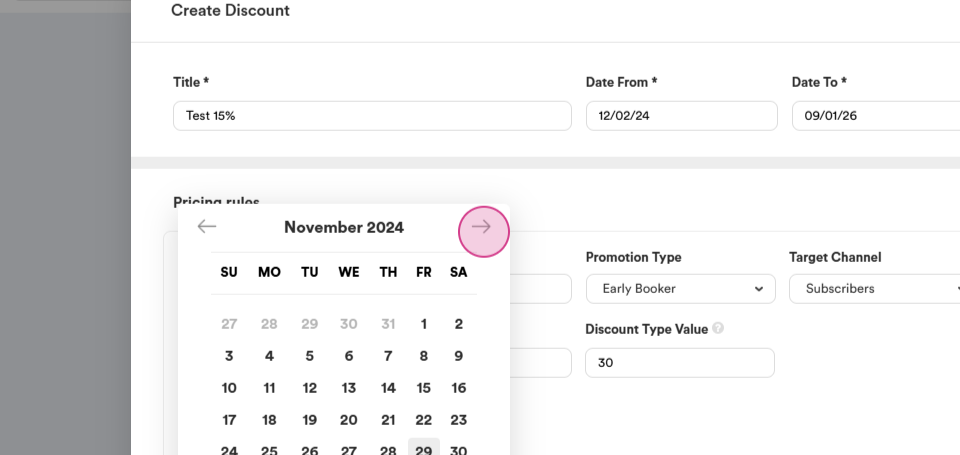
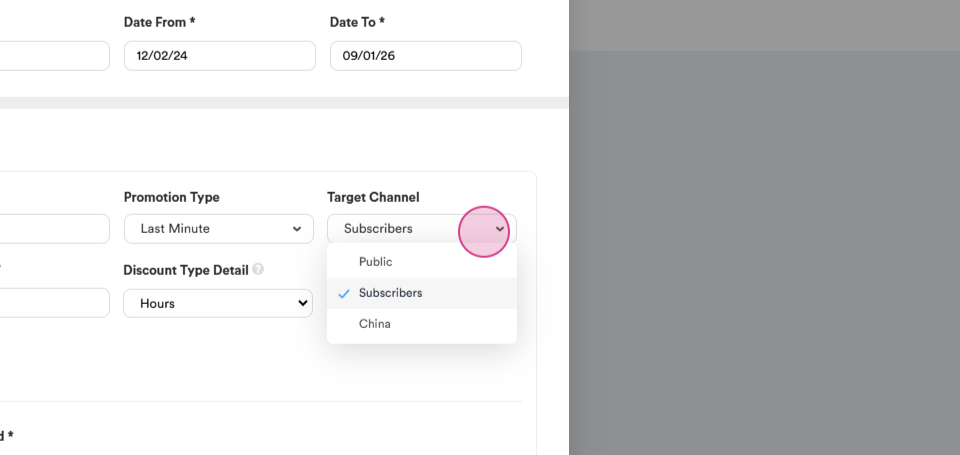
Step 13: For a Last Minute discount, select who the discount will be active for.
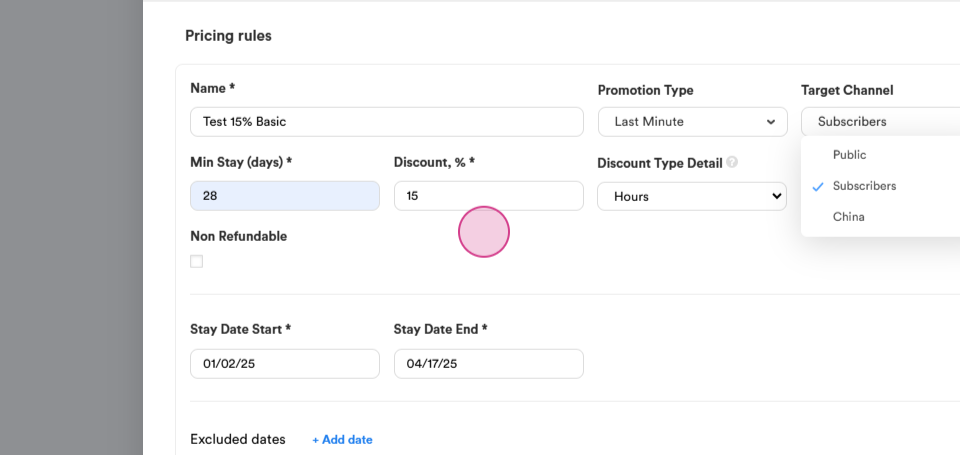
Then, choose the minimum stay days, the discount percentage,
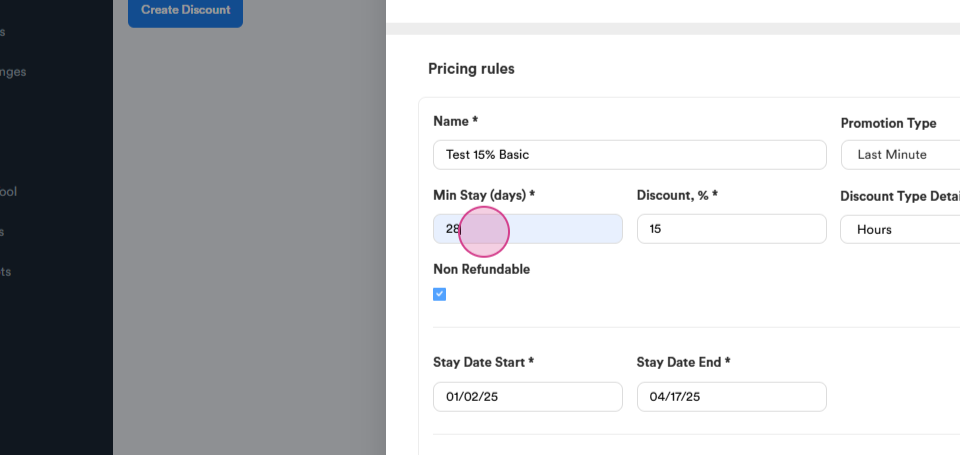
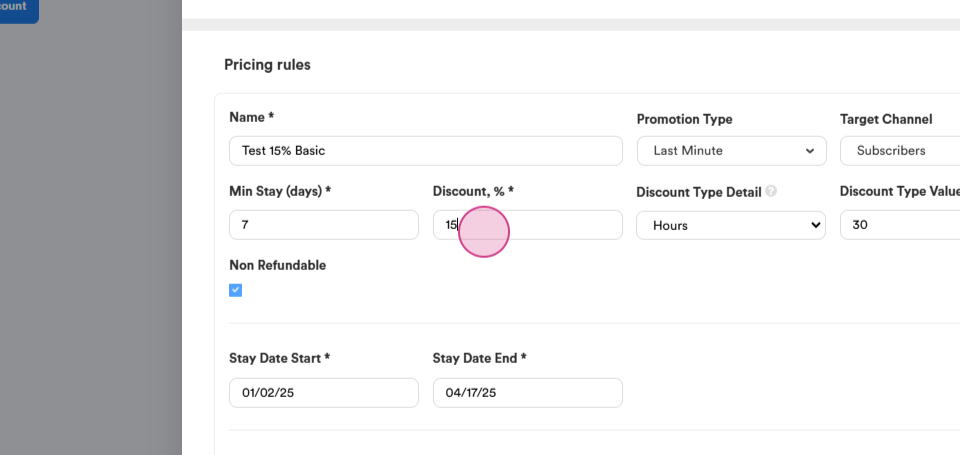
and the minimum number of days or hours in advance a booking must be made to receive the discount.
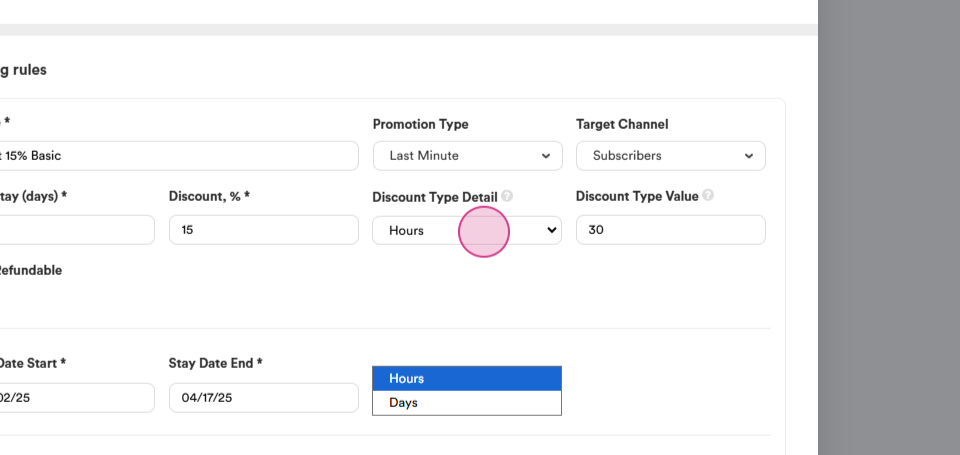
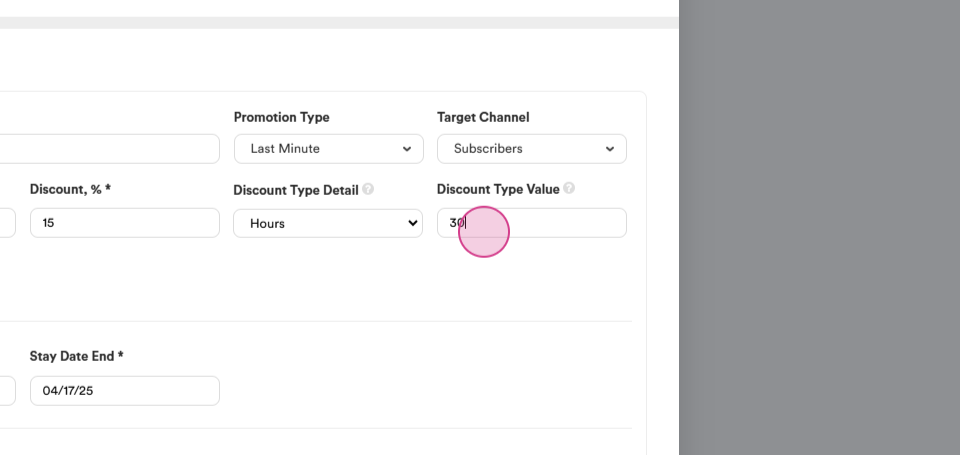
Step 14: Select the booking dates for which the discount will apply.
If necessary, exclude specific days from the discount. Save your discount by clicking the Save button.
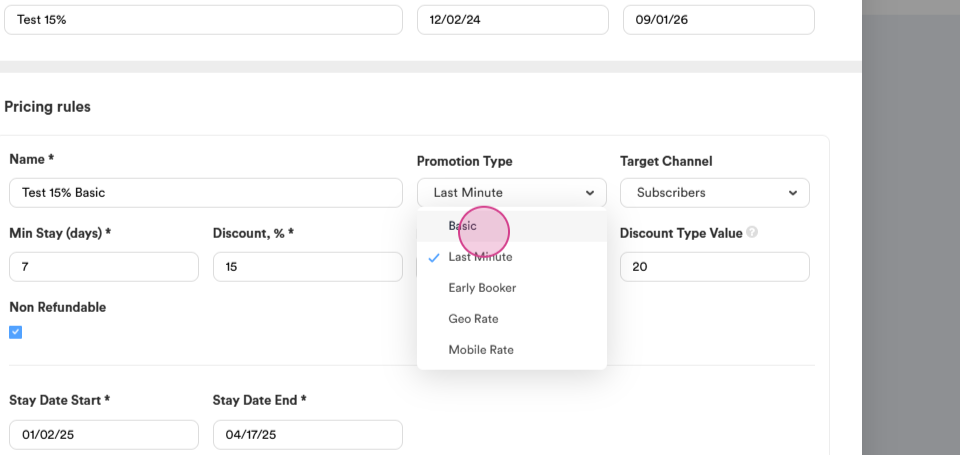
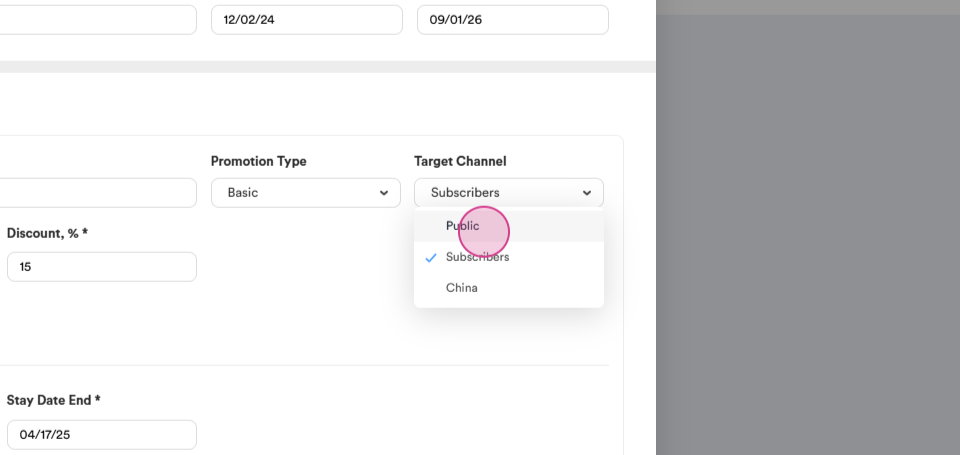
Step 15: For a Basic discount, select who the discount will be active for. Let's choose Public.
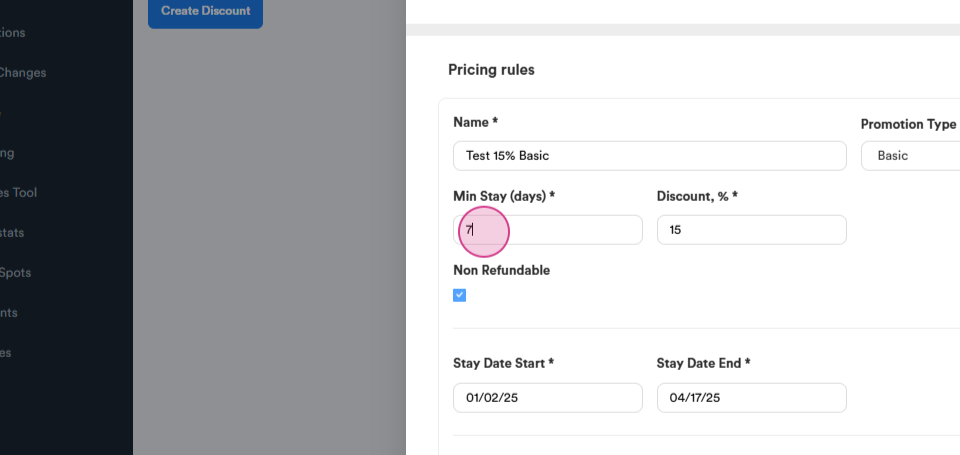
Then, choose the minimum number of booking days and the discount percentage.
Also, you can mark Non-refundable option for applying additional 10% off to the discount.
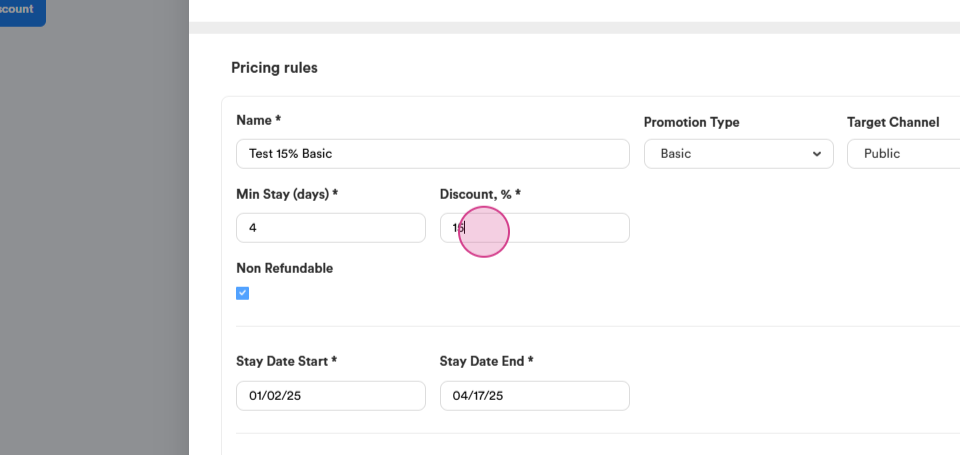
Step 16: Select the booking days for which the discount will apply. If necessary, exclude specific days from the discount.
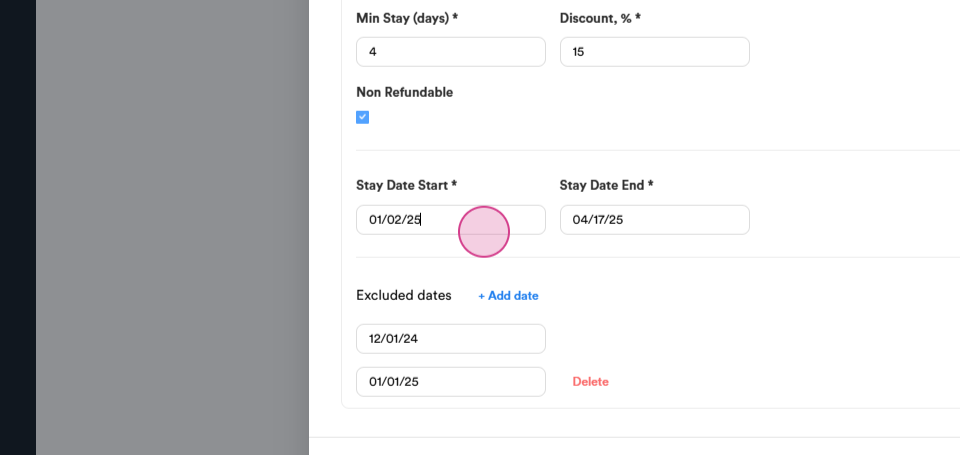
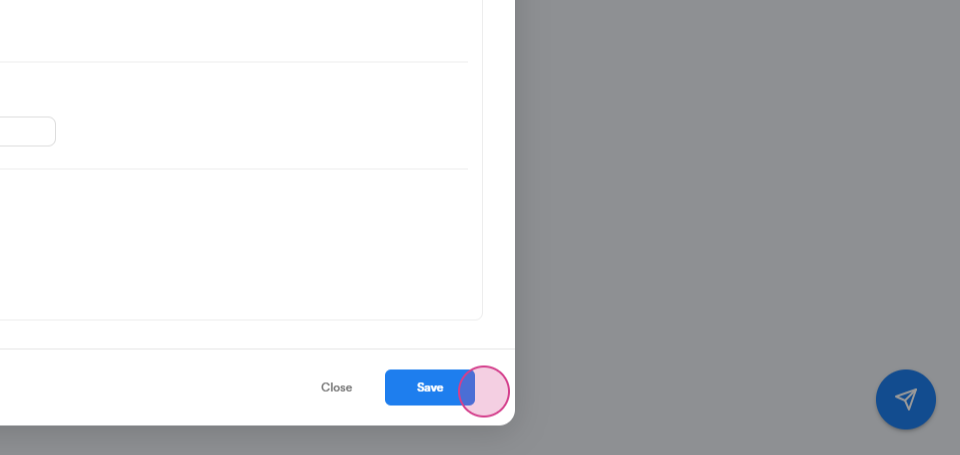
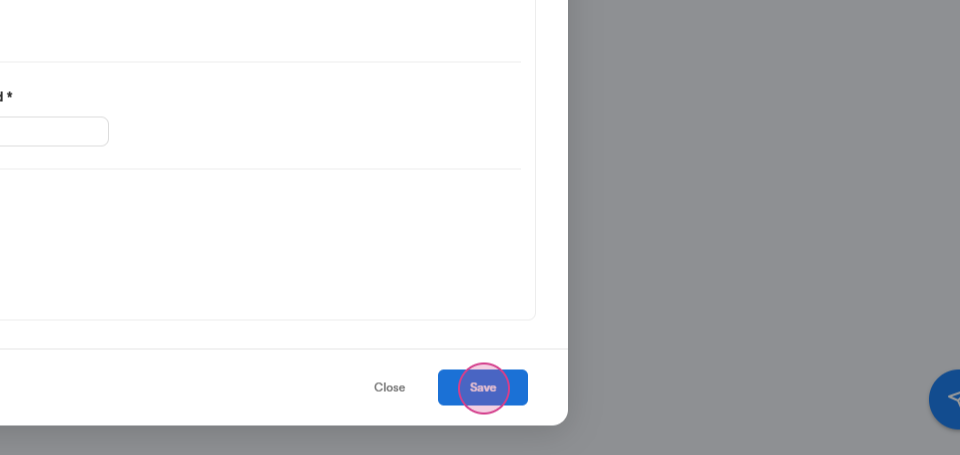
Save your discount by clicking the Save button.
Step 17: After saving your discount, navigate to the open Update section.
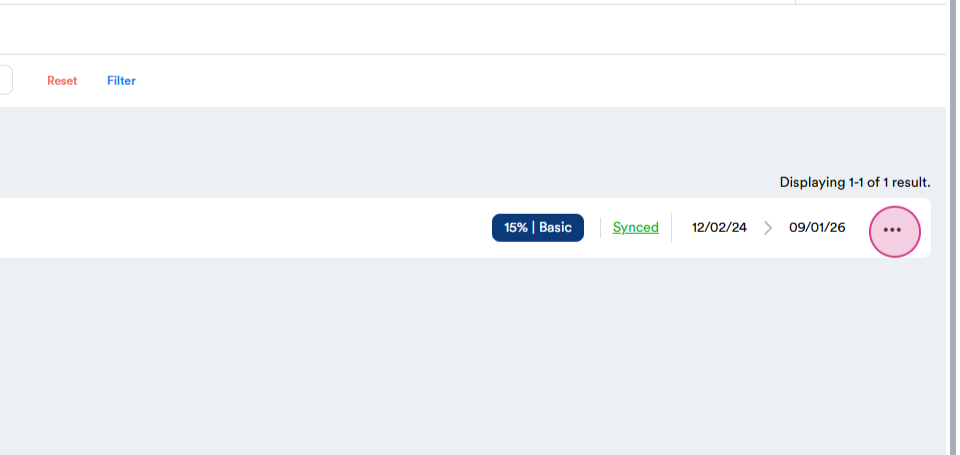
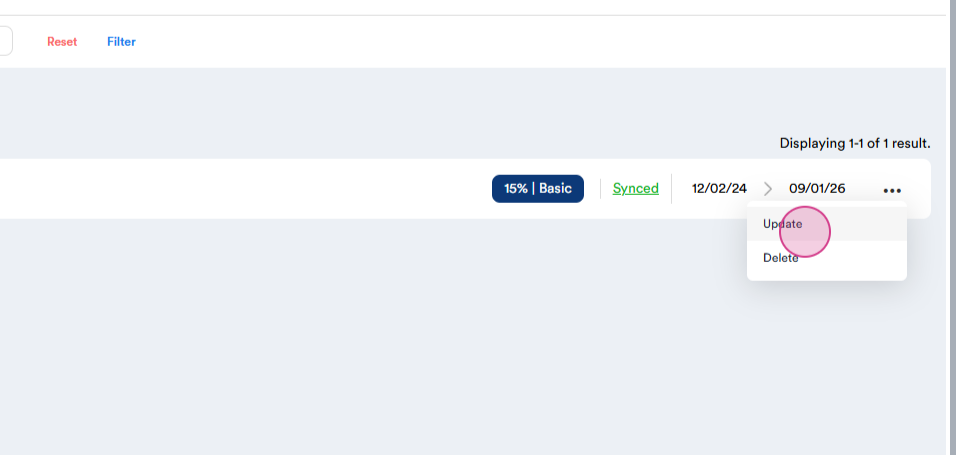
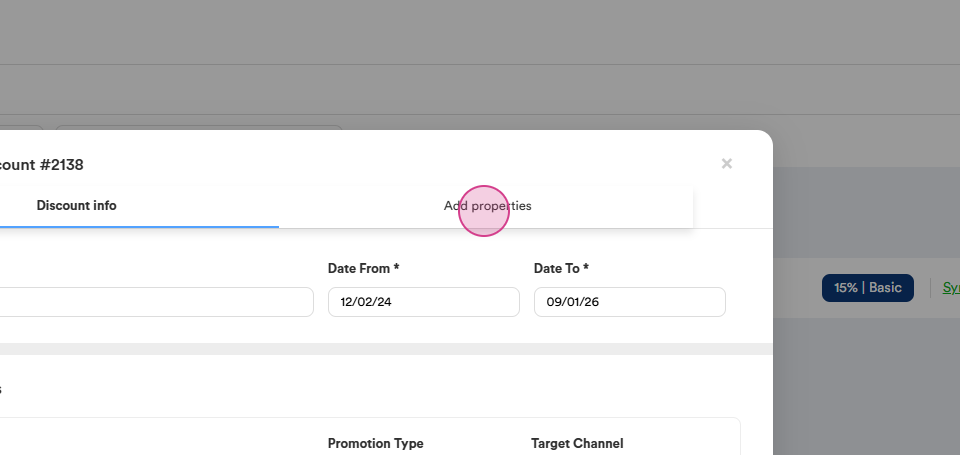
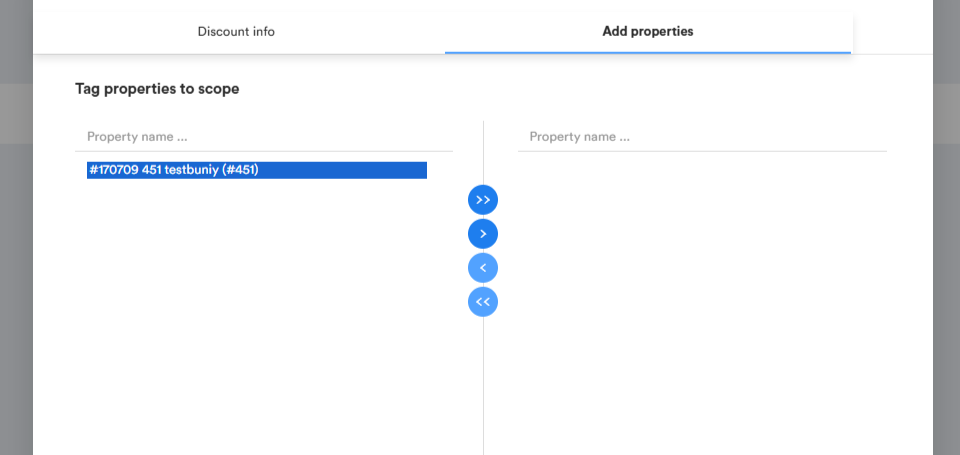
Step 18: Click on Add Properties and select the property you want to apply the discount to.
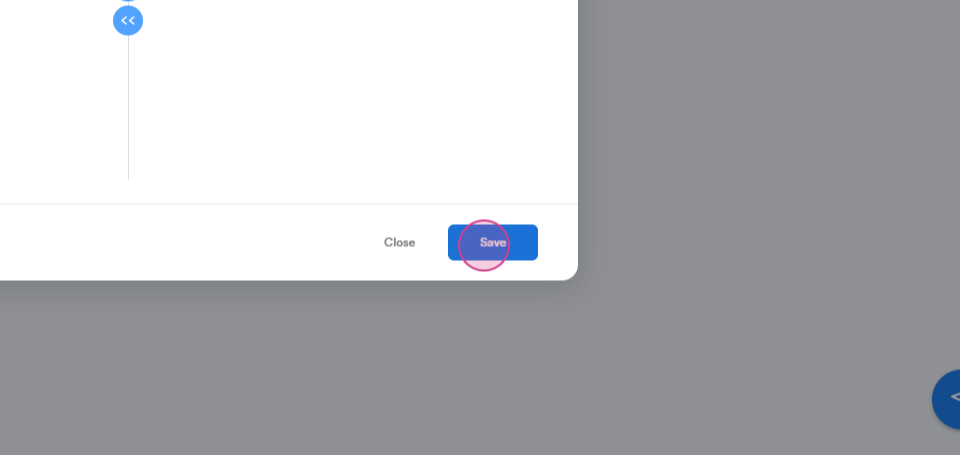
Step 19: Edit your settings and click Save to finalize.
That's it! You've successfully created and applied a discount for booking. Thank you.