This article will guide you through the process of creating Rates and Restrictions.
Begin by opening the timeline and selecting Unit.
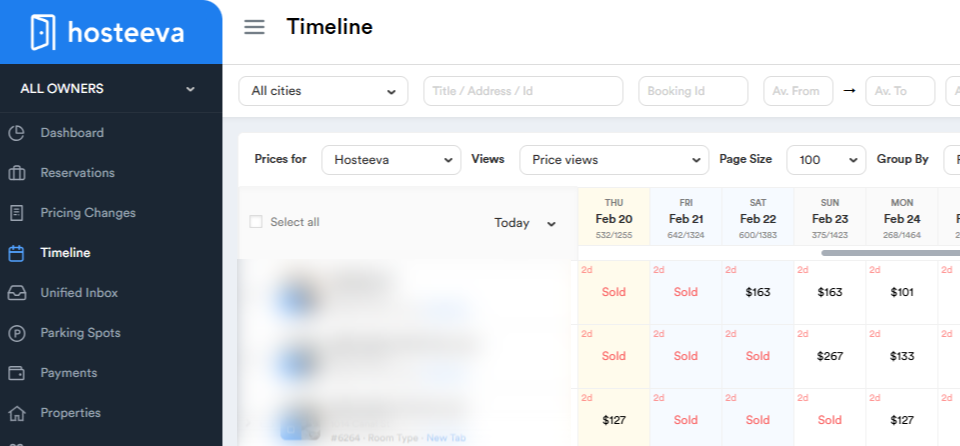
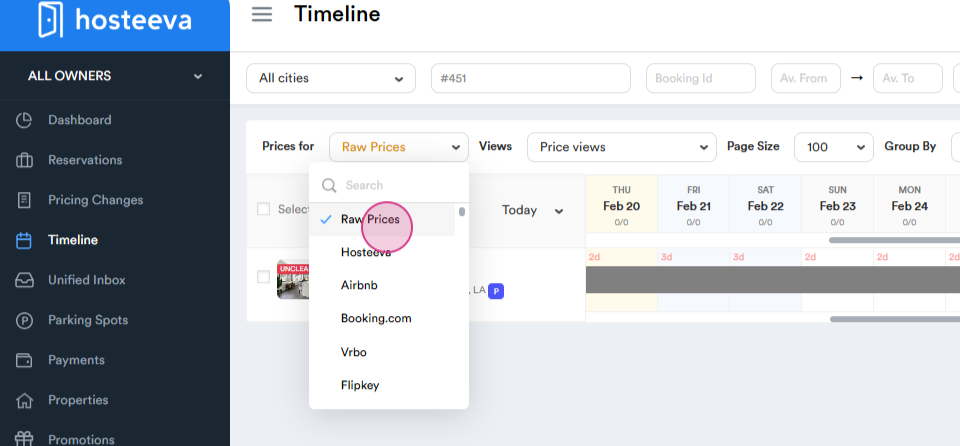
For easier task execution, select Row Price.
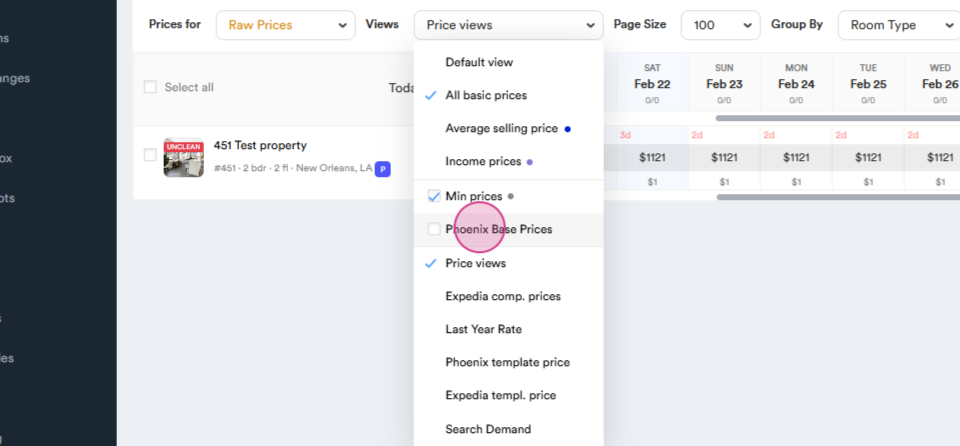
In the View section, choose All Basic Prices, Minimum Prices, and Phoenix Based Prices.
Let's choose dates from March 1st through March 15th to change rates and restrictions.
Double-click on the Start date.
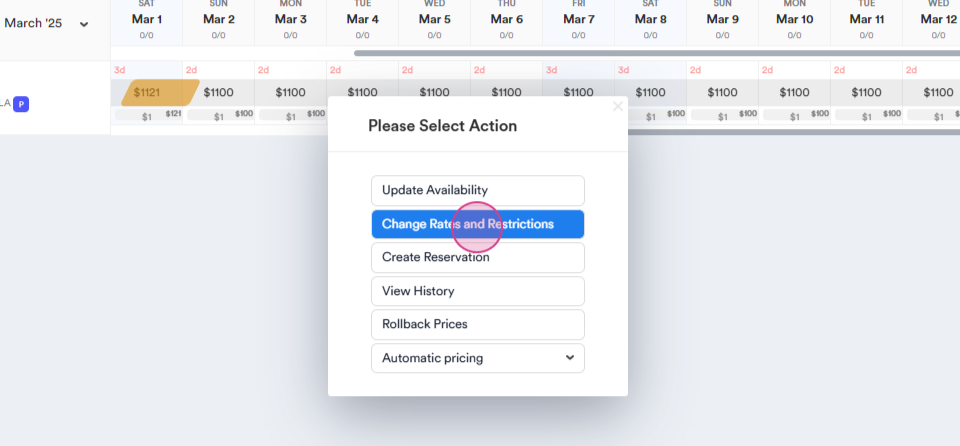
Select Change Rate and Restrictions.
Set the End date.
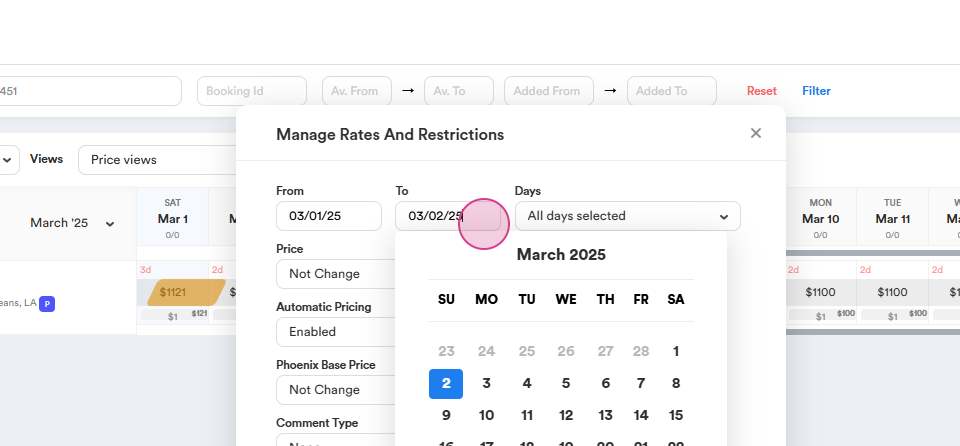
Remember, the chosen end date will not be included. For instance, to set a price from March 1st to the 15th inclusive, select the 16th as the end date.
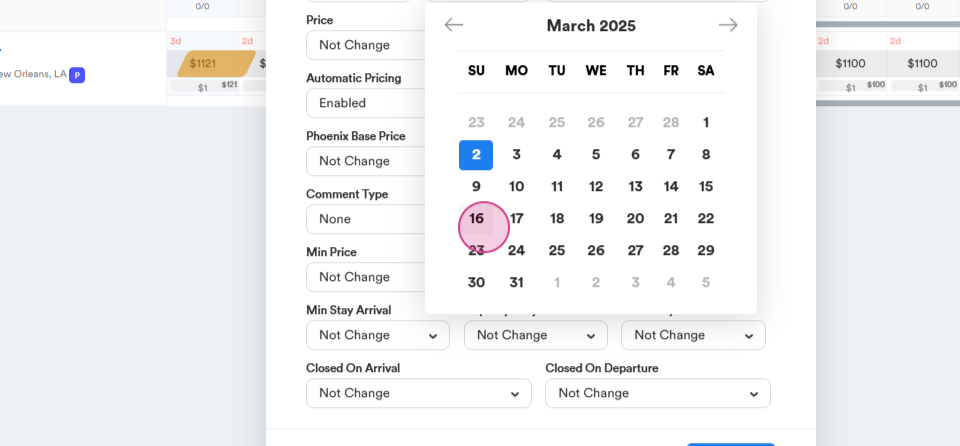
If you have specific requests, select the specific days of the week such as weekends only. Or select all.
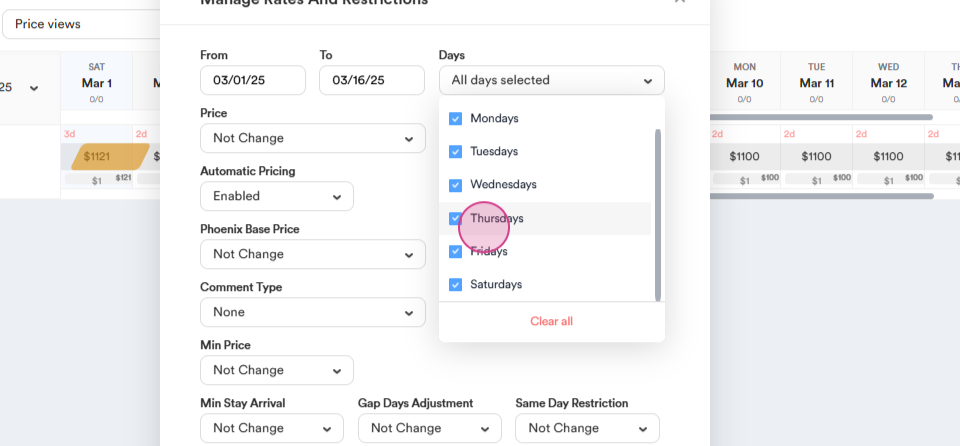
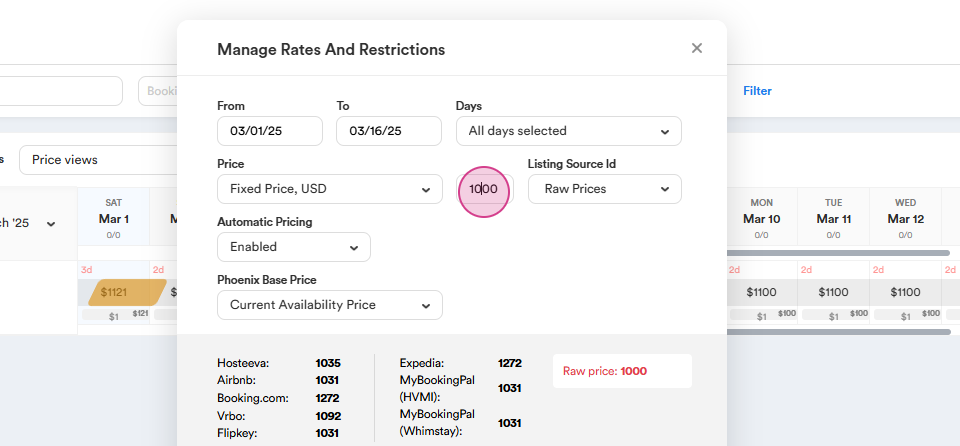
Enter the Price.
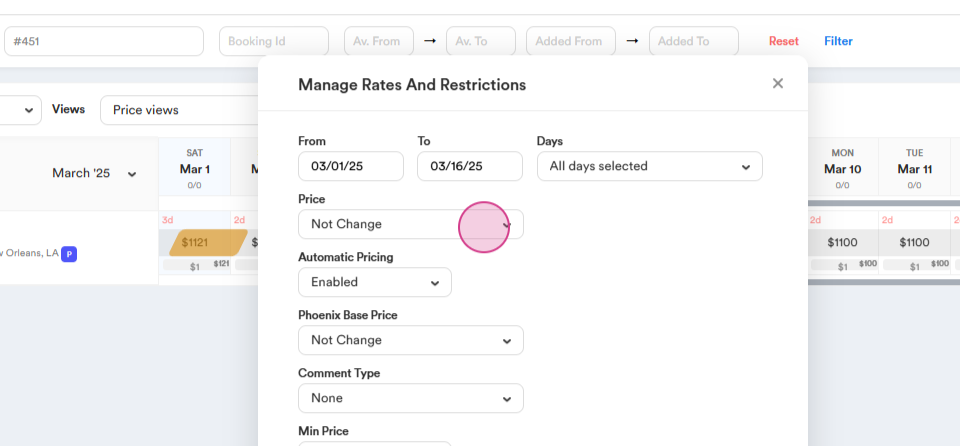
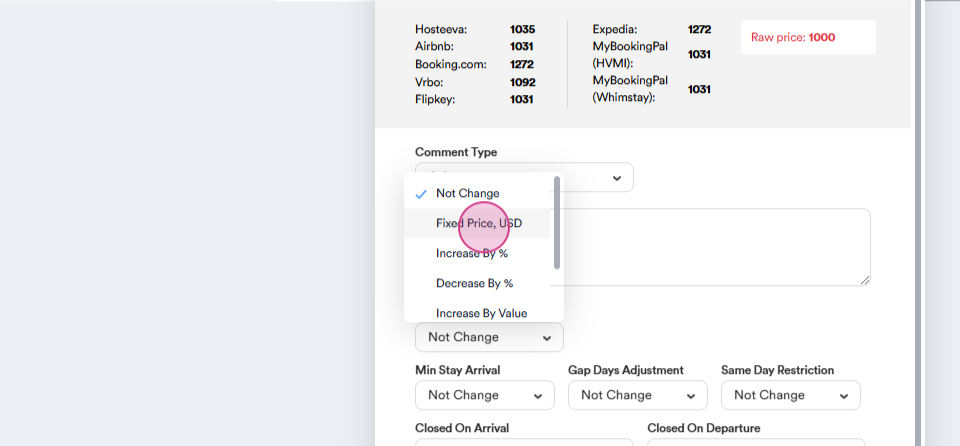
You're able to increase or decrease the price as a percentage or fixed amount from the current price. Alternatively, manually enter the specific amount.
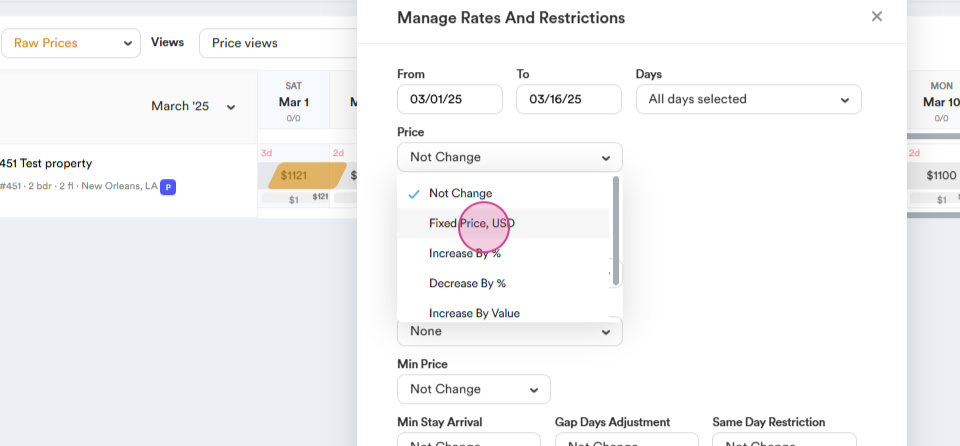
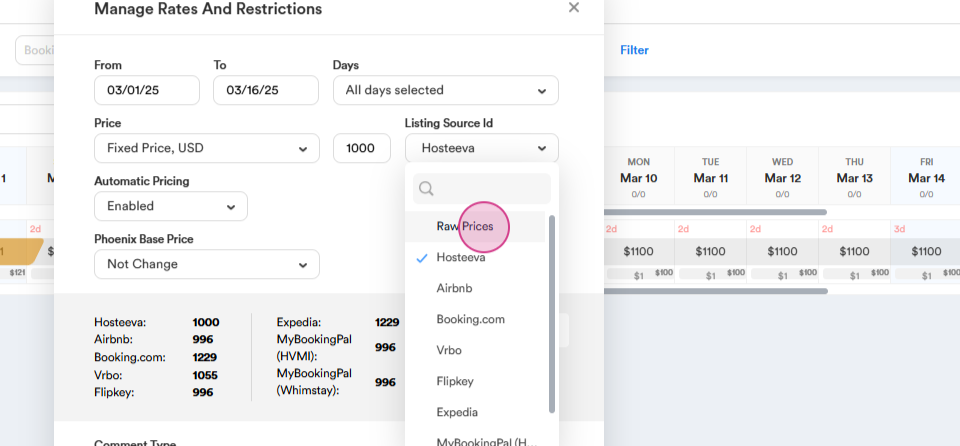
When entering a price, always consider the listing source. If there's no special request, price this as Raw Price.
You'll see the final prices for the unit below for all channels,
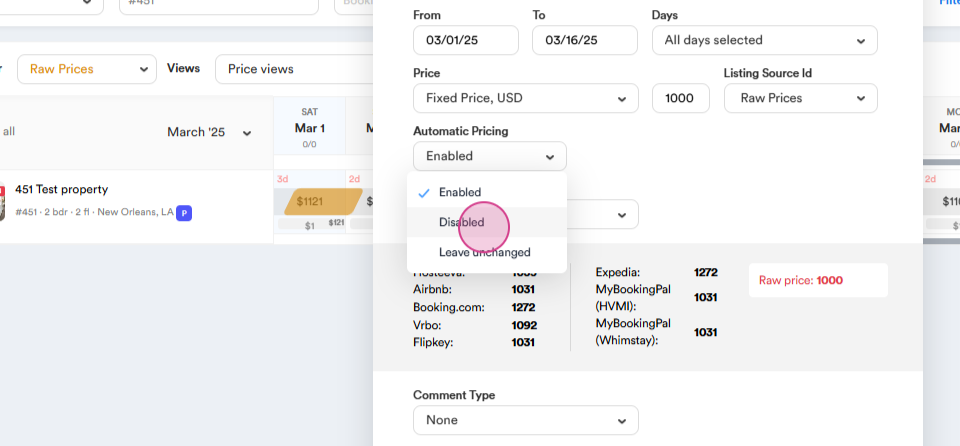
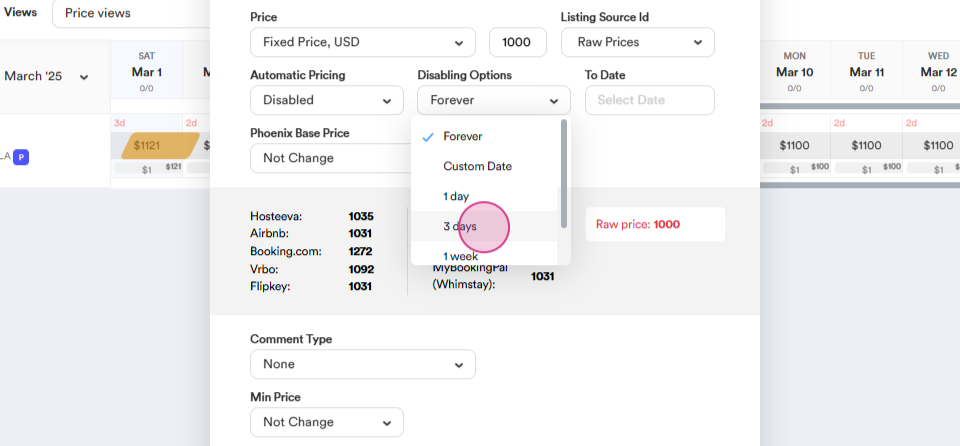
You're able to disable Automatic Pricing for the selected time period if needed.
When setting the Phoenix Based Price, increase or decrease it as a percentage or fixed amount from the current price.
Enter the specific amount or select Current Available Price.
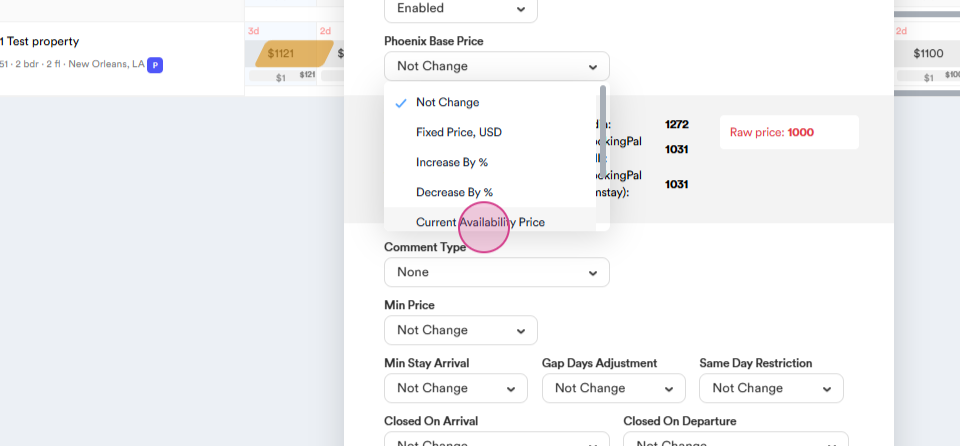
If you select Current Available Price the system will take the value entered in the Price section.
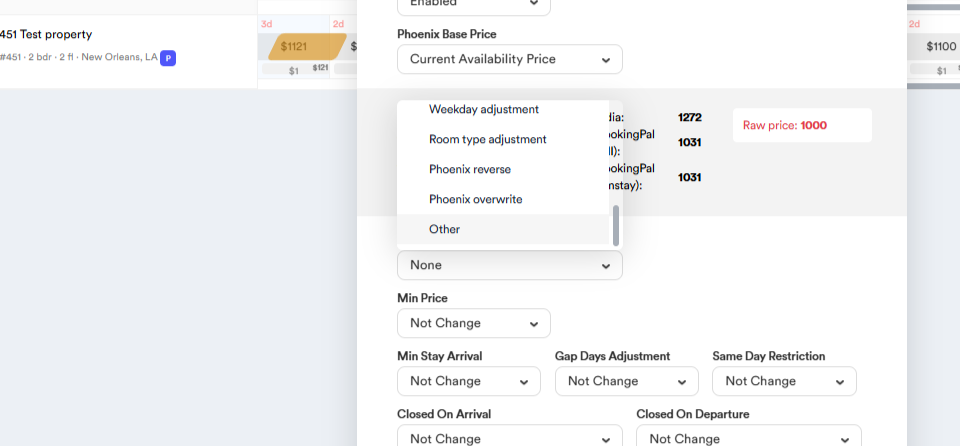
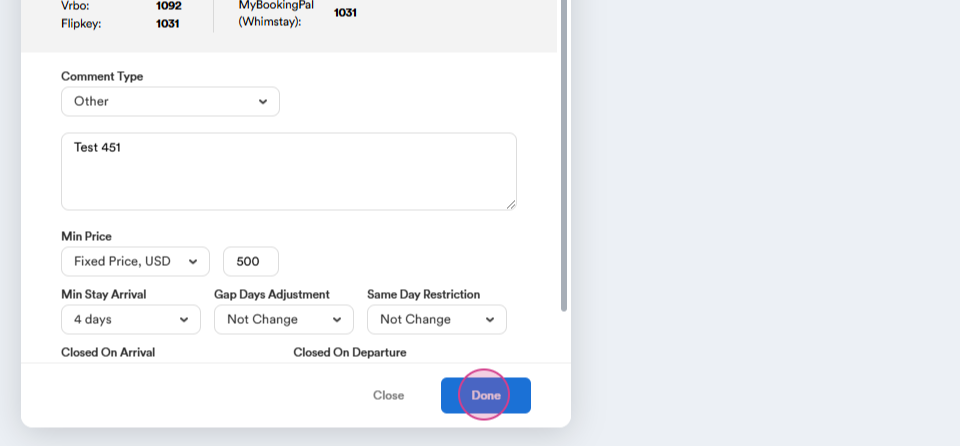
To be able to save changes, select a comment from the list or enter one manually by choosing another.
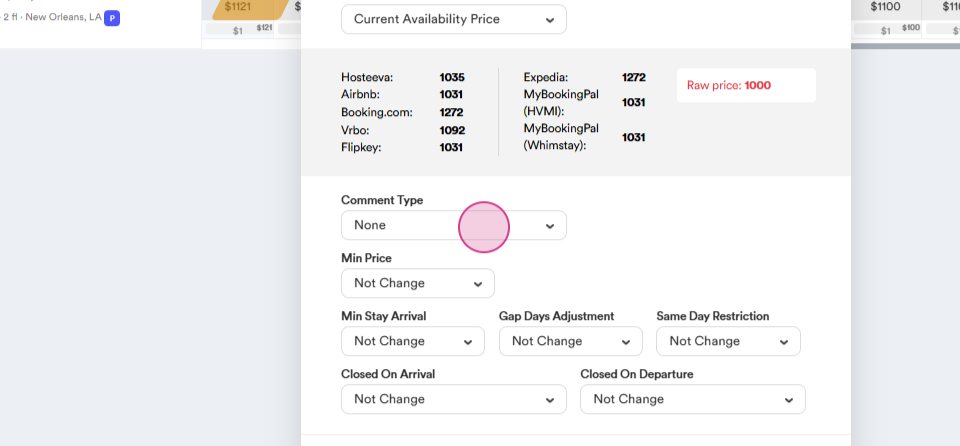
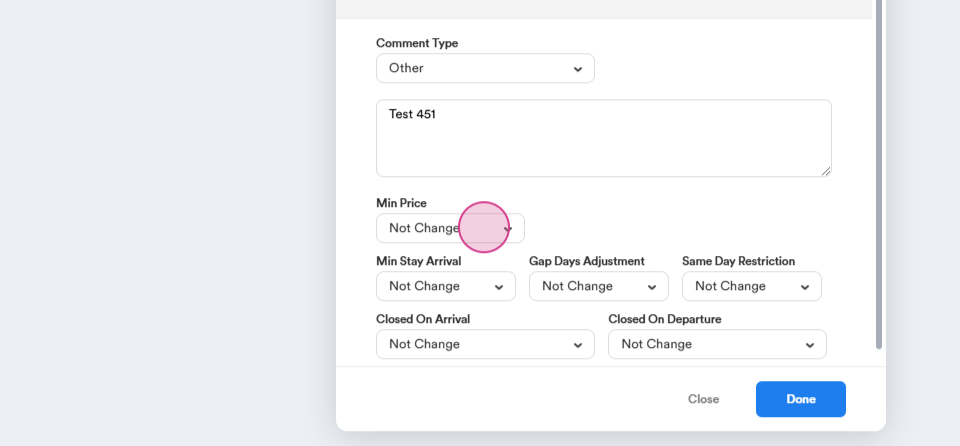
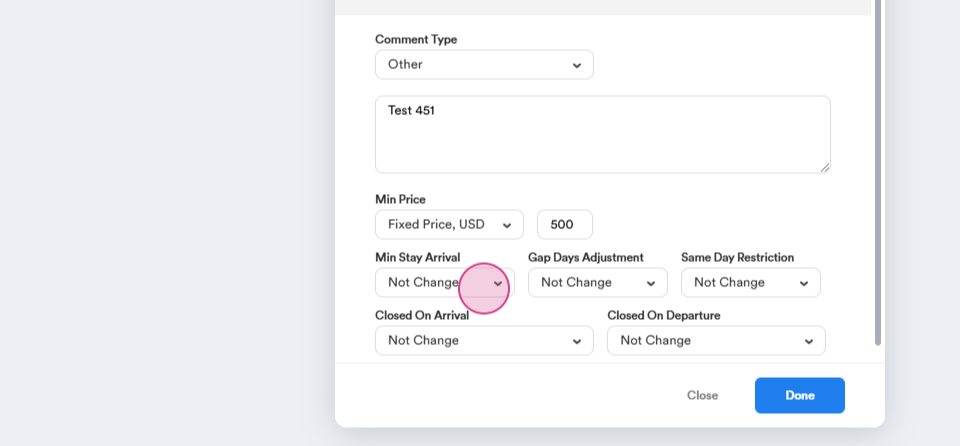
Enter the Minimum Price. When you enter a value, it means that automatic pricing will not drop below this amount when adjusting prices.
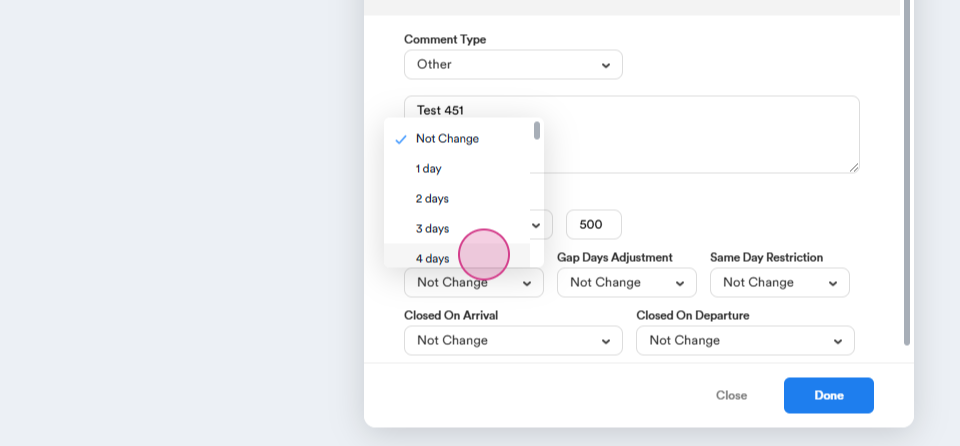
If necessary, set a Minimum Stay agreement. For example, choose four days.
Gap Days Adjustment - allows to disable the adjustment logic for specific dates.
Same Day Restriction - Restricts same day bookings, you can choose a minimum number of days before check-in.
Closed On Arrival and Closed On Departure - Allows closing off dates for arrivals or departures.
Once all necessary data is entered, click Done.
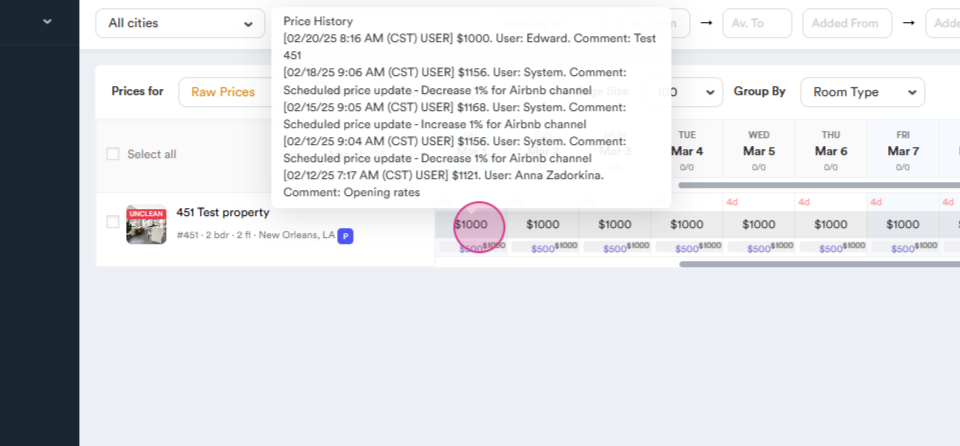
You'll see the price on the screen. In the bottom right corner, you'll see Phoenix Base Price and in the center, you'll see Minimum Price.
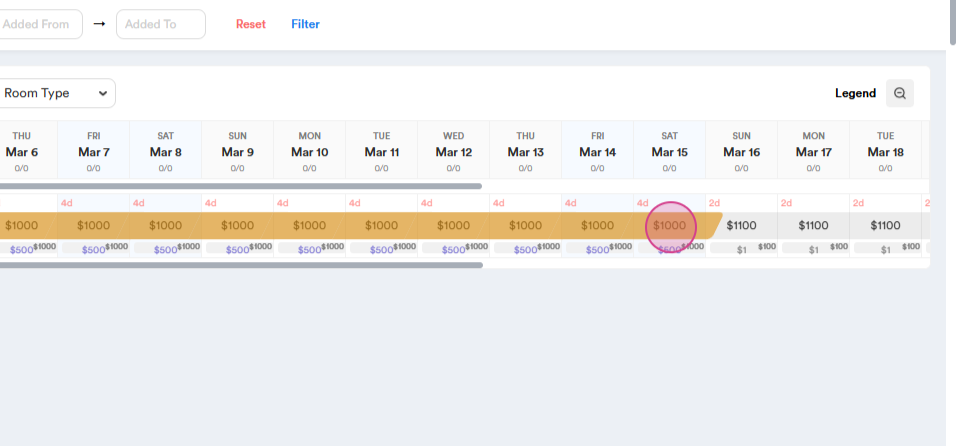
There's an alternative way to select dates.
Click on Start date, drag the mouse to the End date of the expiration period and click on it and follow the steps above.
Thank you for your attention.