This article will guide you through the process of updating an existing rate plan on booking.com from our system.
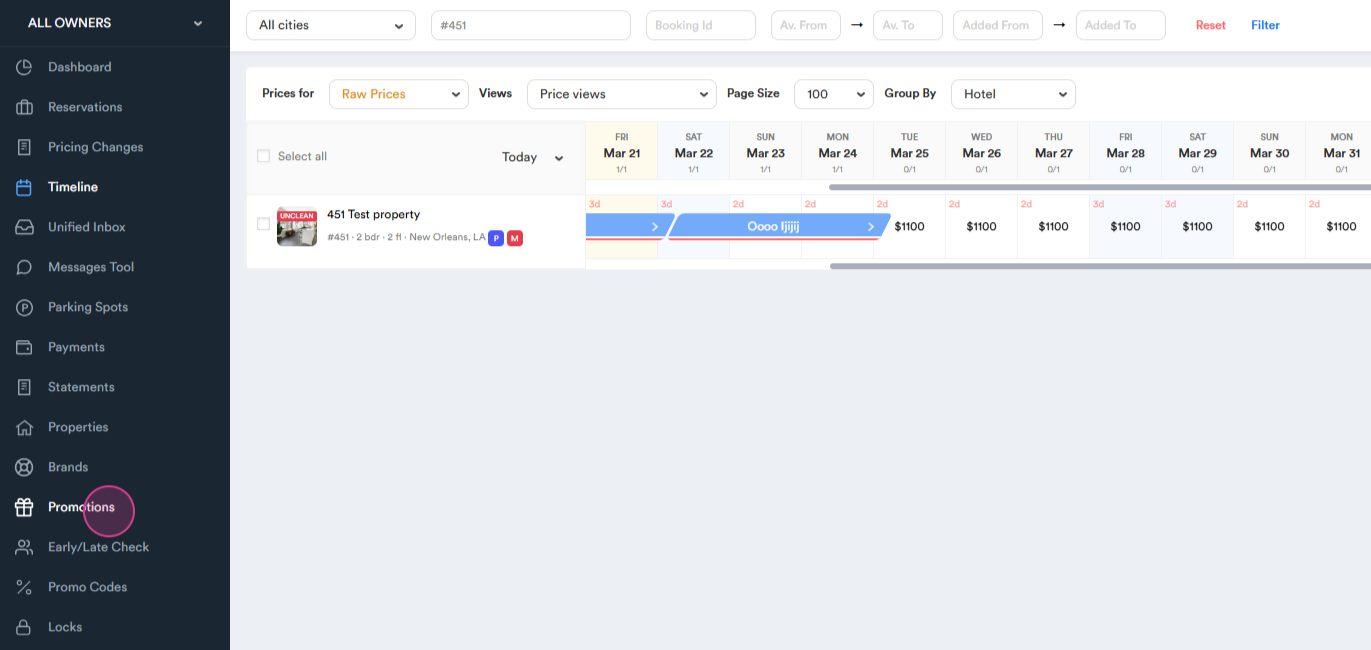
Step 1: Navigate to the Promotions tab.
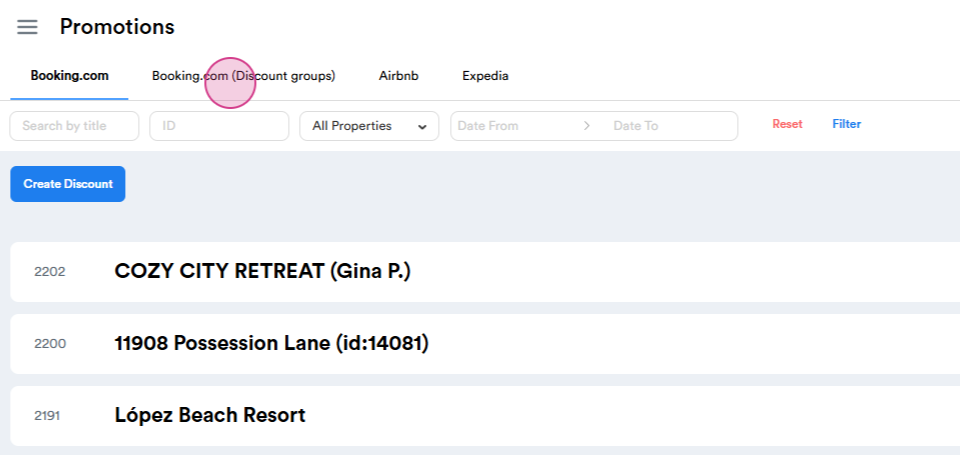
Step 2: Proceed to Booking.com (Discount groups).
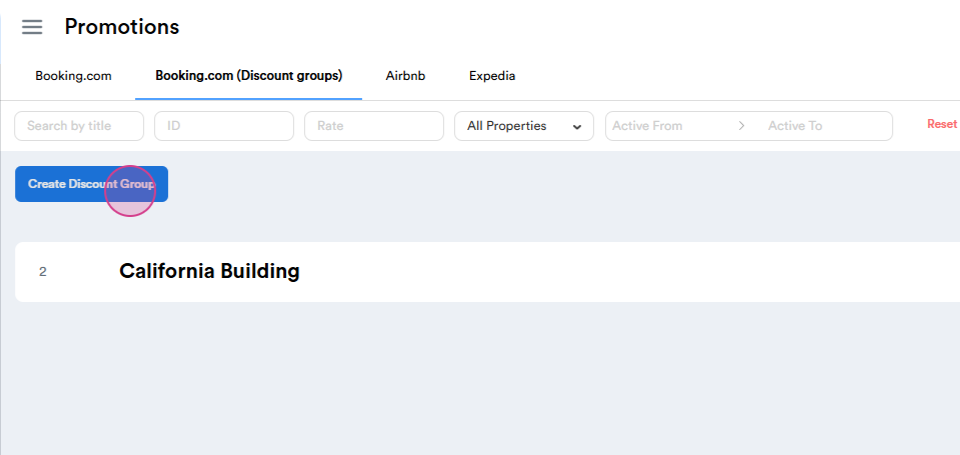
Step 3: Choose Create Discount Group.
Step 4: Set up the Title, Discount and the Minimum Stay, if necessary. Specify the active Date Range.
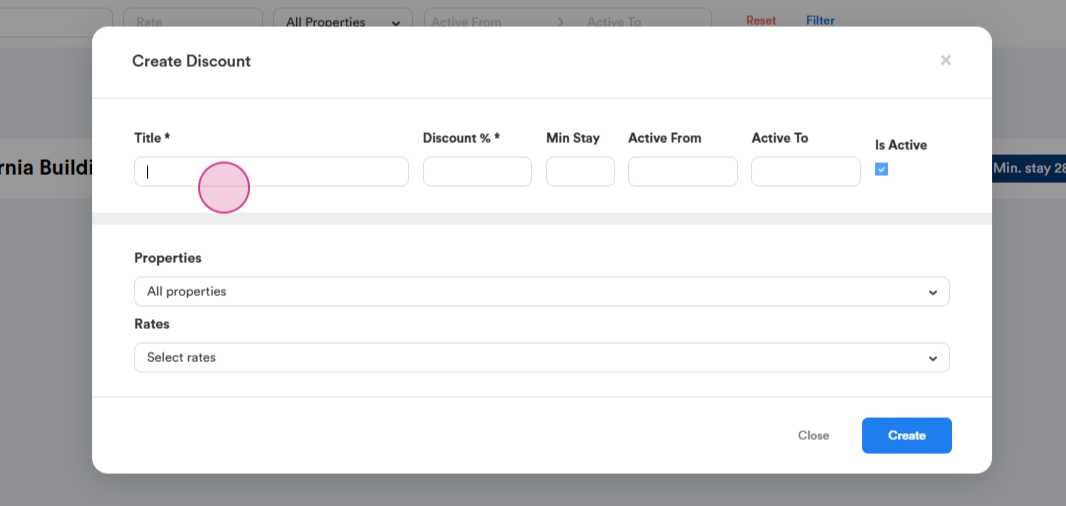
Step 5: By default, the system activates the rate plan when you go to Properties and select the property by Name or ID.
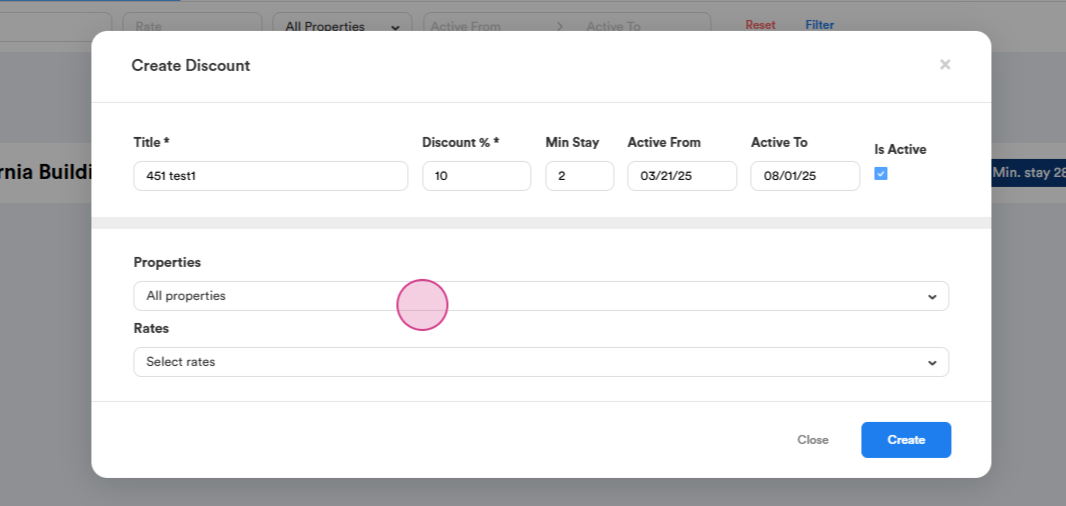
Step 6: Here, you'll see all the Rate Plans associated with that property. On booking.com, there could be one or more.
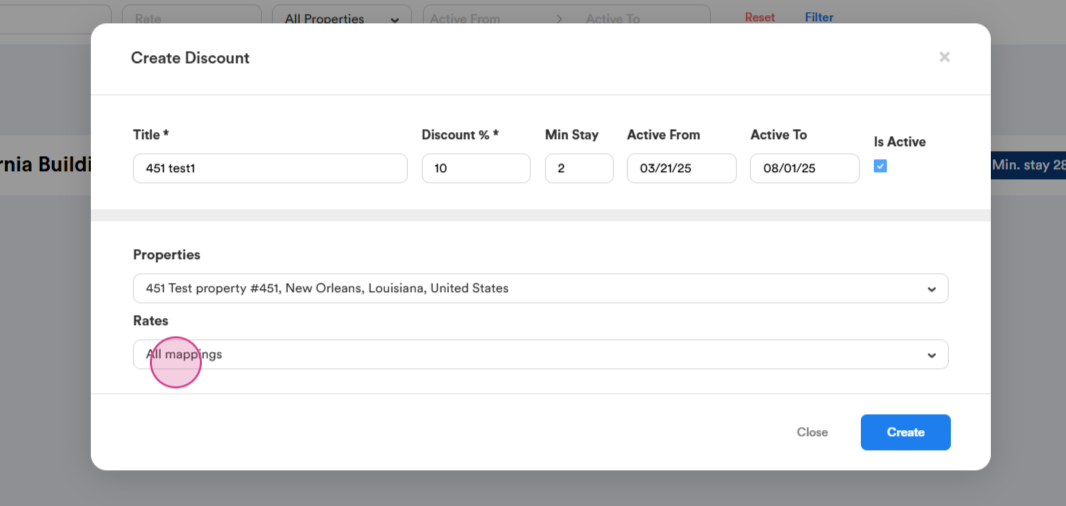
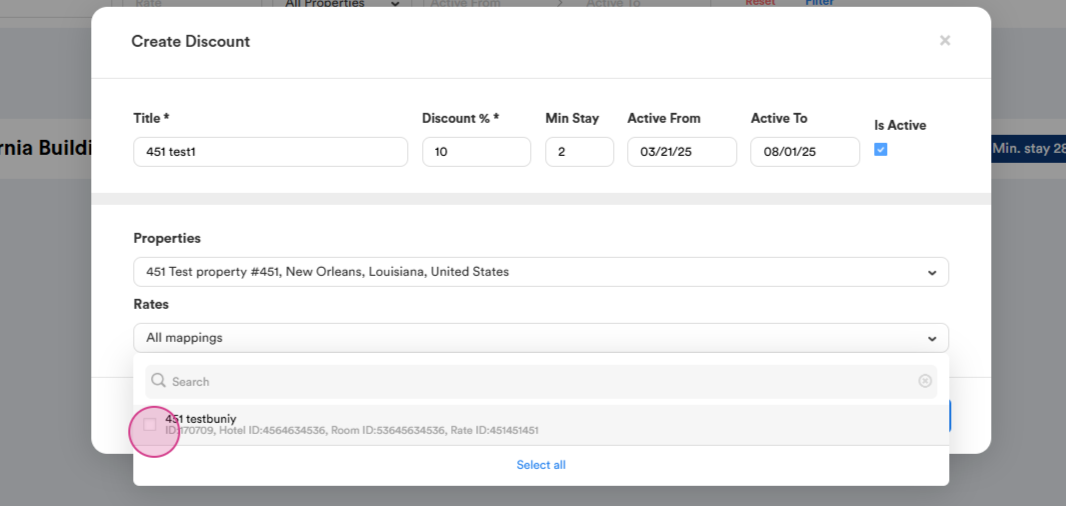
Step 7: Select the eligible Mappings.
Step 8: Click on Create.
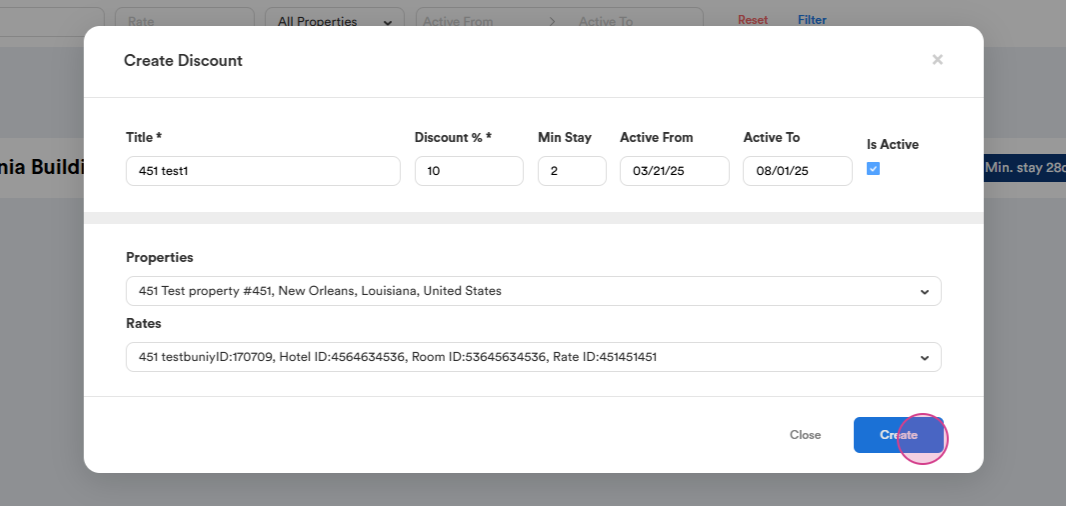
Step 9: You'll notice that the status of our Rate Plan has been updated to Active.
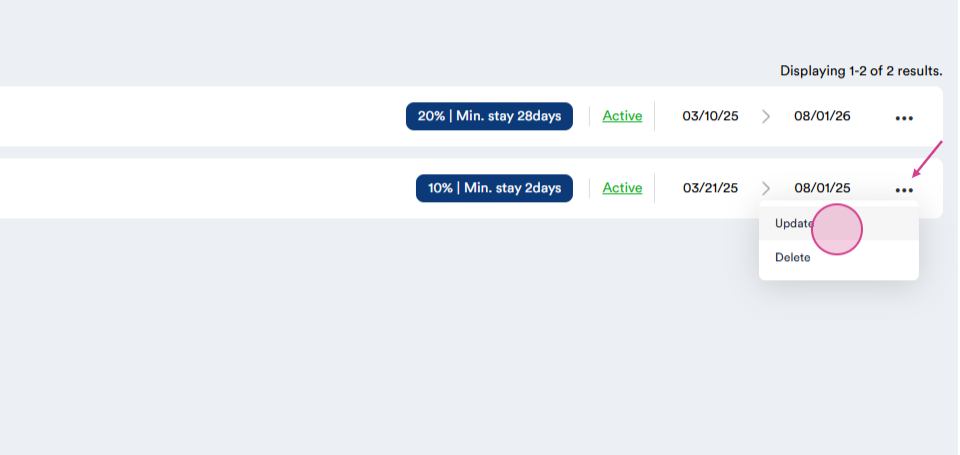
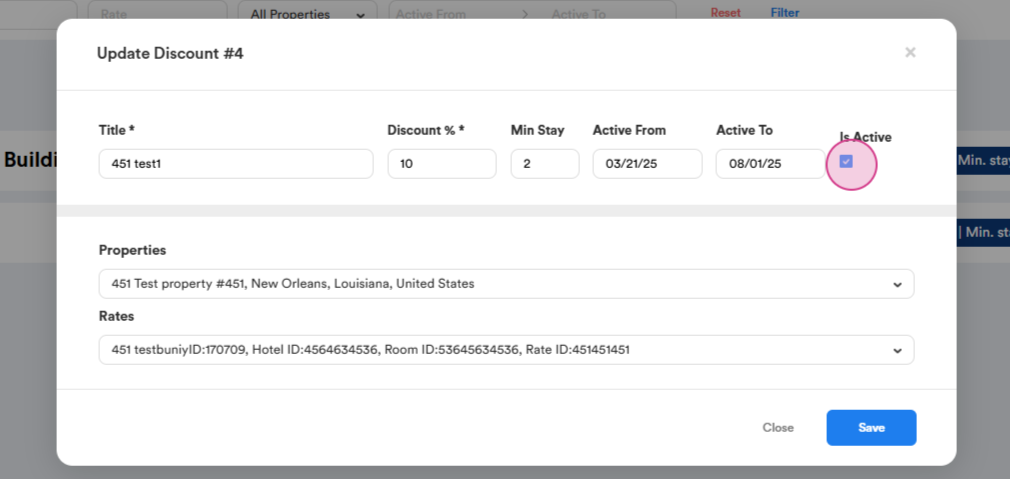
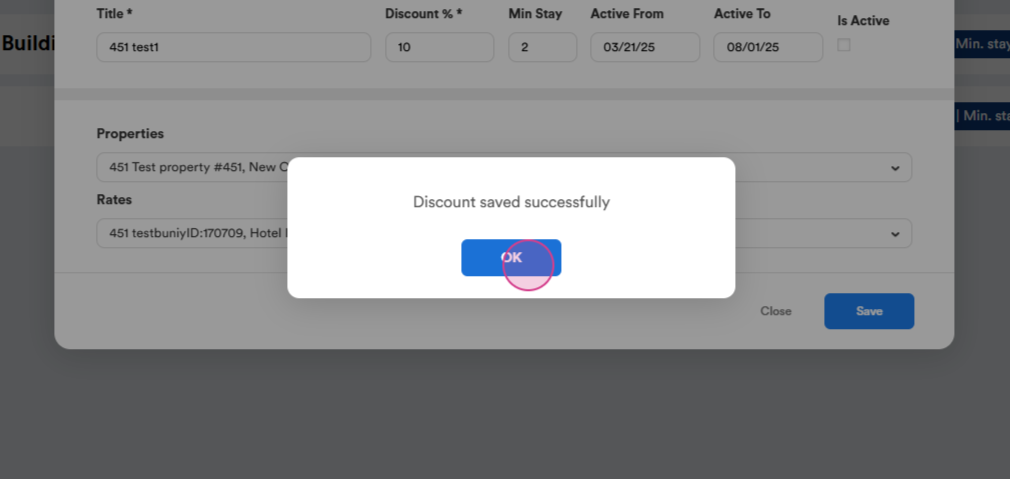
If you wish to Disable the Rate Plan, click on Dots, then on Update. Uncheck the Active Box, and click on Save.
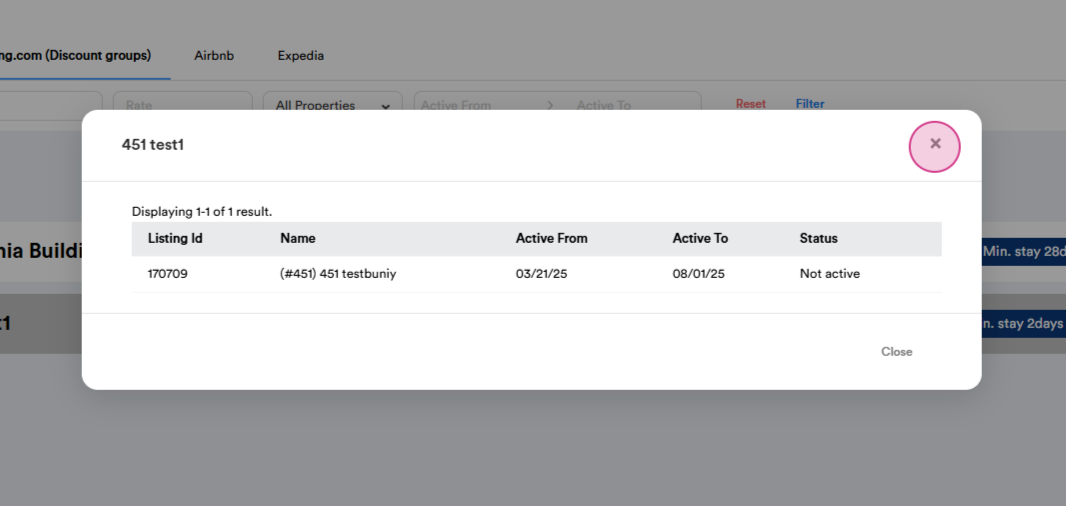
Step 10: Clicking on the status will show you the details of the units, including the Listing ID, Name, Active Dates, and Status.
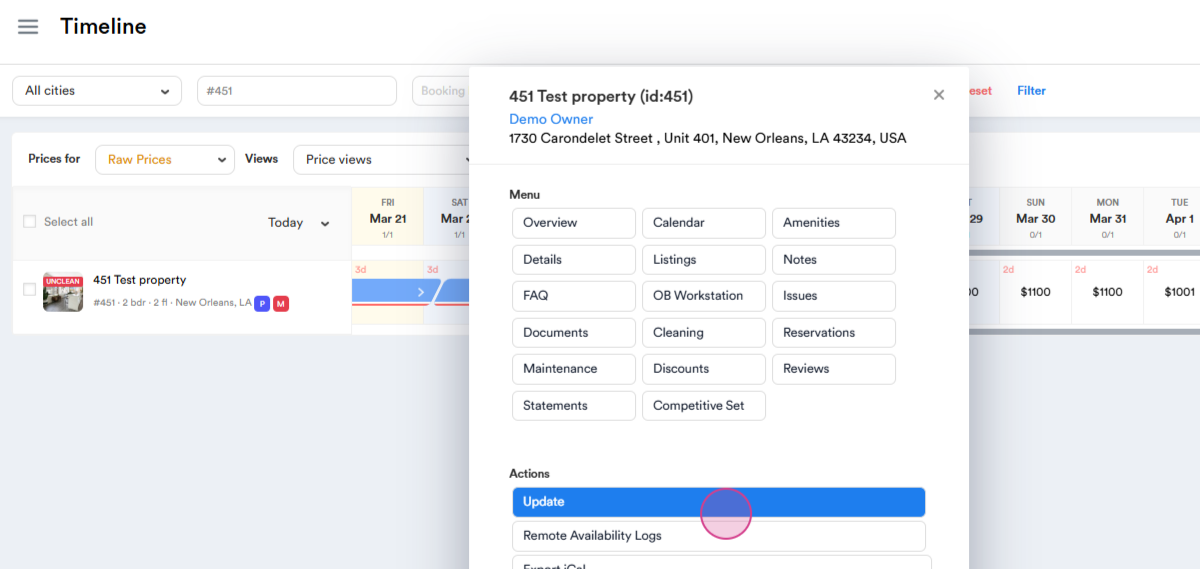
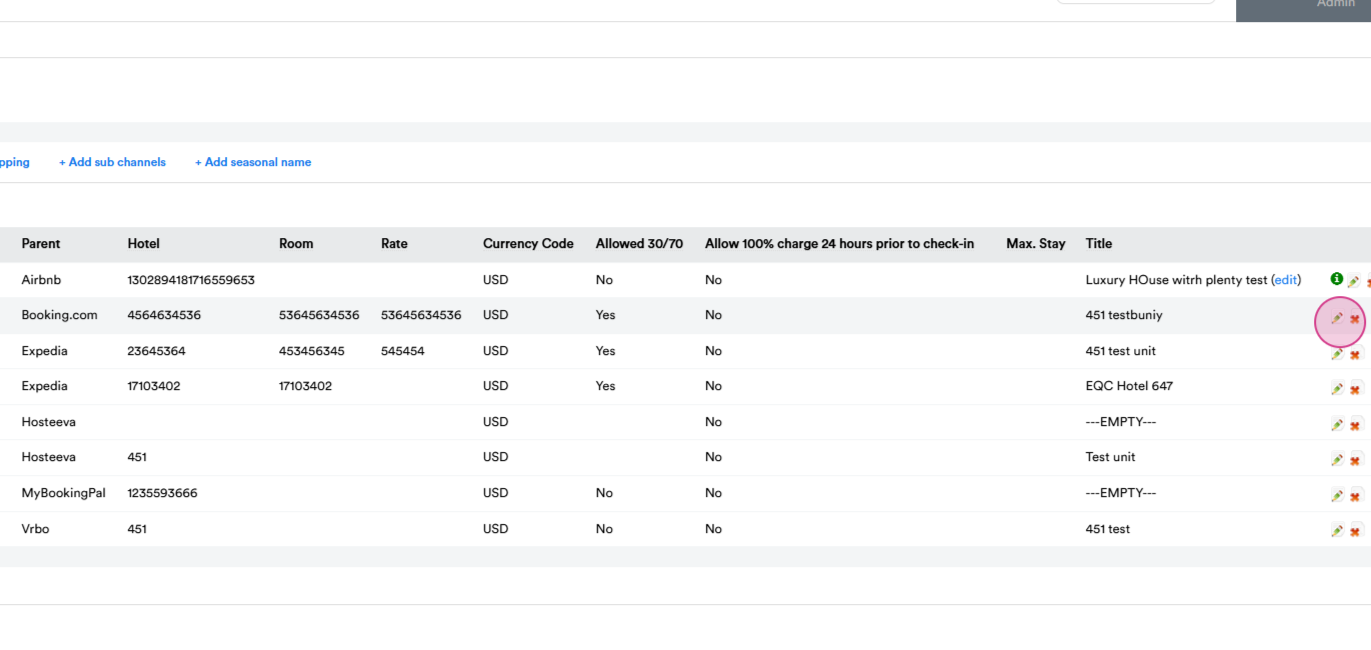
Step 13: To ensure everything is correct, navigate to Timeline, click on the property, go to Update, and scroll down to find Channel Mappings.
Click on Booking Update to confirm that the rate plan has been updated.
You can see the updated Rate Plan, which will display information such as Percentages, Minimum Stay, and Active Date Range.
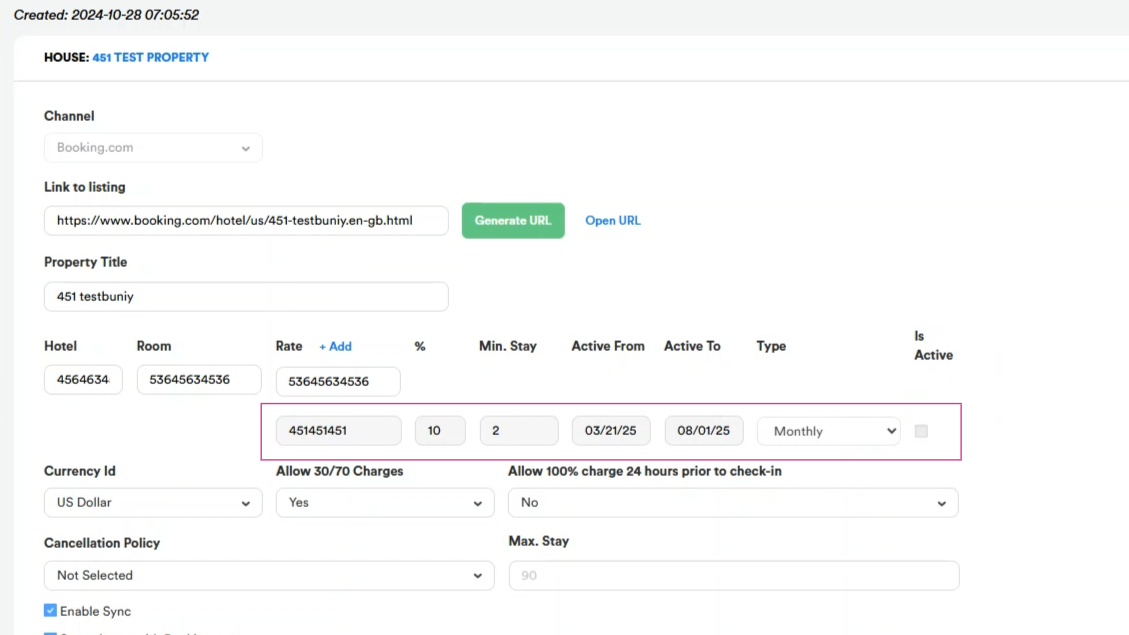
Please note that if a property is added to the Discount Group, it can't be edited from the mapping.
Thank you!