In this article, you'll learn how to make the Tax setup on Airbnb
Step 1: Before starting the tax setup process, the agent should have checked the existing tax setup on Hosteeva. Open Hosteeva timeline.
Step 2: Type the Property Name or ID and click Enter.
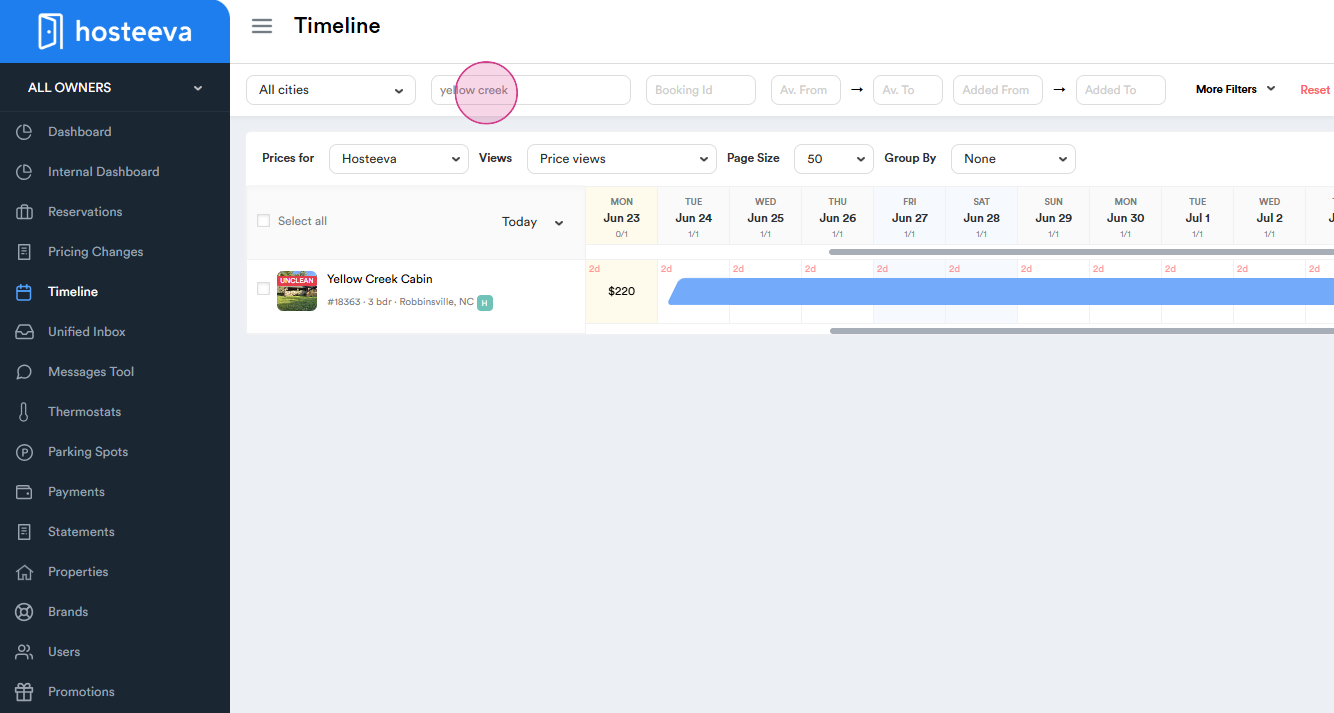
Step 3: Click on the Property and Press “Update” (in the case of the Hotel the setup should be done on the room type).
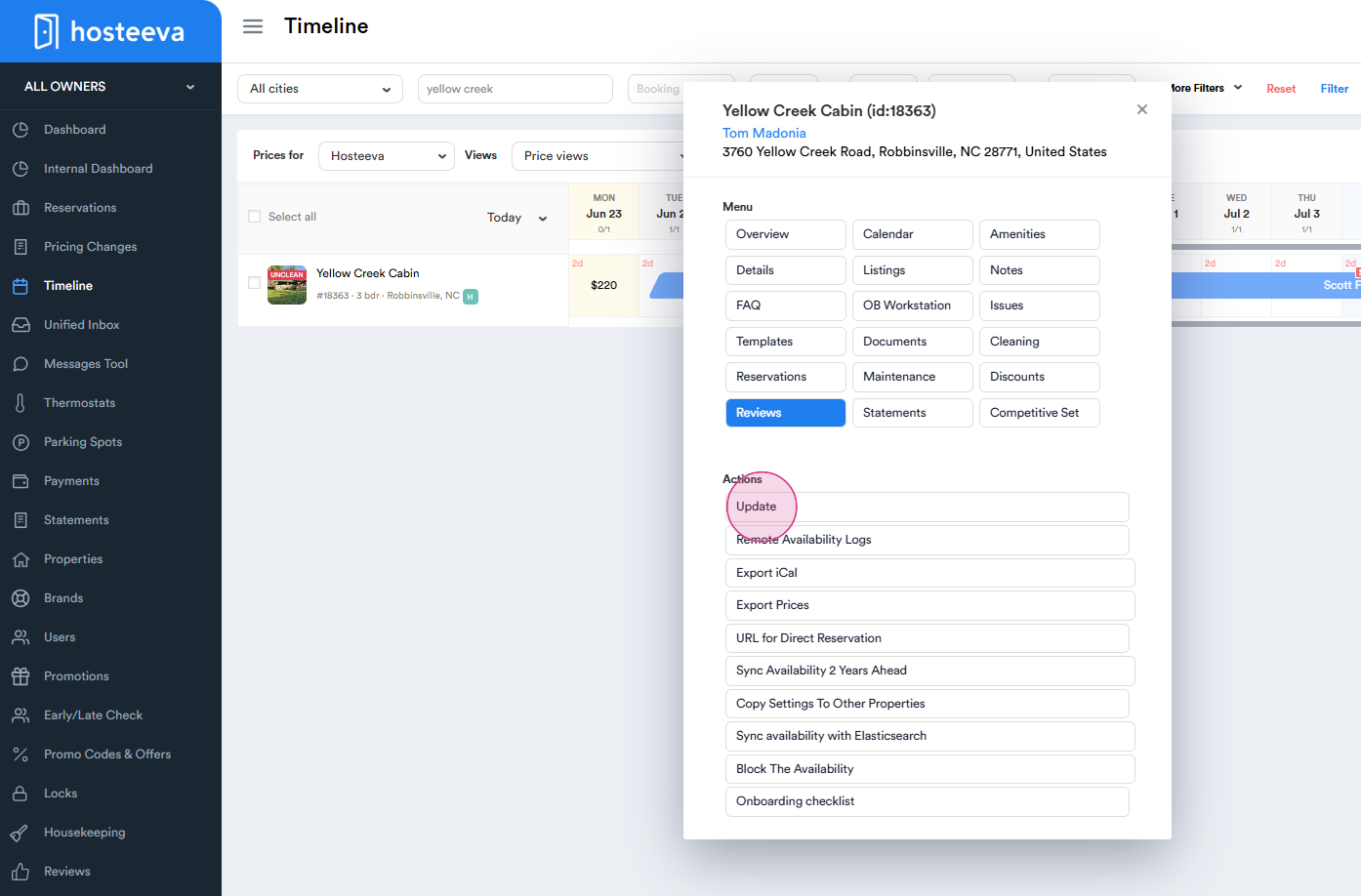
Step 4: Go to the bottom of the page, find the Airbnb listing, and click on “Edit” on the right side.
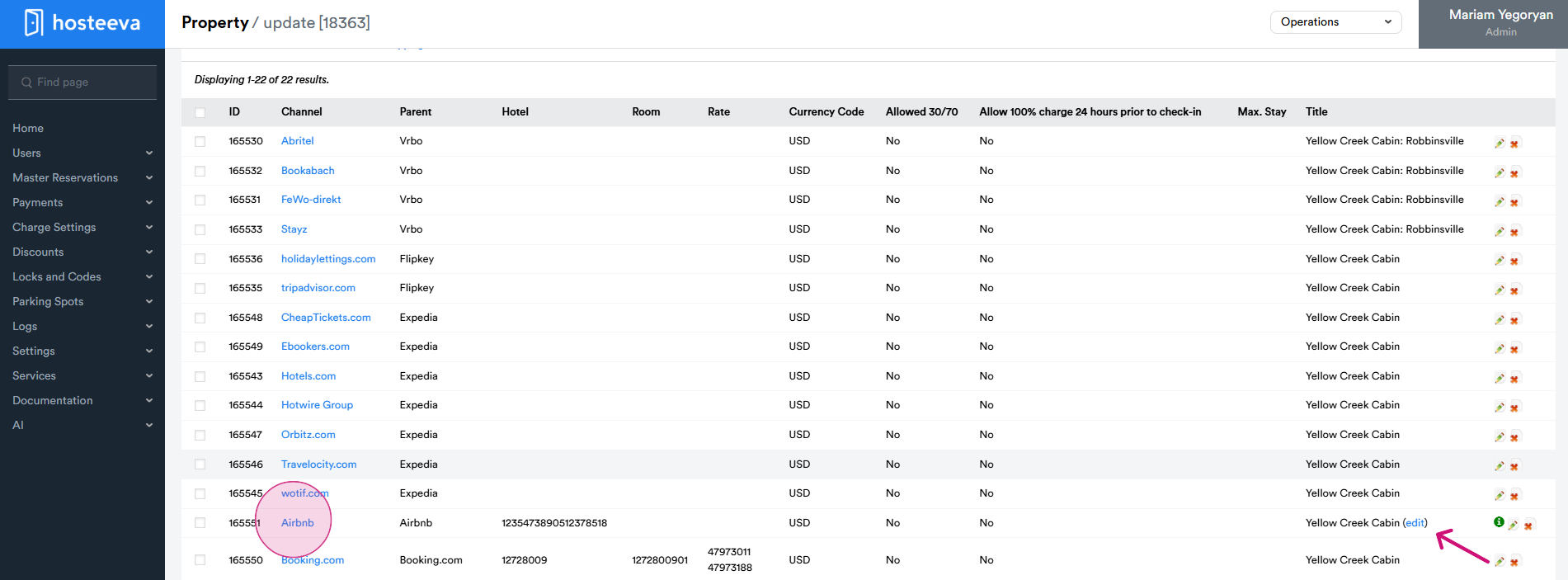
Step 5: The login (2) and password (3) credentials for the Airbnb account are located in the upper left corner of the Airbnb integration page.
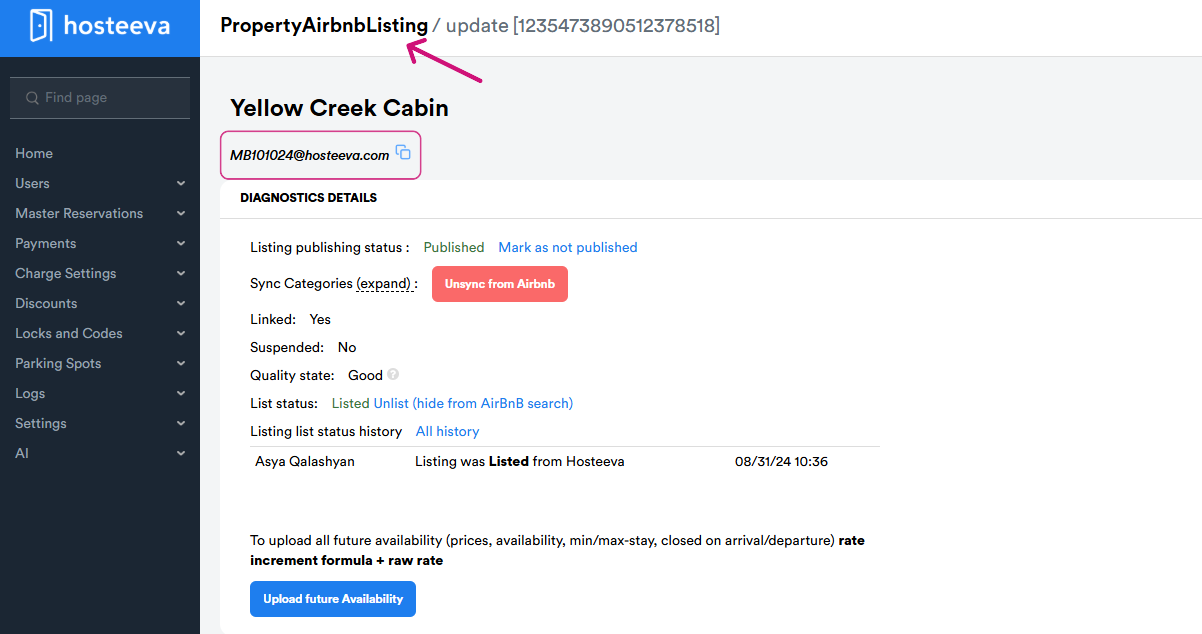
Step 6: Go to Airbnb.com, and click on “Log in or sign up”, then “Continue with email”.
Step 7: Enter the email and click “Continue”.
Step 8: Enter the password and click “Continue”.
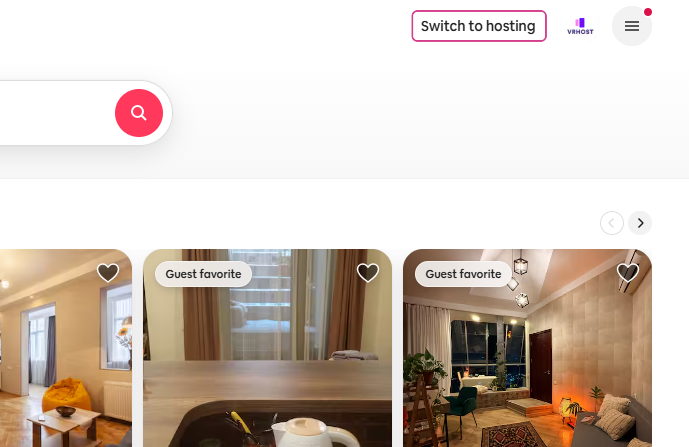
Step 9: On the right corner, click on “Switch to hosting”.
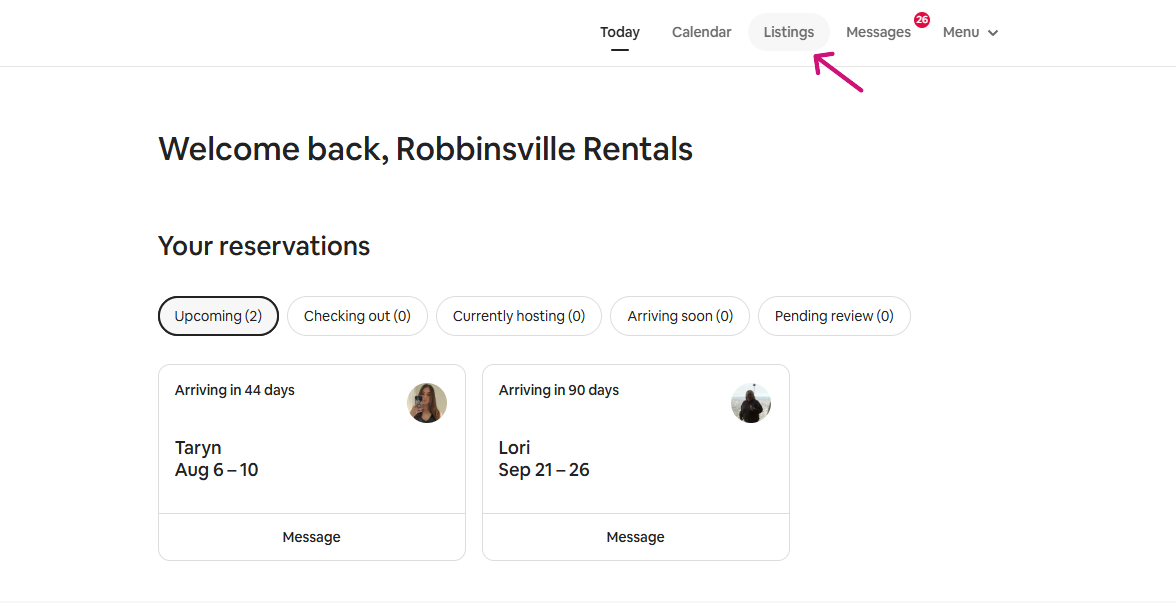
Step 10: Click on “Listings”.
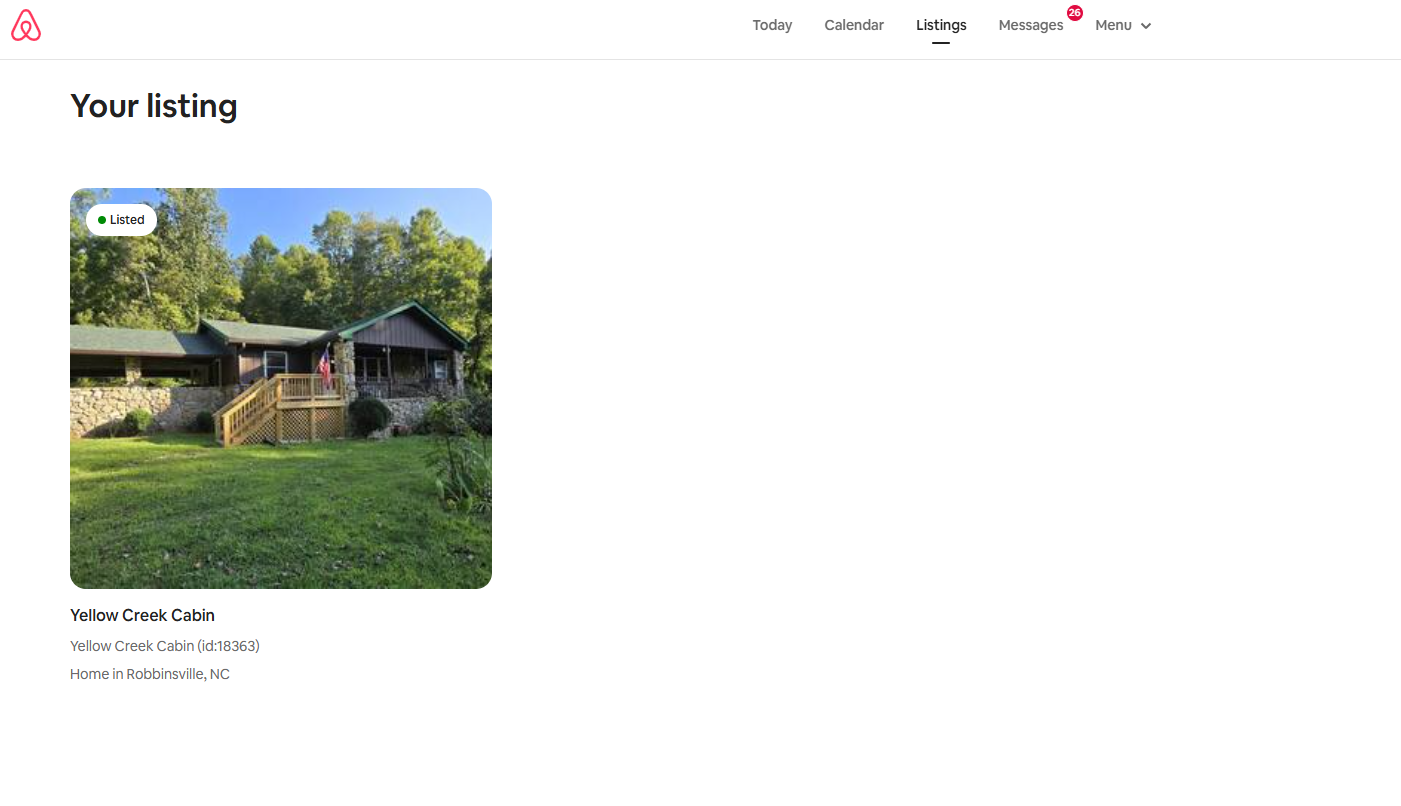
Step 11: Select the listing for which you want to add or change the tax, and click on it.
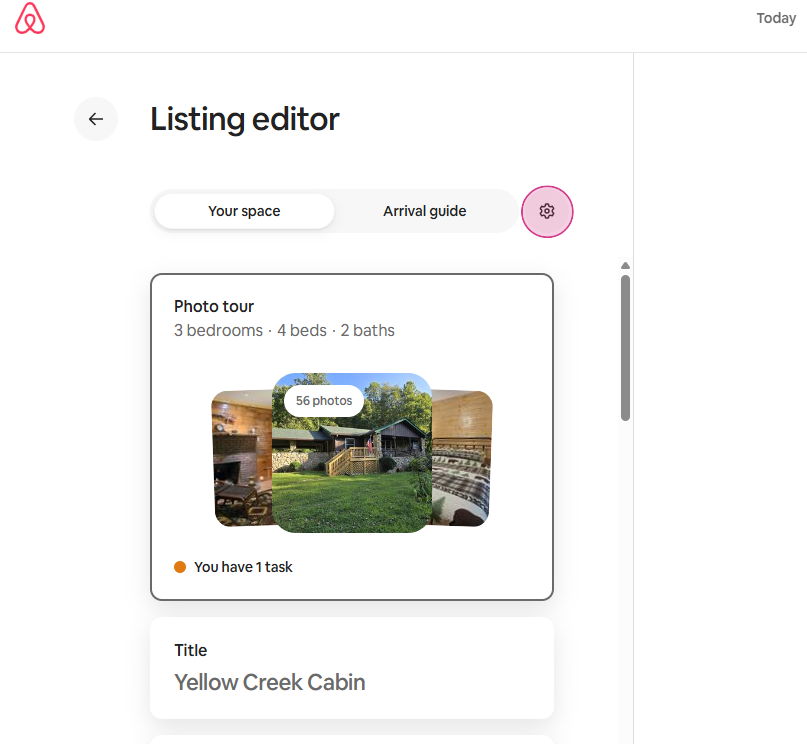
Step 12: On the left panel, click on the “Settings” icon.
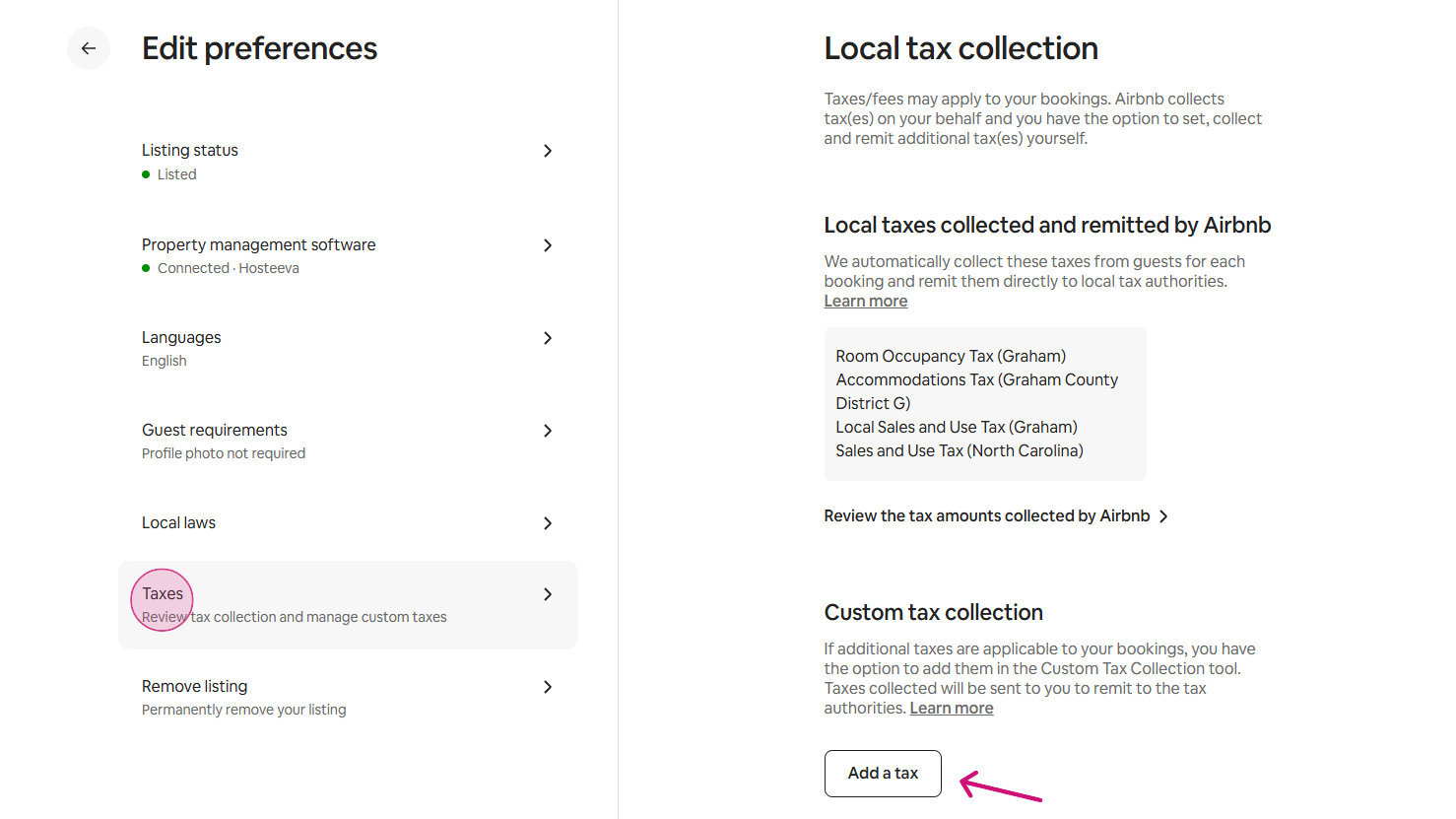
Step 13: On the left panel, click on “Taxes”.
Step 14: If you want to add a new tax, click on “Add taxes”. If you want to edit the already existing tax, go to Step 24.
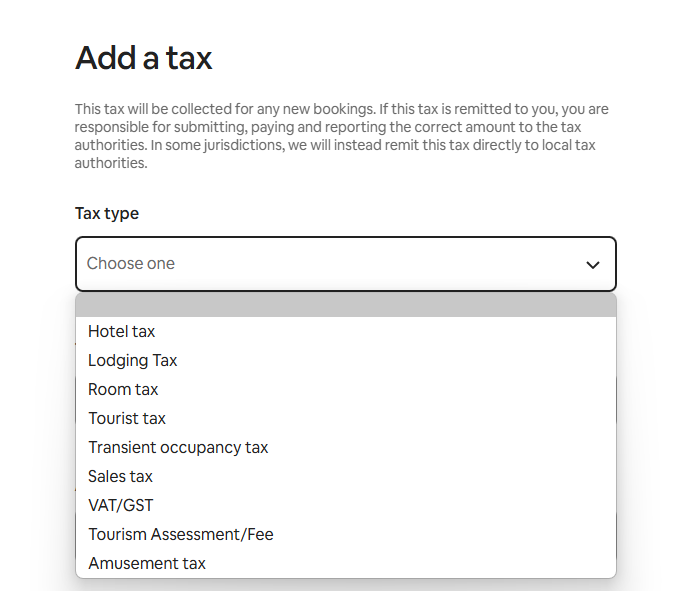
Step 15: On the left side, choose the “Tax type” from the dropdown menu depending on the tax setup of the property.
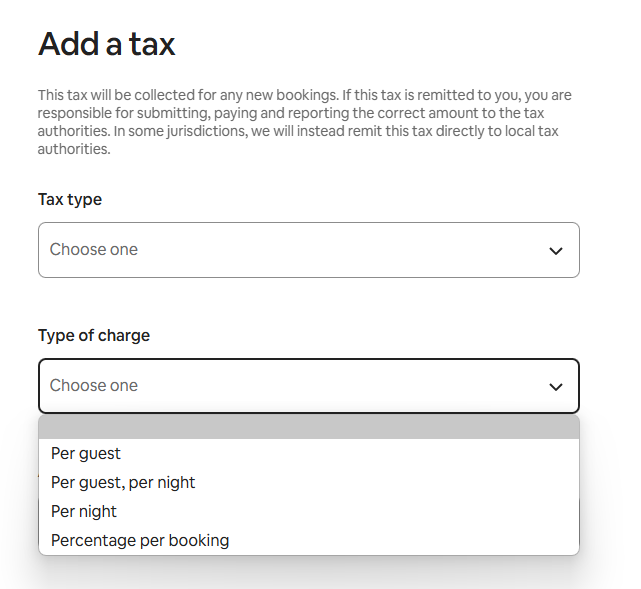
Step 16: Select the “Type of charge” based on the type of tax being set.
Step 17: Type the needed amount of tax added in the “Amount” section.
Step 18: Select the checkboxes in the “Taxable base” section, identifying what the tax rate should be applied to.
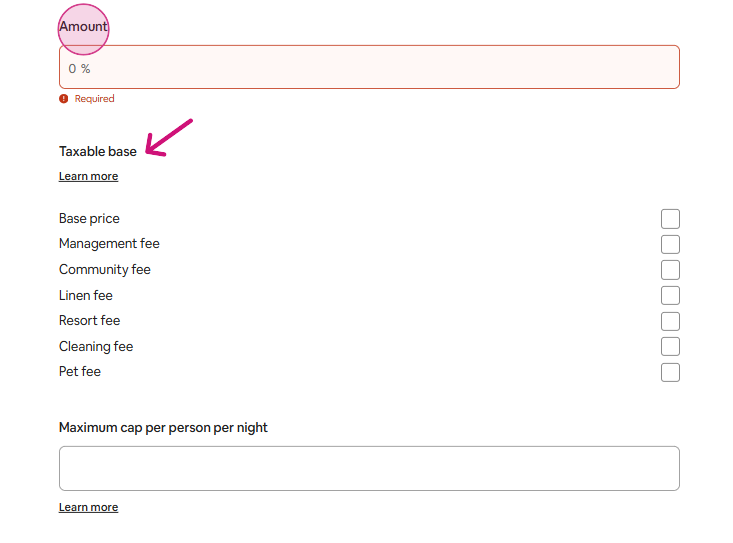
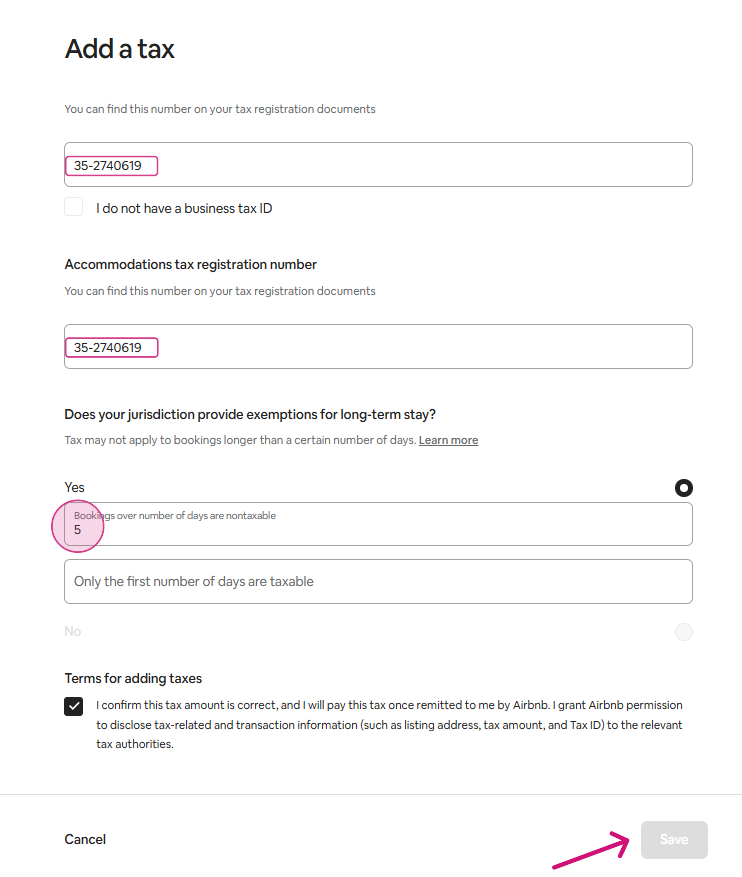
Step 19: If the tax applied has a “Maximum cap. per person per night”, add the amount. In both the “Business tax ID” and “Accommodations tax registration number” fields, enter: 35-2740619 (for Managed and Hosted properties).
Step 20: In the section “Does your jurisdiction provide exemptions for long-term stay?”, select “No” if there is no short-term rental tax application period and “Yes” if there is a definite period for short-term rentals.
Step 21: Enter the number of days after which the taxes shouldn’t be applied
Step 22: Mark the checkbox “Terms for adding taxes”
Step 23: Click “Save.”
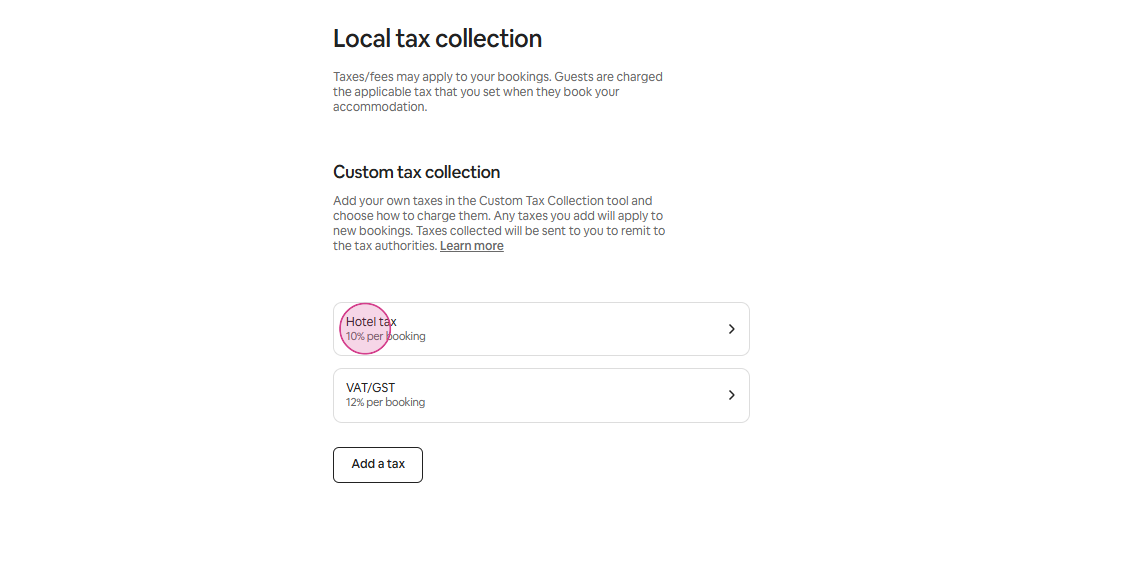
Step 24: For updating the already set tax, click on the tax you want to update.
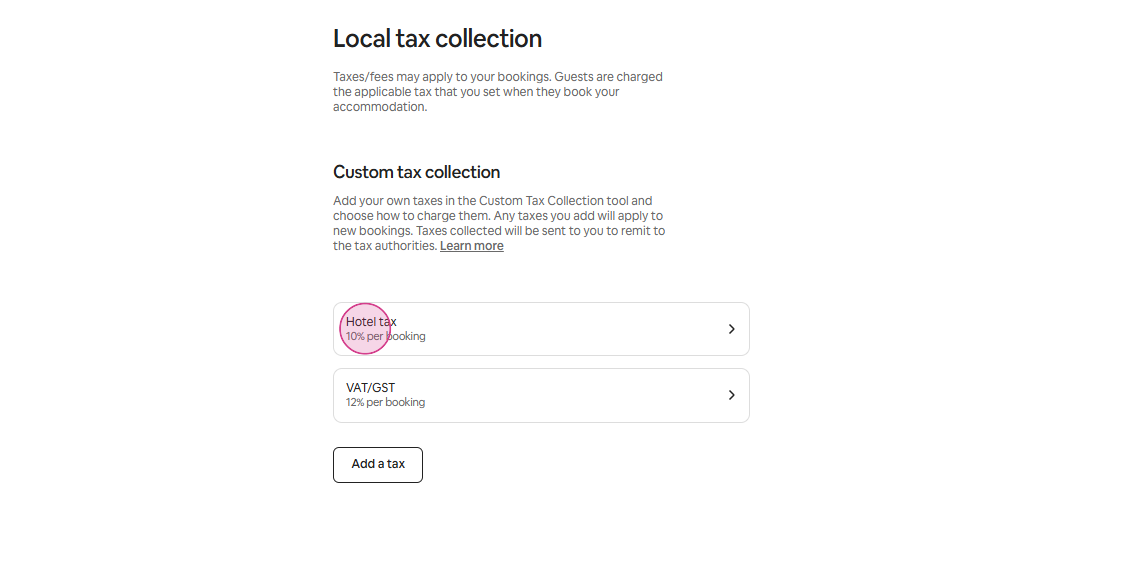
Step 25: Make the corresponding changes and press “Save”.
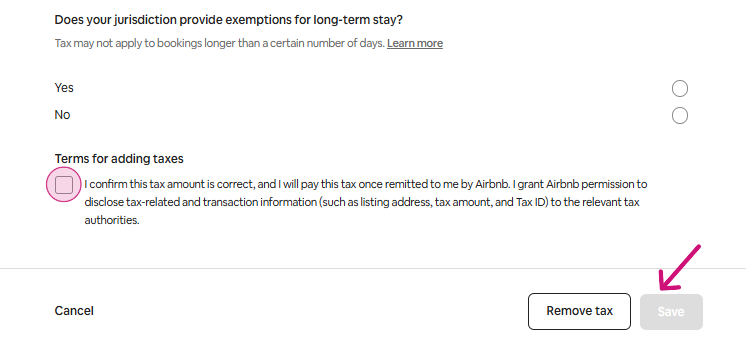
Step 26: To remove the already set-up tax, click on it.
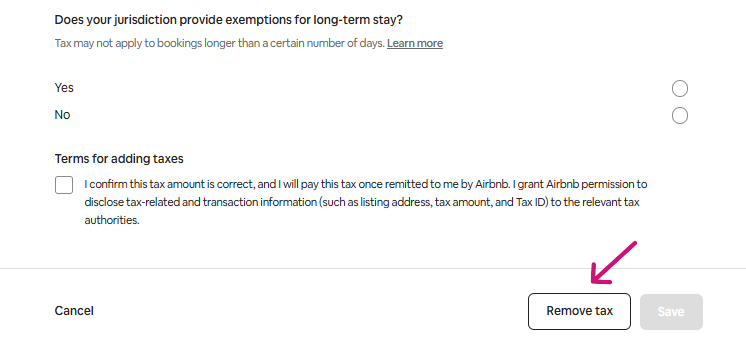
Step 27: Press “Remove tax”.
Thank you!