In this article, you'll learn how to make the Tax setup on Booking
Step 1: Open Hosteeva timeline.
Step 2: Type the Property Name or ID and click Enter.
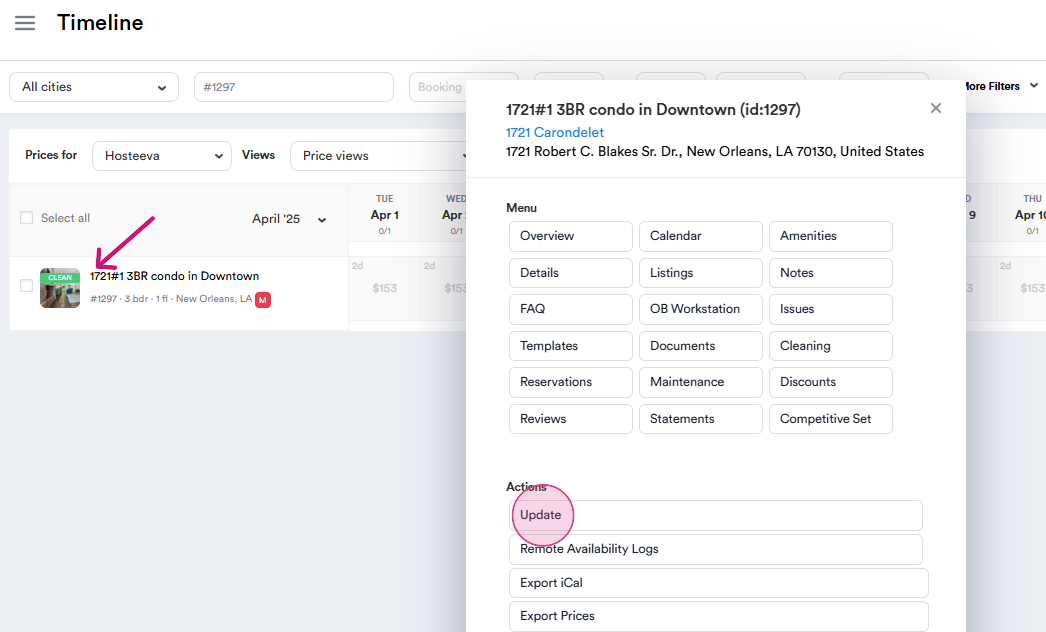
Step 3: Click on the Property and Press “Update” (in the case of the Hotel, the setup should be done on the room type).
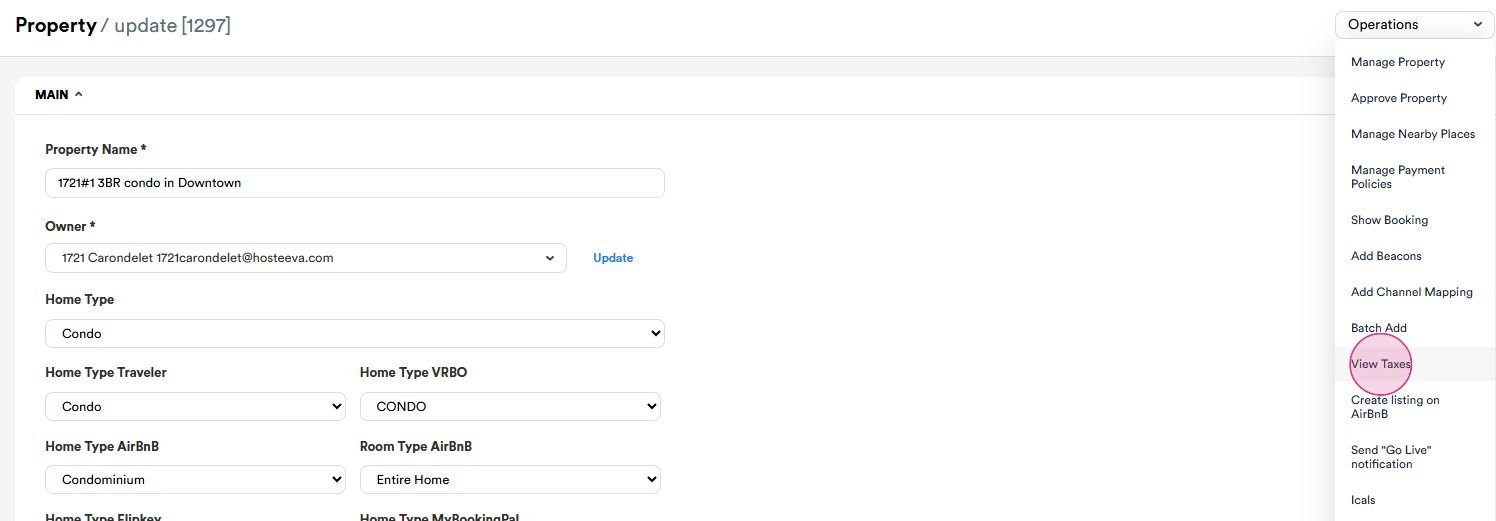
Step 4: From the “Operations”, choose “View Taxes”
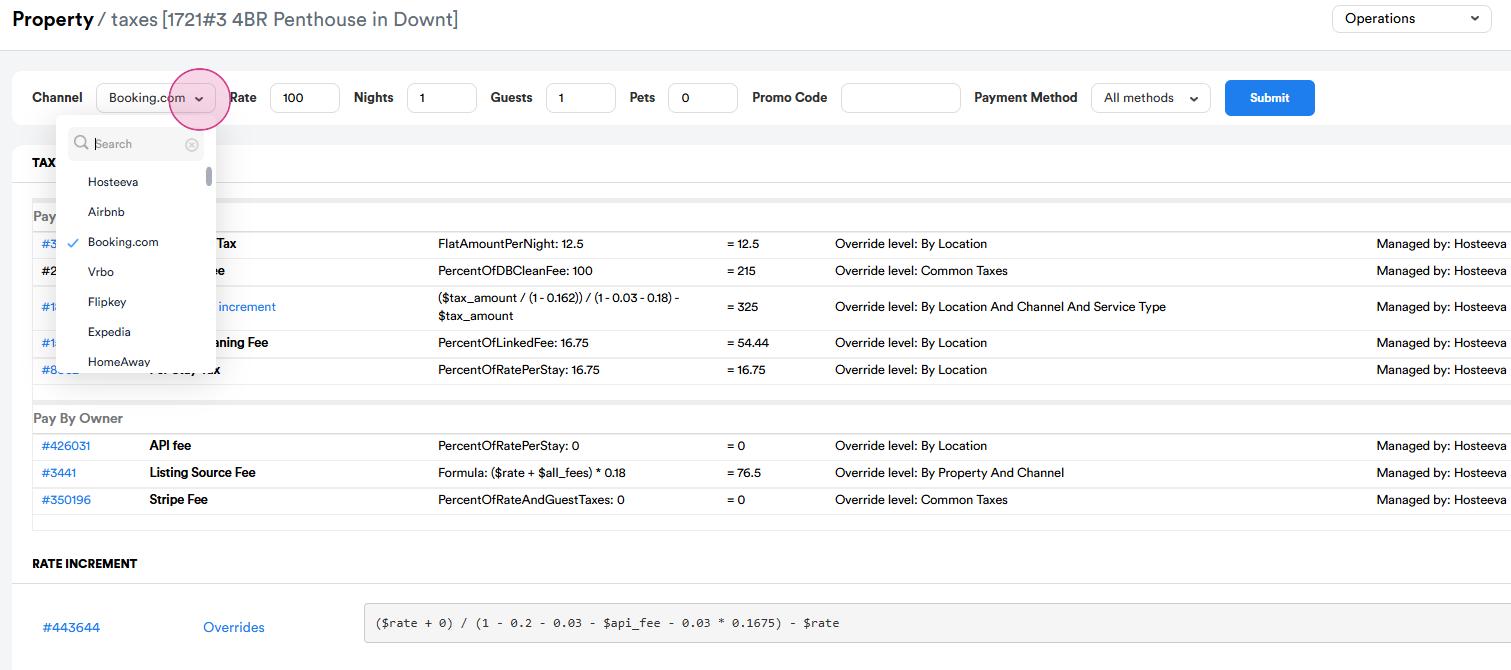
Step 5: On the open page, you can see the setup of the property.
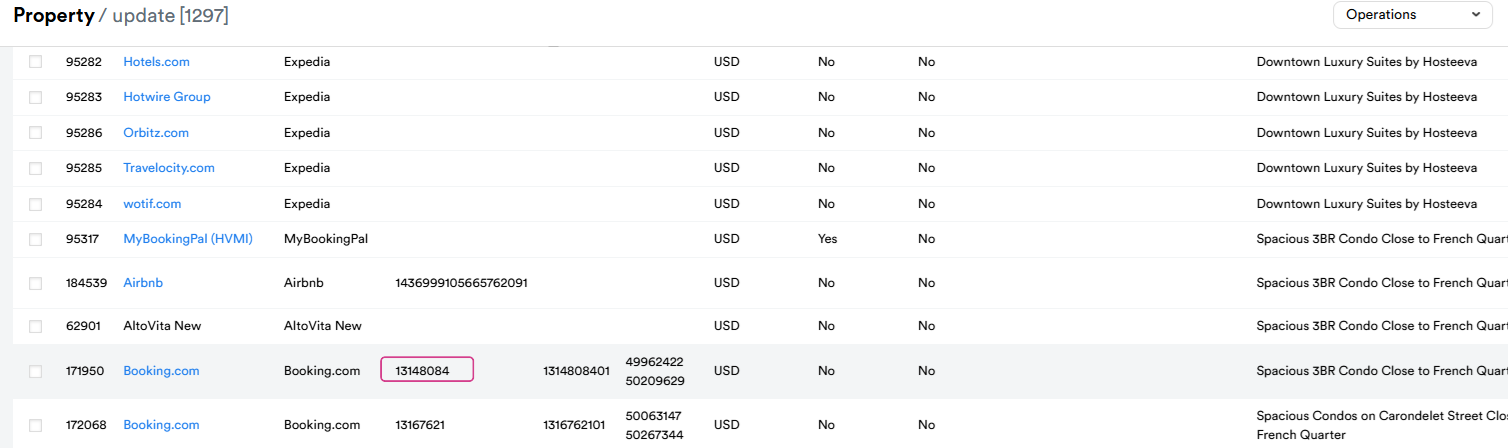
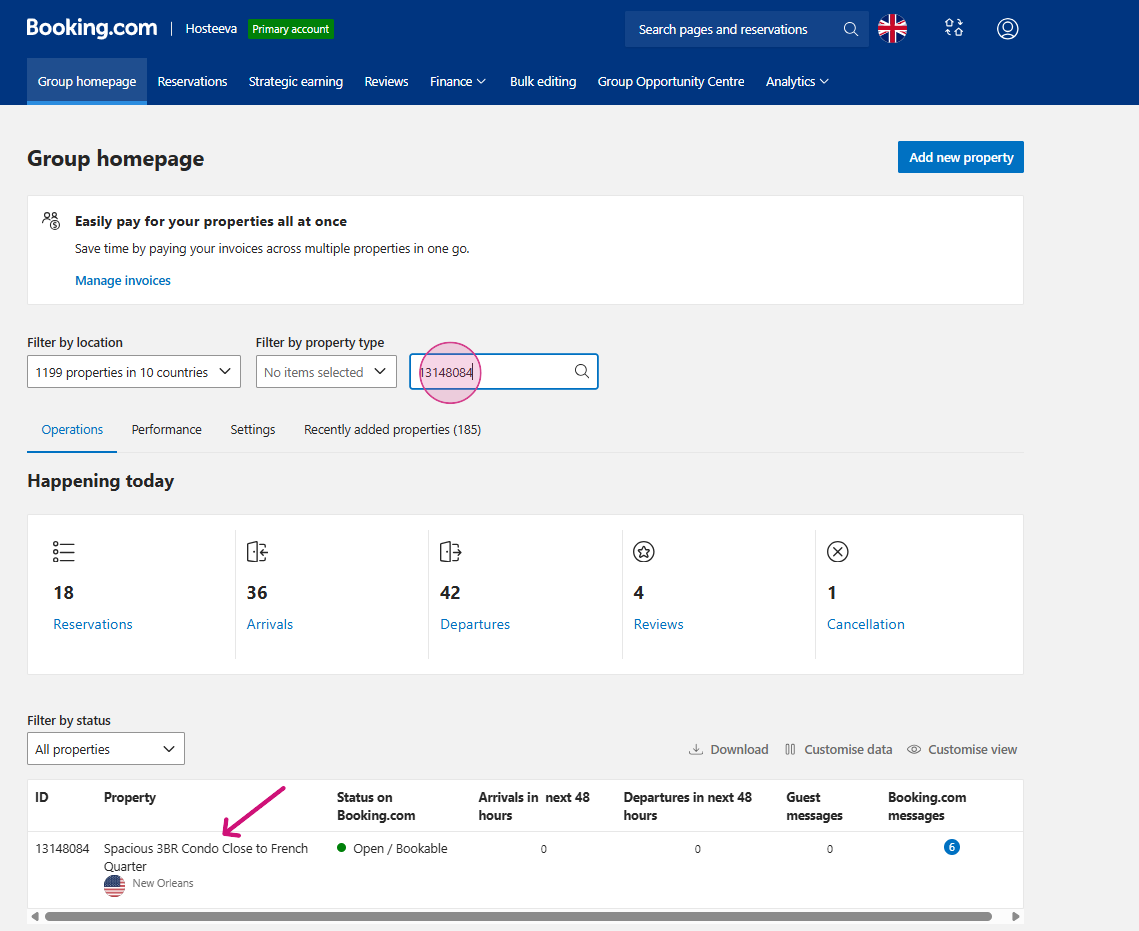
Step 6: To check the taxes on Booking, you need to click the "Update" button as shown, and then copy the Booking property ID from the bottom of the page and go to: https://admin.booking.com/hotel/hoteladmin/
Step 7: Navigate to booking.com
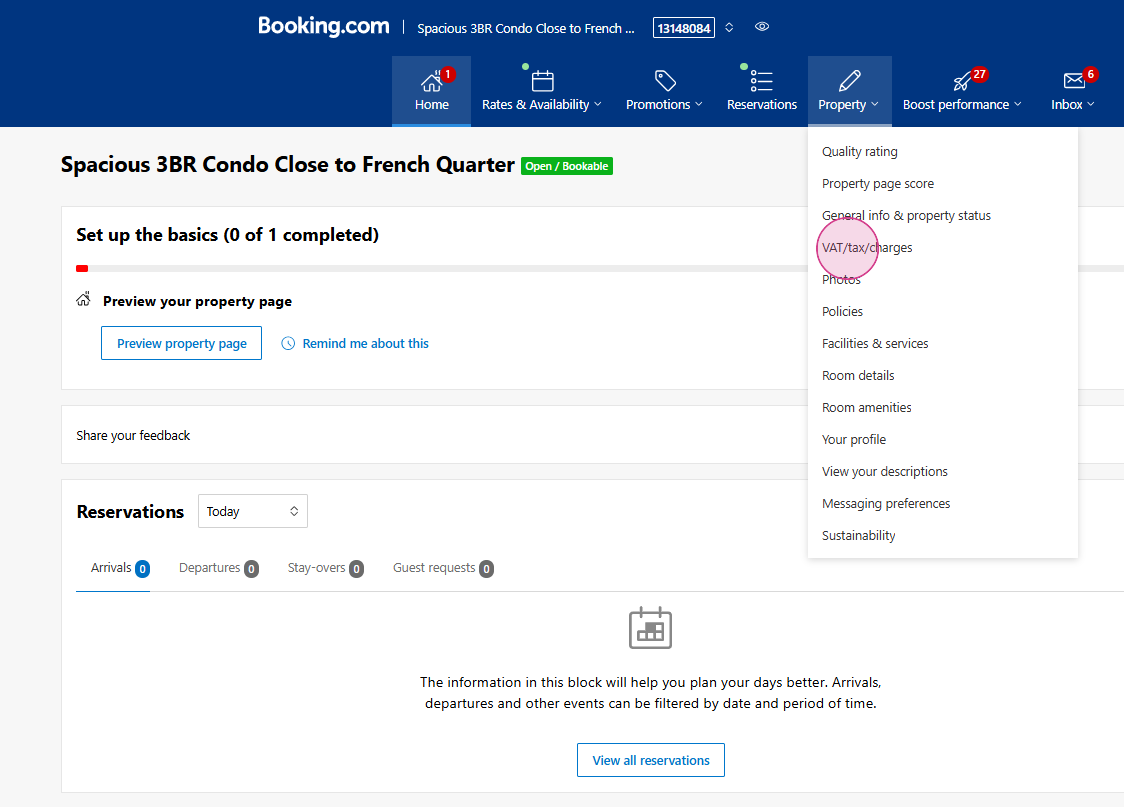
Step 8: To check the setup on Booking, please press VAT/Tax/Charges
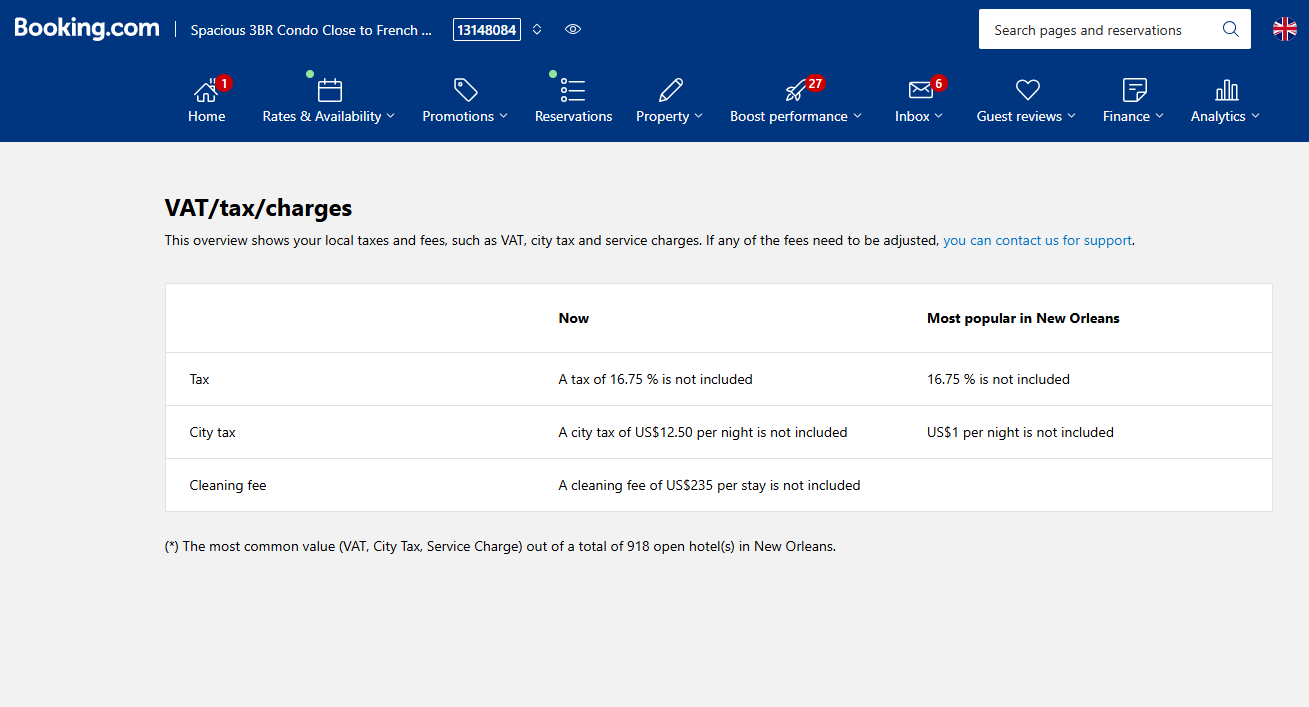
If the setup is incorrect on Booking.com, we have 2 options:
Option 1: Write a message through the extranet requesting the changes
1. Click on the Inbox and select Booking.com Messages from the list
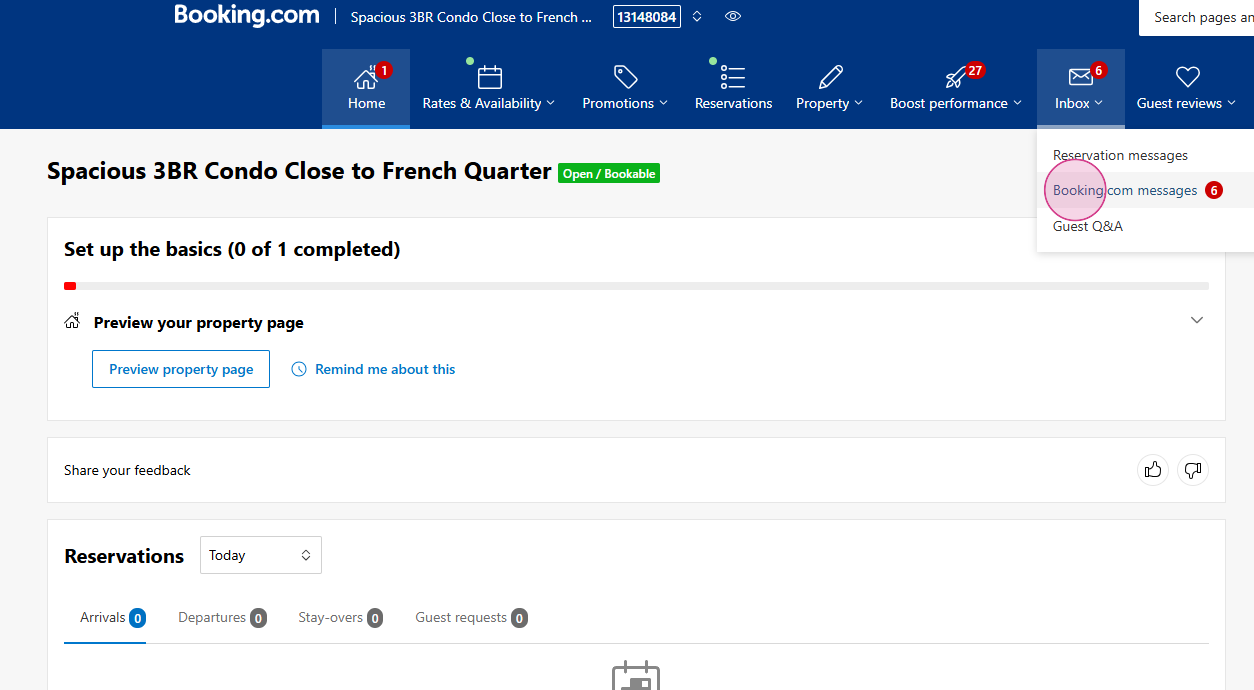
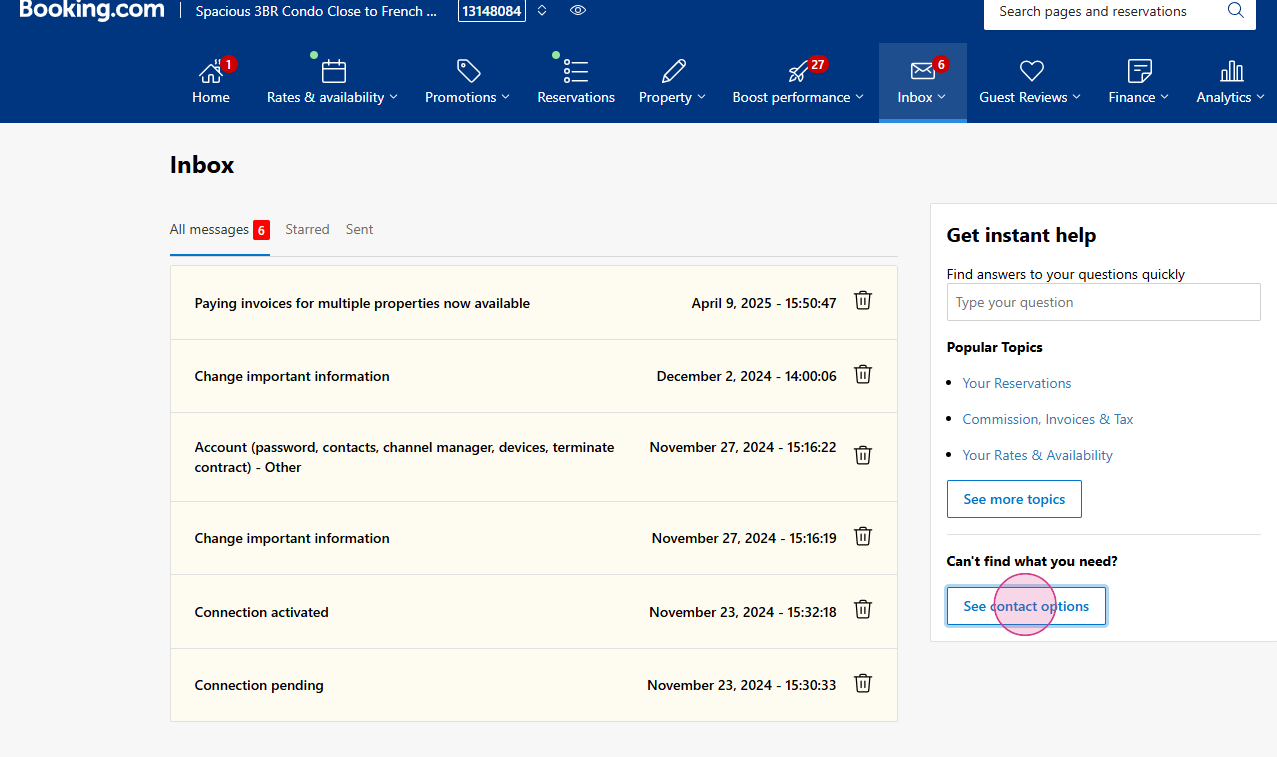
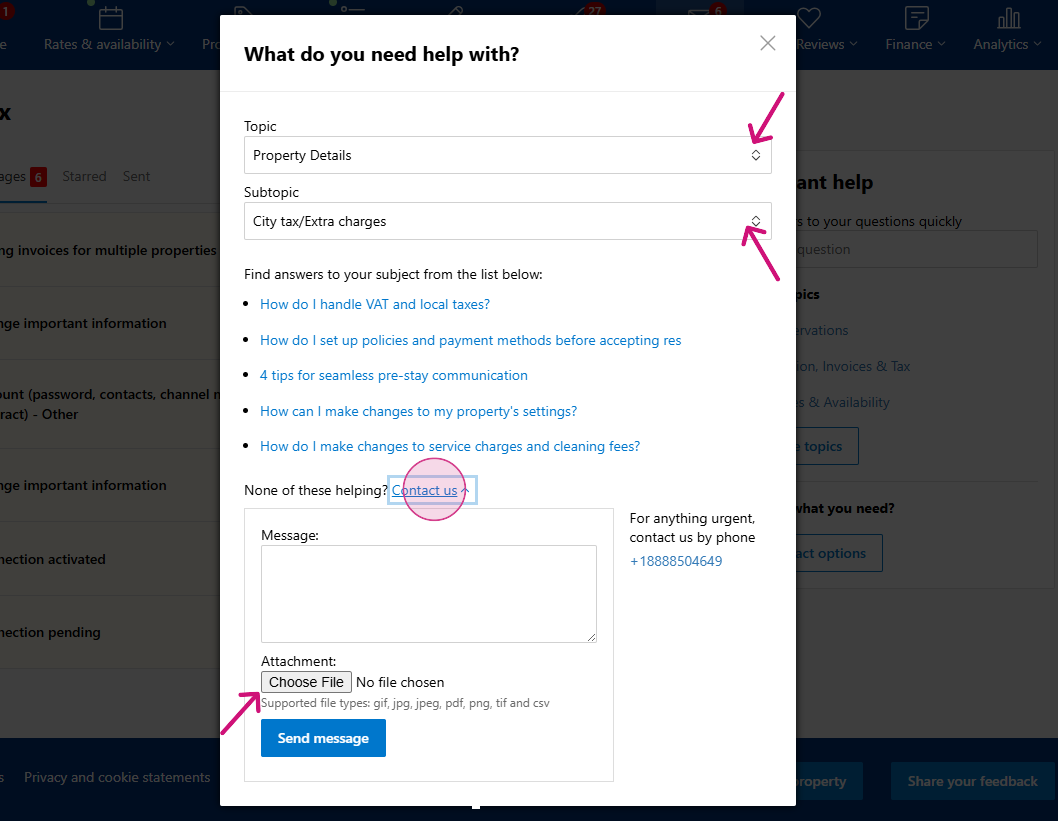
2. From the topics, select Property Details and then choose the subtopic City Tax/Extra Charges
3. Select “Contact us”.
4. In the message box, write the request and press send (if needed, attach a file).
Option 2. Send an email to bookinghome.noram@booking.com and attach this form with all the necessary information and attach the form with all the necessary information, including the hotel ID, room ID (if applicable), charge type (tax or cleaning fee), amount, and mode (ps - per stay, pc - percentage), base (on what the tax should be applied), charge inclusion.

Thank you!