How to Update Access Rights for a User
Keep your workspace secure and organized by updating access rights for individual users. Adjust permissions as roles change, ensuring everyone has the right level of access to the features they need.
Step 1: Go to the Users section.
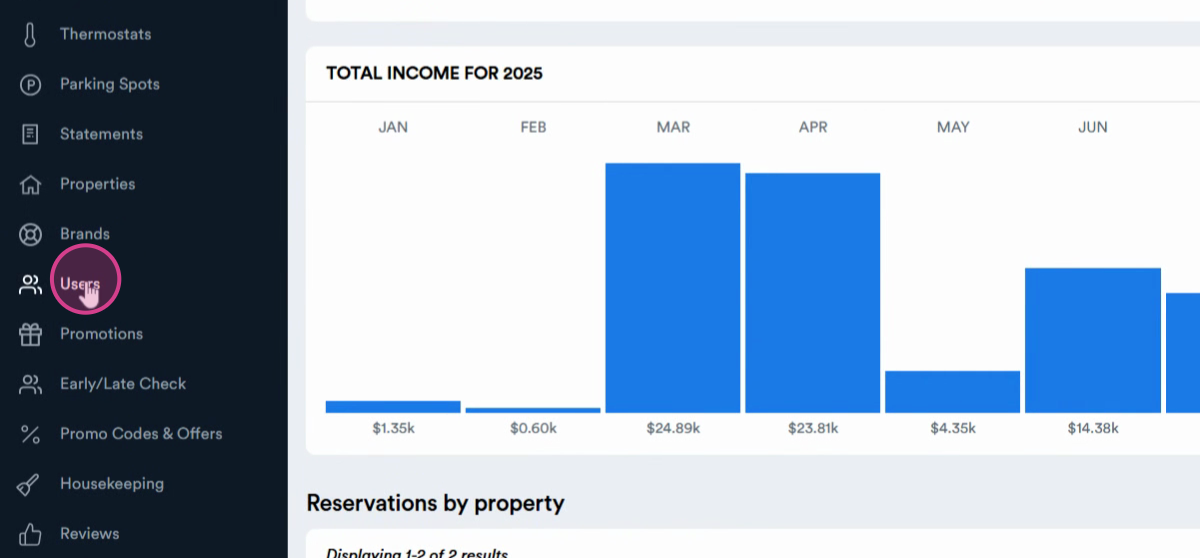
Step 2: Find and select the user whose access rights you want to update.
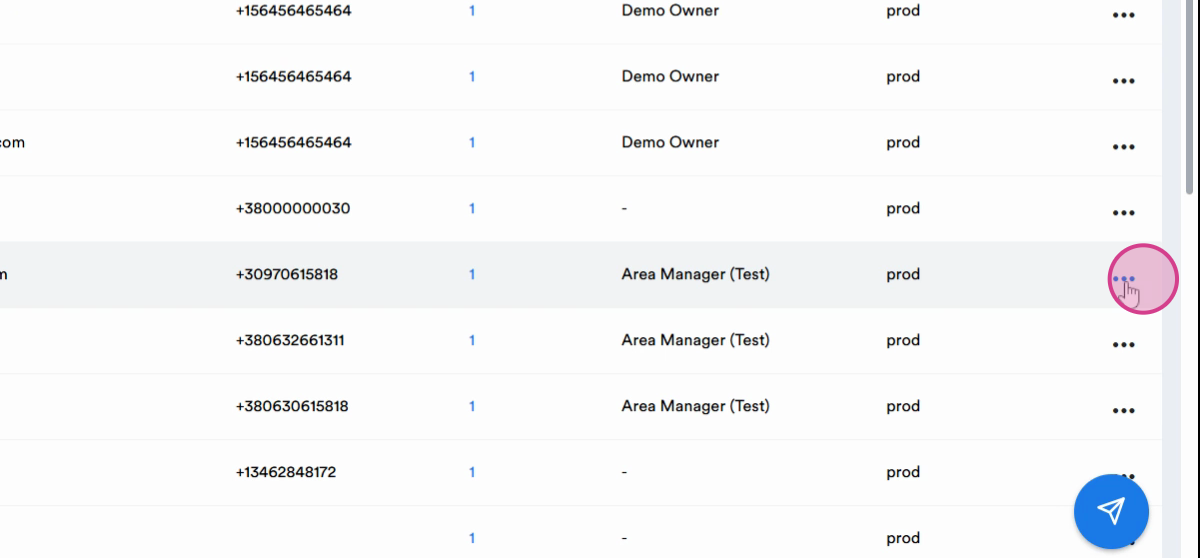
Step 3: Click the three dots next to the user's name.
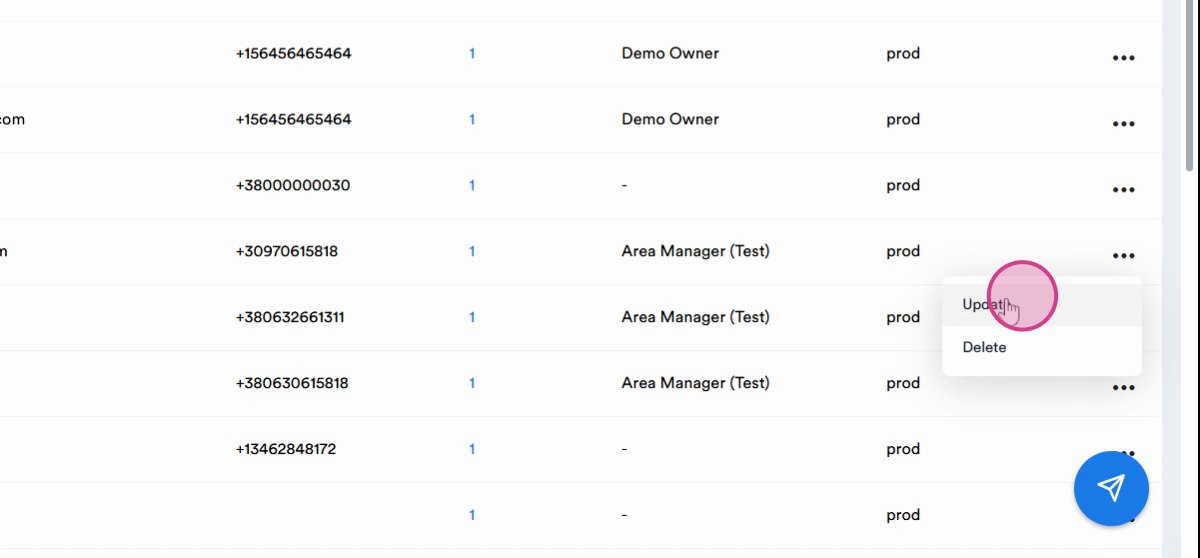
Step 4: Click Update from the dropdown menu.
Step 5: Select the Access Rights option.
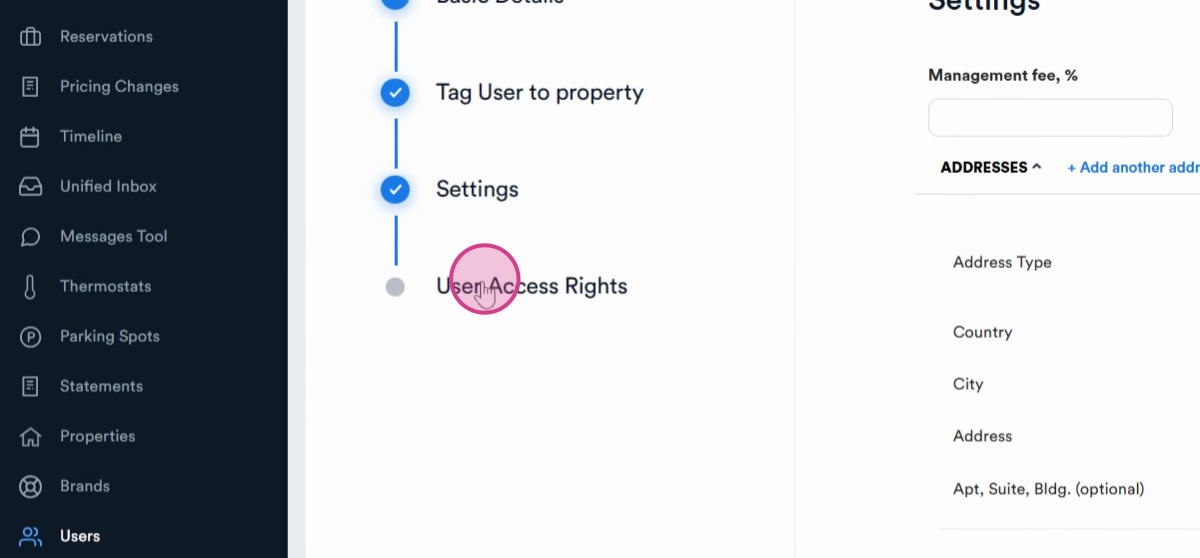
Step 6: Review the available access rights. The list might include options like General, AI, Menu, Reservation Dialog, or Property.
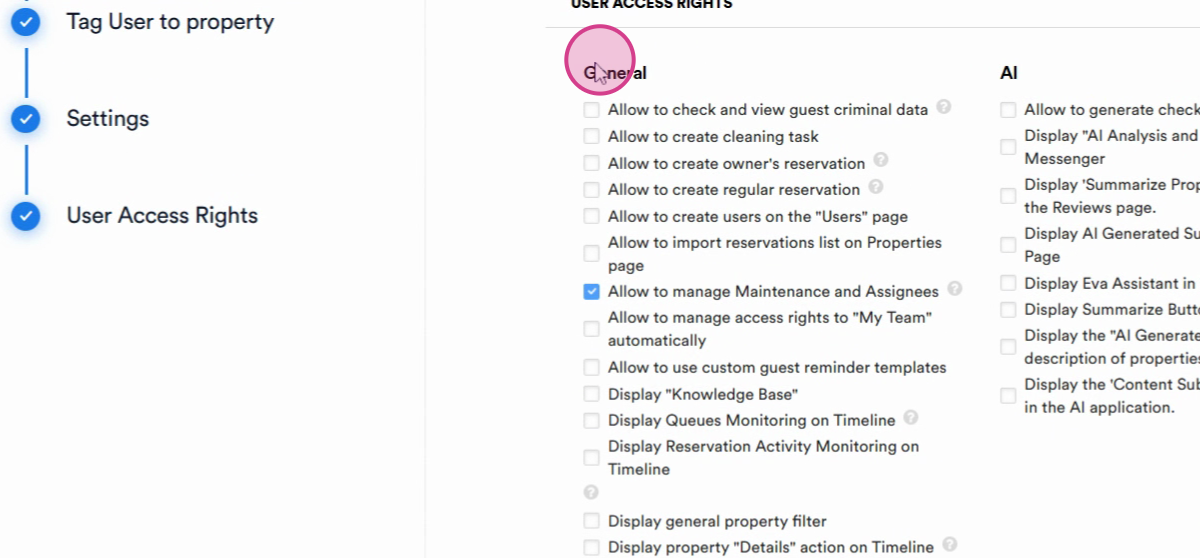
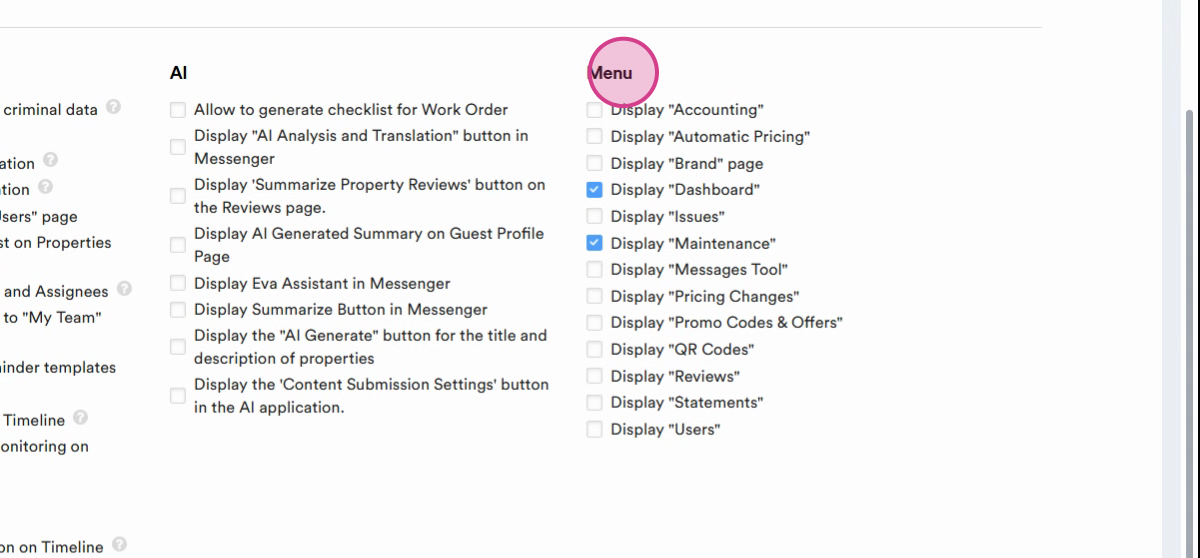
Step 7: Enable or disable rights by checking or unchecking the relevant boxes.
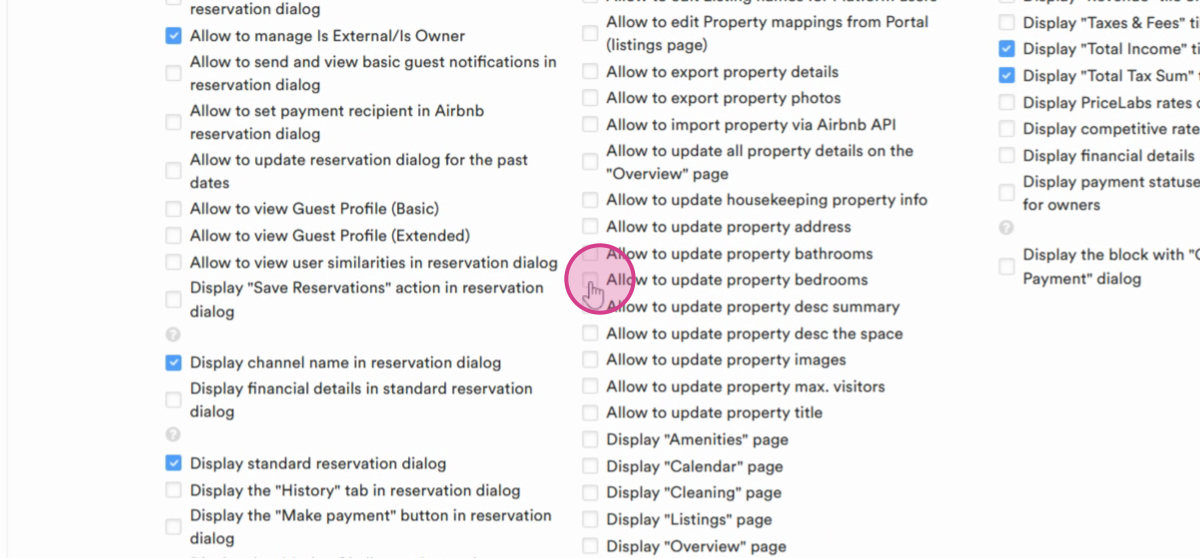
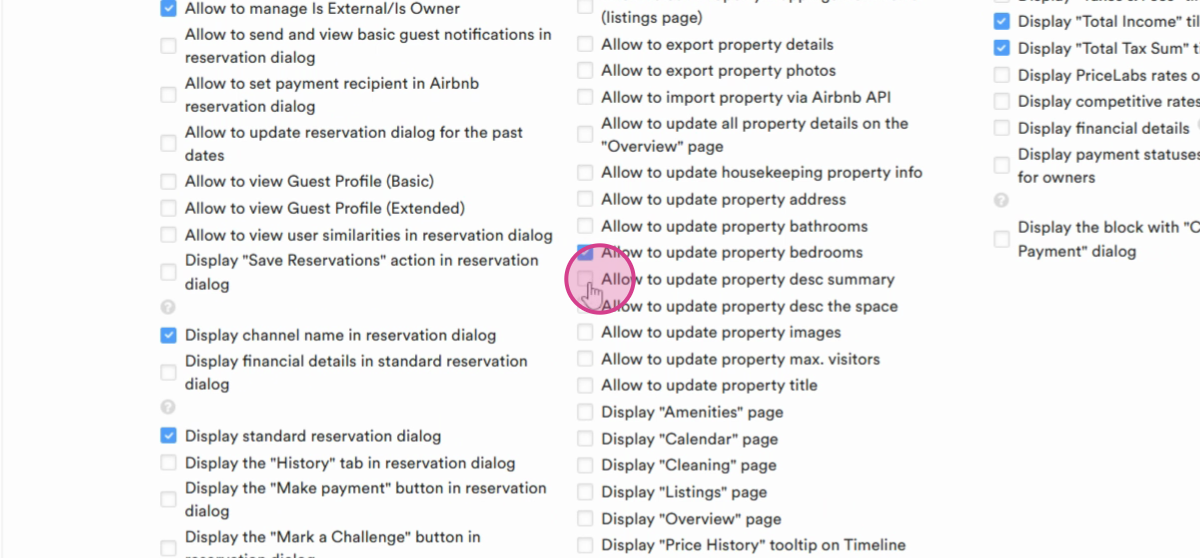
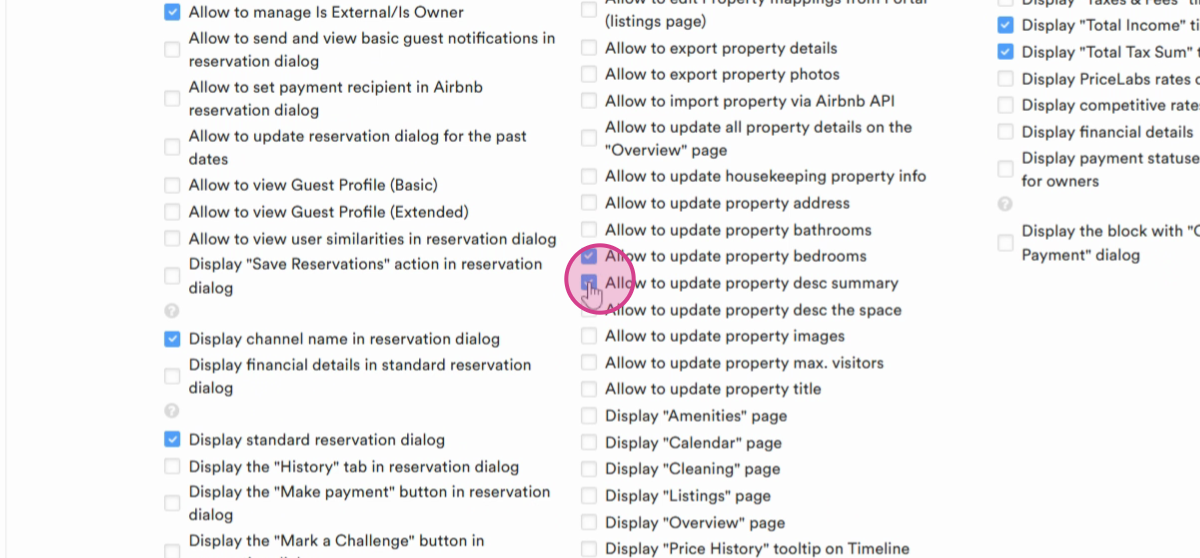
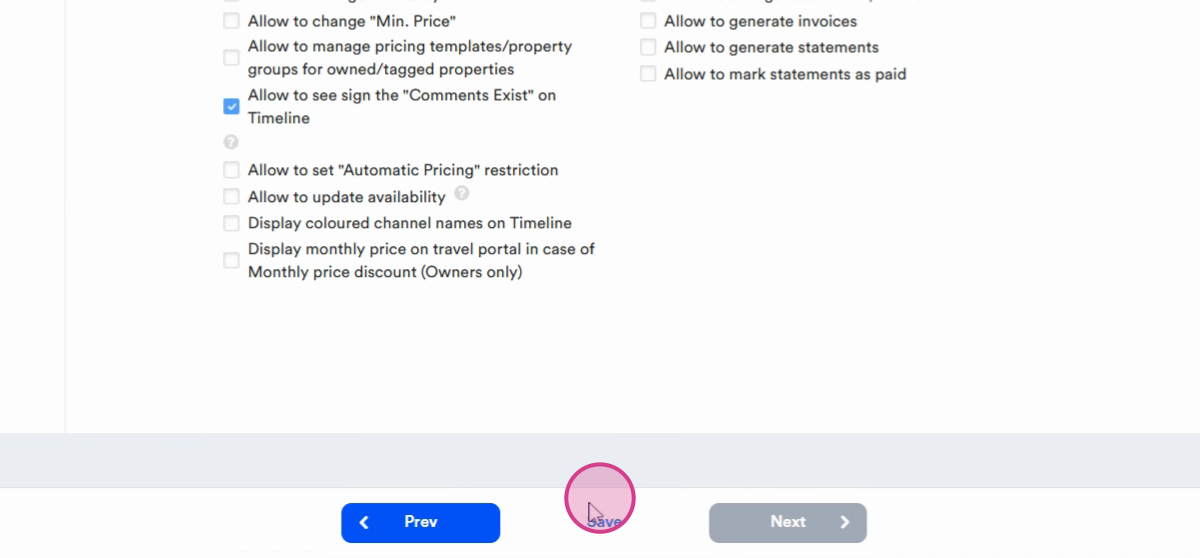
Step 8: After making your changes, click Save to confirm and apply the new access rights.
Updating user access rights ensures your team only sees what they need. Regularly review permissions, especially when team roles change, to keep your information secure and your workspace organized.