To change a salary, double-click on the employee's name, select 'Rate and Deductions,' update the salary amount, and click 'Yes' to save the change. Repeat the same process for rate changes.
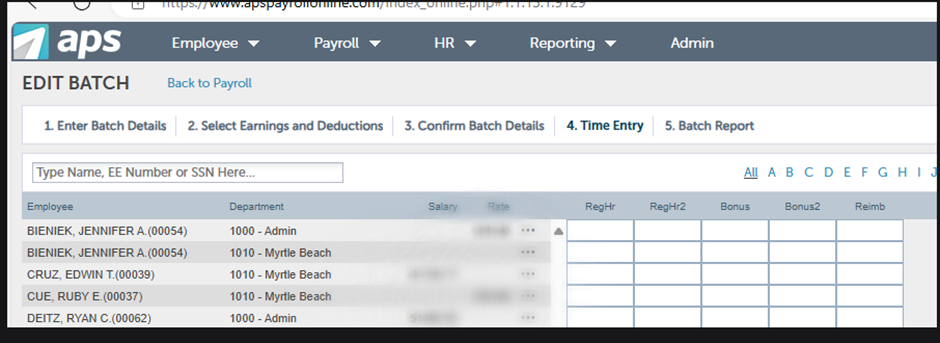
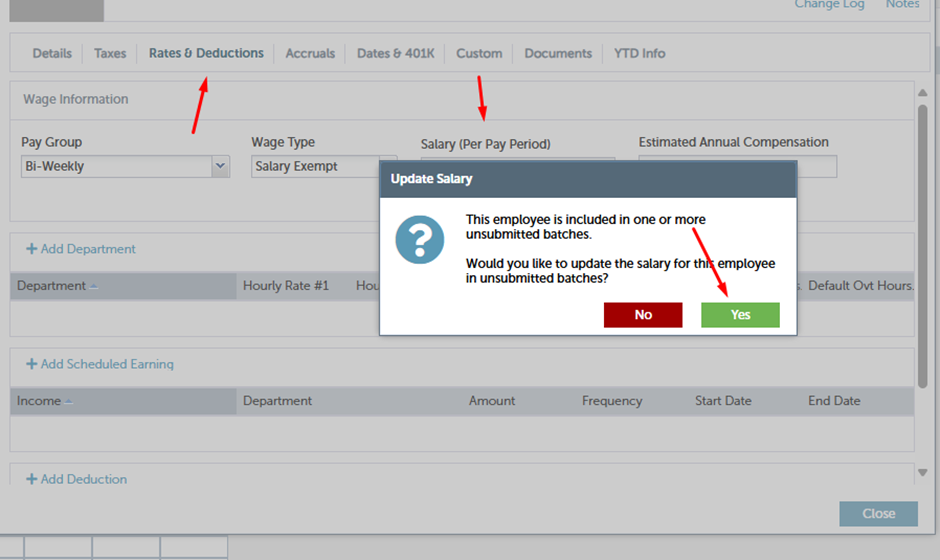
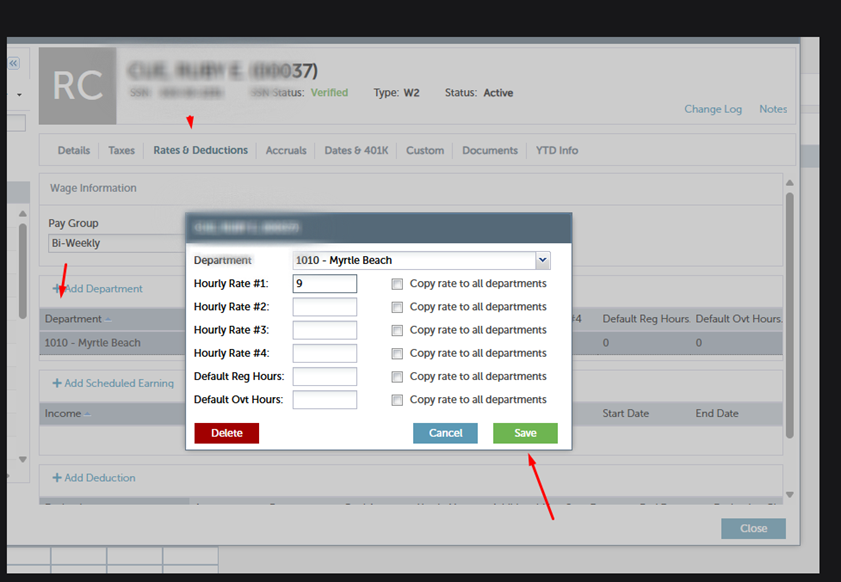
To change the hourly rate for an employee:
- Double-click on the employee's name.
- Go to the "Rates and Deductions" section.
- Double-click on the department ("1000 Admin", "1009 NOLA", etc.)
- Change the "Hourly Rate 1."
- Save the change
- .
We receive timesheets for hourly paid employees from the local managers.
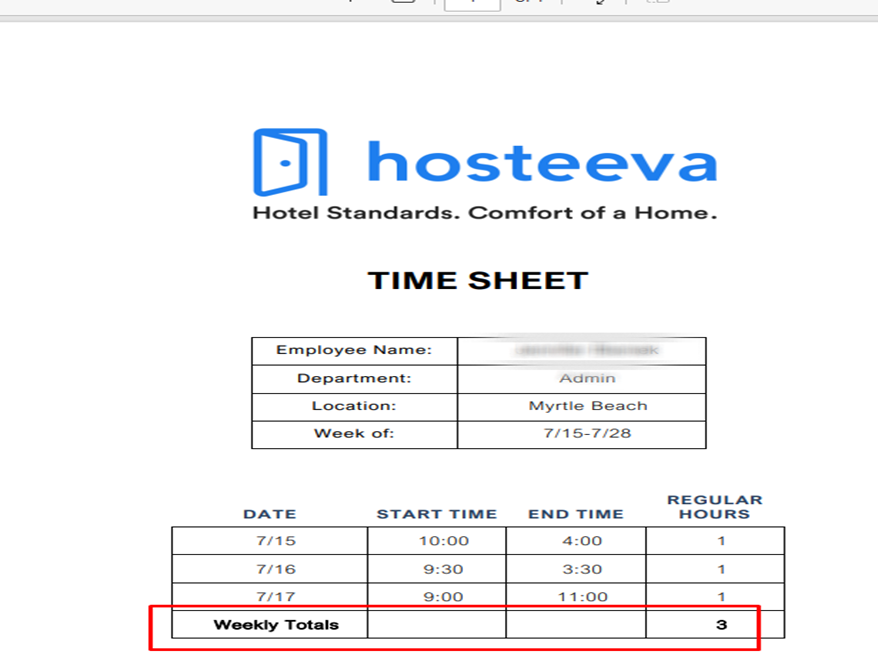
We add the hours under Regular Hours 1 and Regular Hours 2 for each week of the pay periods.

Once all the payroll information is entered into the system, you can run the batch. Make sure to contact the local managers a day or two in advance to ensure nothing is missed.
The local managers should inform the contact person in accounting about any changes a day or two prior to the payroll submission day.