Updating a user's password ensures account security and helps maintain system integrity. Follow these steps to quickly change or update the password for a specific user.
Step 1: Go to the User section.
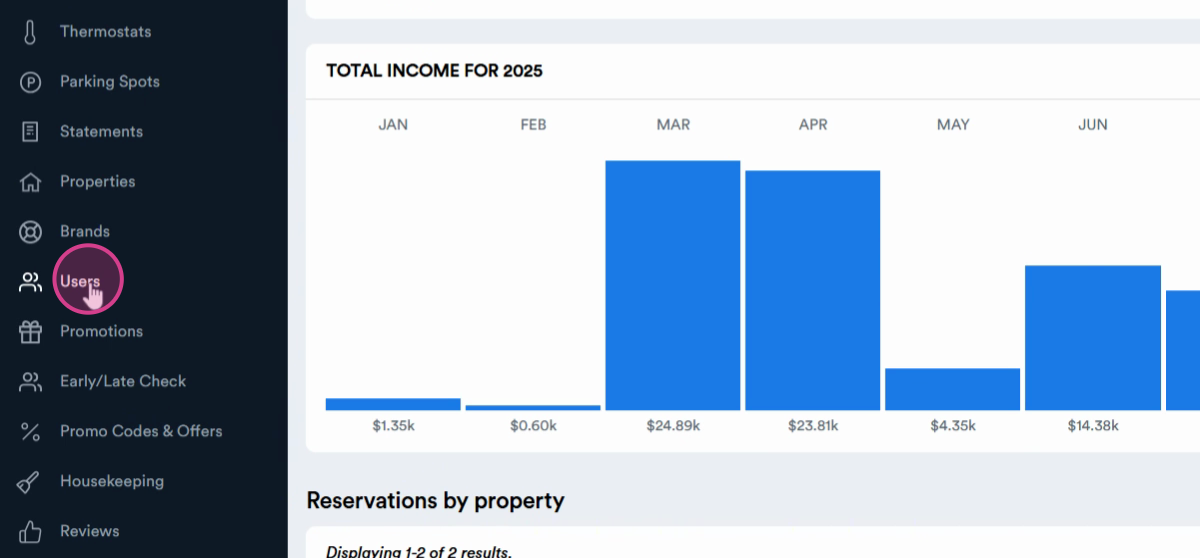
Step 2: Select the user whose password you want to update.
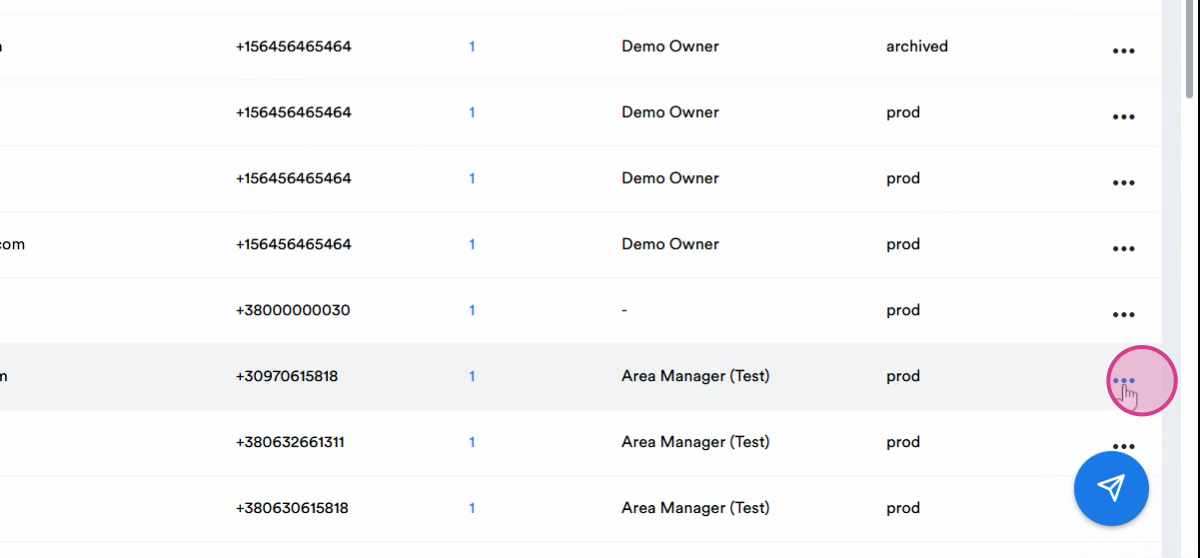
Step 3: Click the three dots next to the user's name.
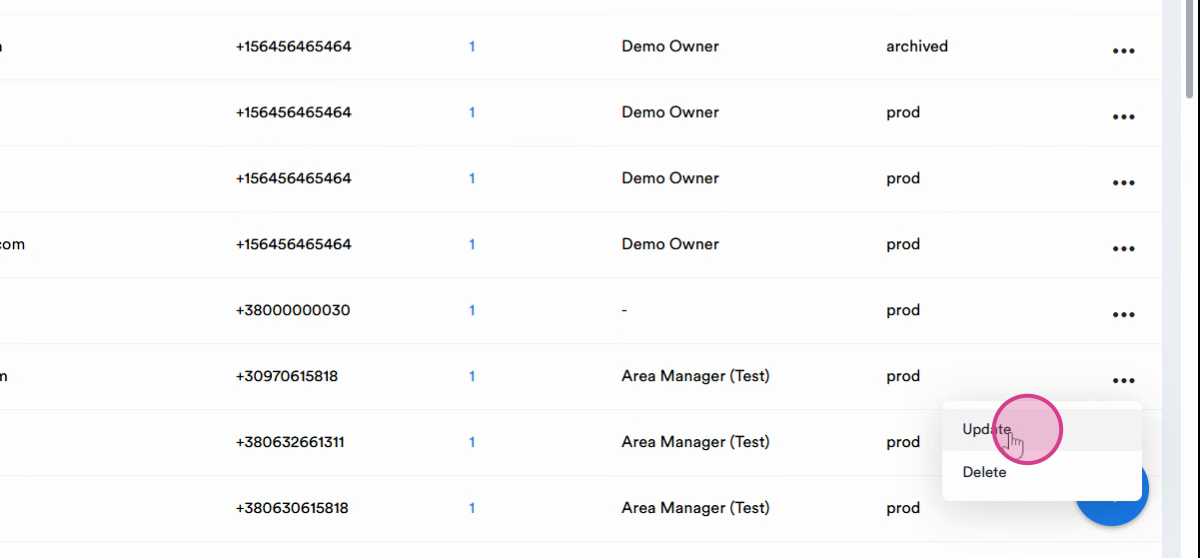
Step 4: Choose Update from the dropdown.
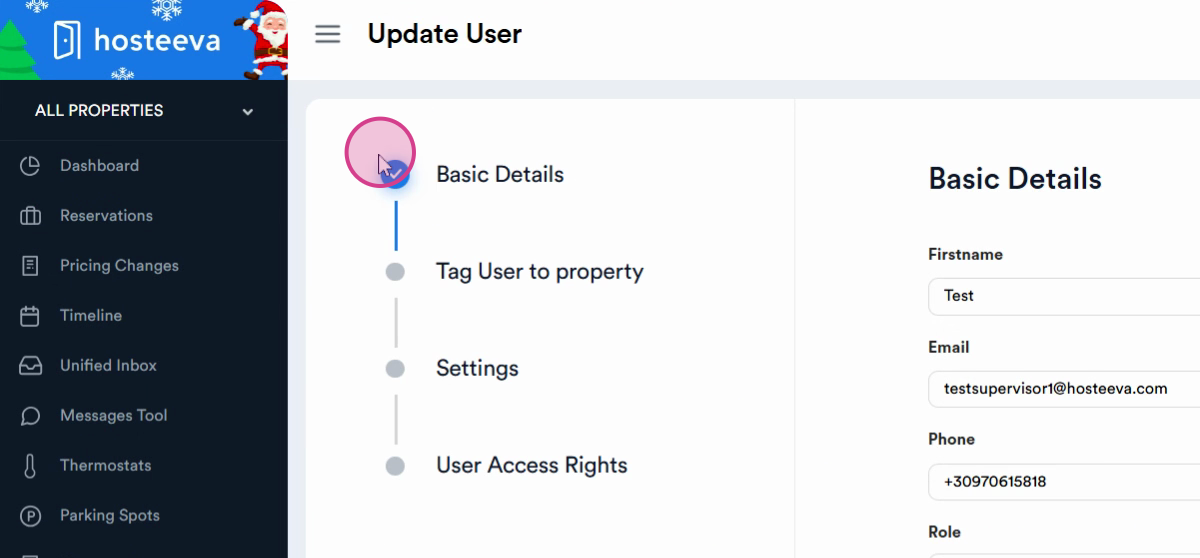
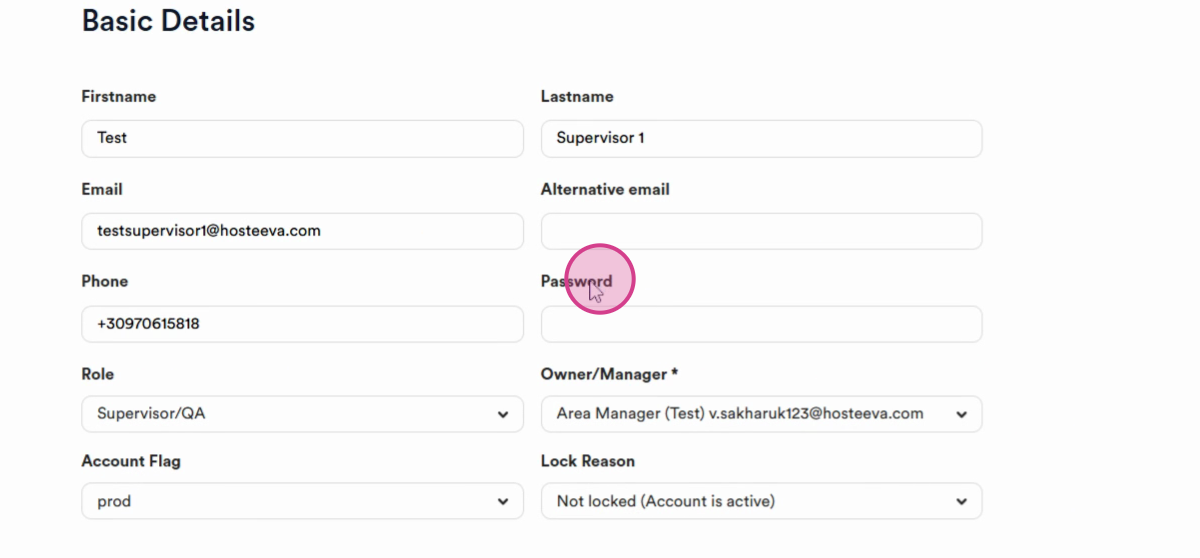
Step 5: In the Basic Details section, enter the new password. Make sure it’s at least 12 characters long.
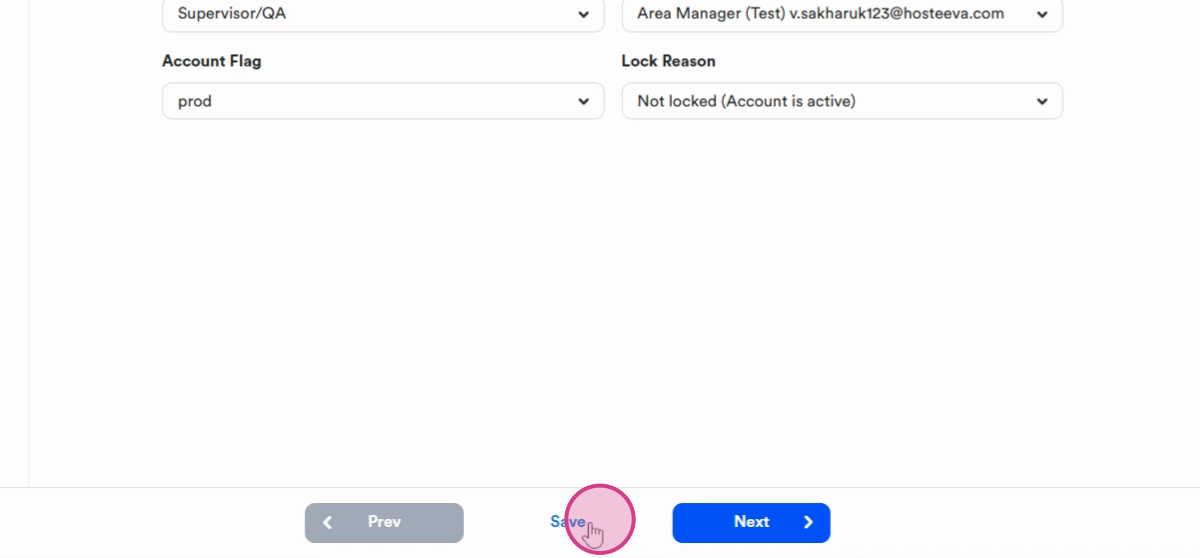
Step 6: Click Save to confirm the new password.
Changing user passwords regularly is a good security practice. Review user credentials periodically to keep your accounts secure.