This guide explains how to remove a user from the Hosteeva system.
Start by logging into the Hosteeva dashboard.
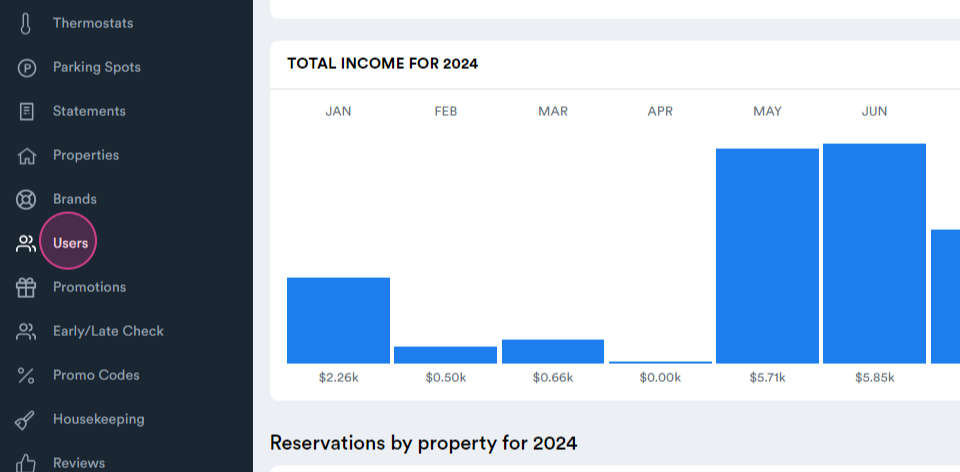
Step 1: Navigate to the Users tab.
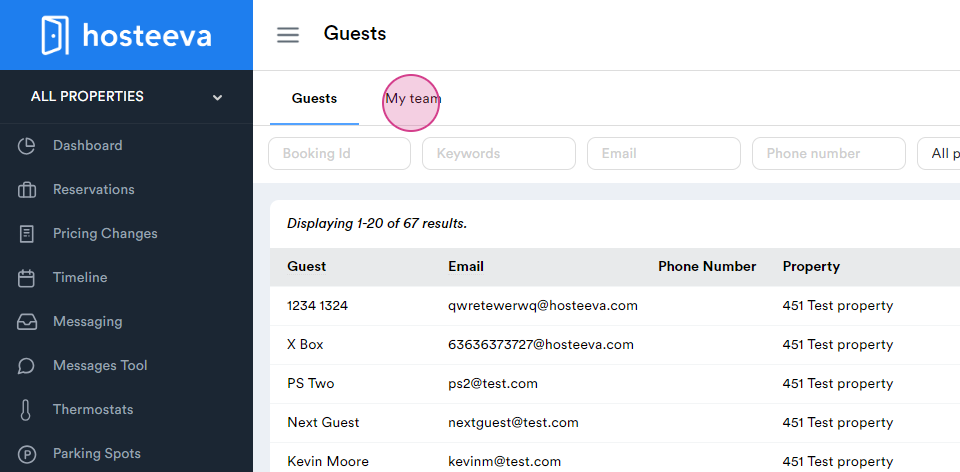
Step 2: Proceed to My Team. Here, all users are listed.
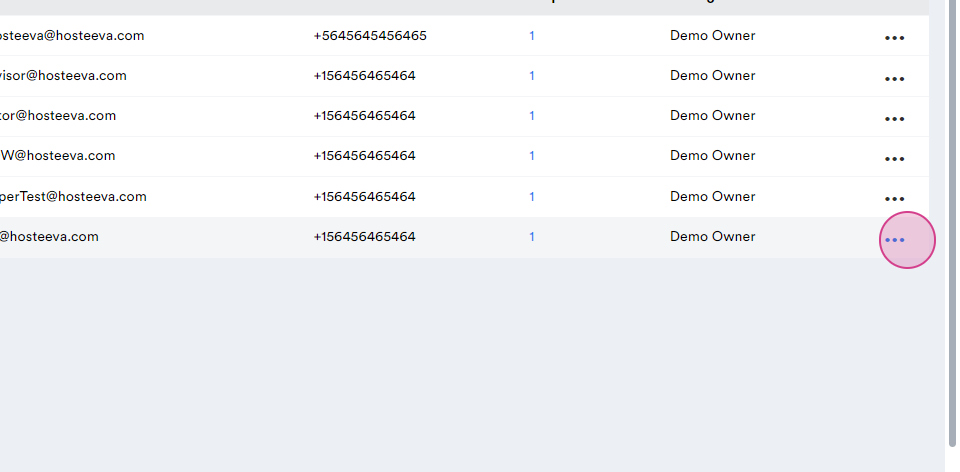
Step 3: Click on the three dots next to the user you wish to remove.
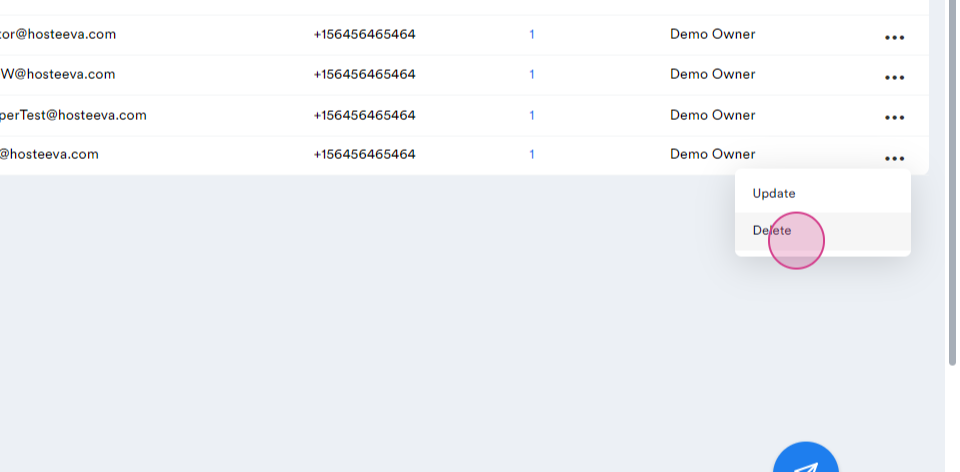
Step 4: Select the Delete option.
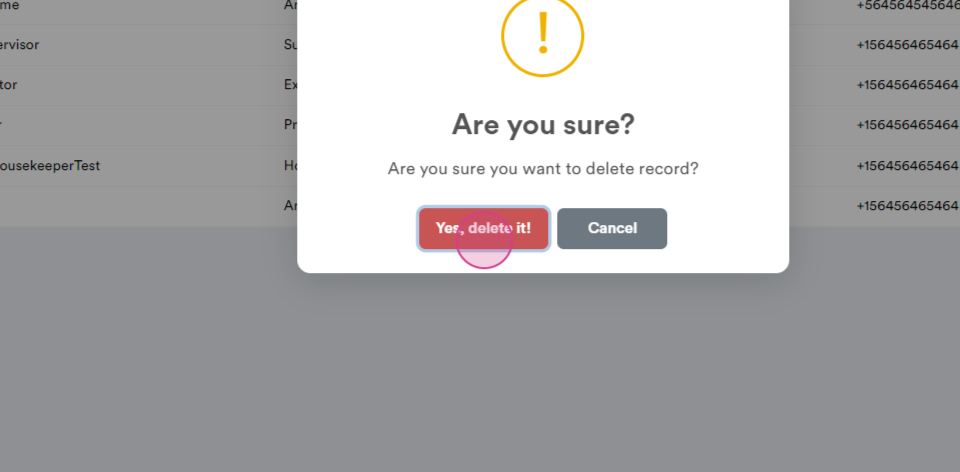
Step 5: A pop-up window will appear. Confirm the deletion by clicking Yes.
Upon deletion, the user loses access to all properties managed through the Hosteeva dashboard. However, the user's details remain in the Hosteeva archive for a year before permanent removal.
If a need arises to create a new user with the same email address or phone number, and the system restricts this, contact a Hosteeva representative. Request them to deactivate the archived user to proceed with the new user creation. This concludes the guide on user removal from the Hosteeva system.