How to Issue Refunds for VRBO Reservations
Processing refunds for reservations received from VRBO is simple and fully synced with other Hostiva reservation types. Here’s how to issue a full or partial refund for your guest.
Step 1: Select the reservation from the list. Verify that the Reservation Source shows VRBO and that the Payment Method is Stripe.
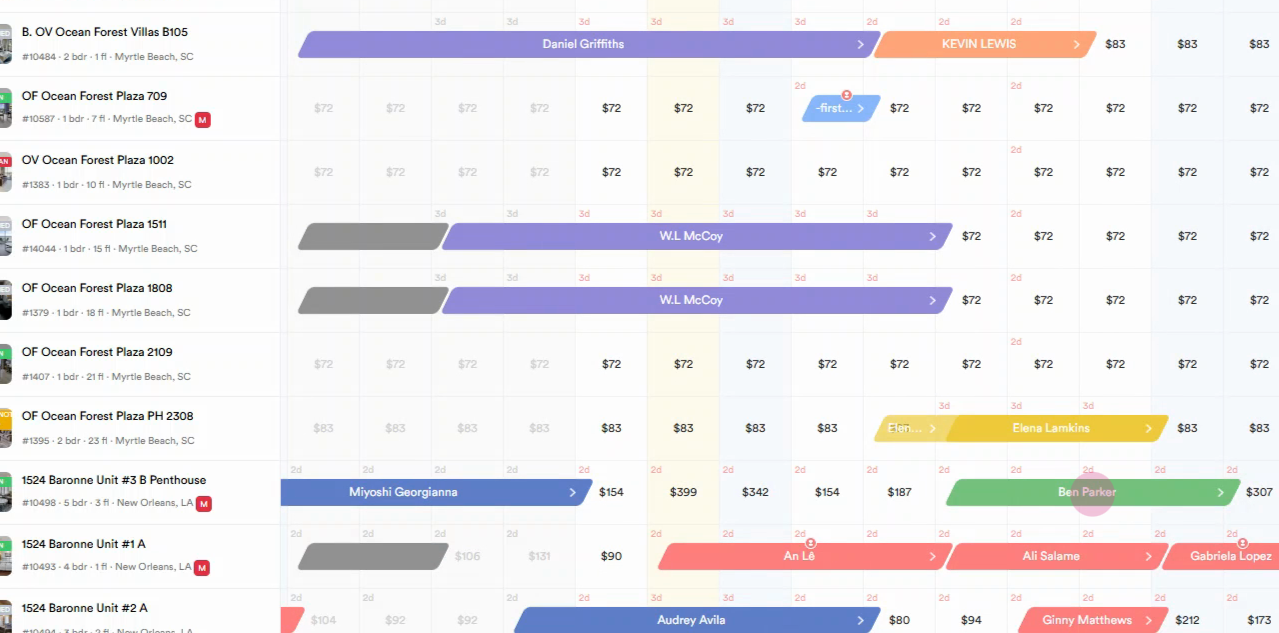
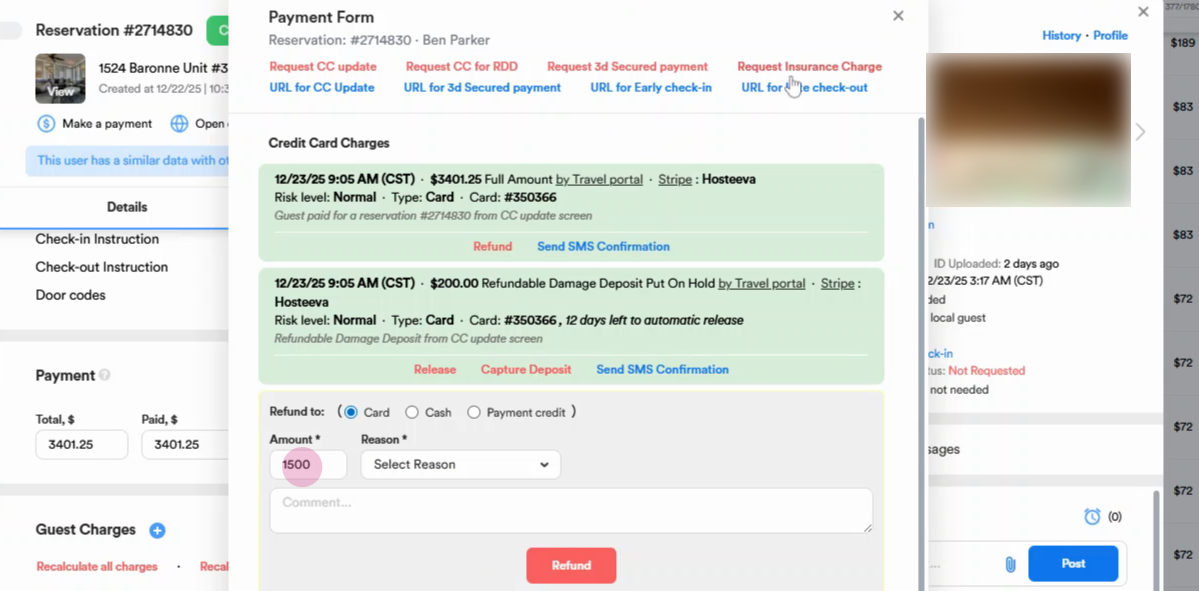
Step 2: Scroll to the top section of the reservation dialog. Click Make a Payment to access the transaction details.
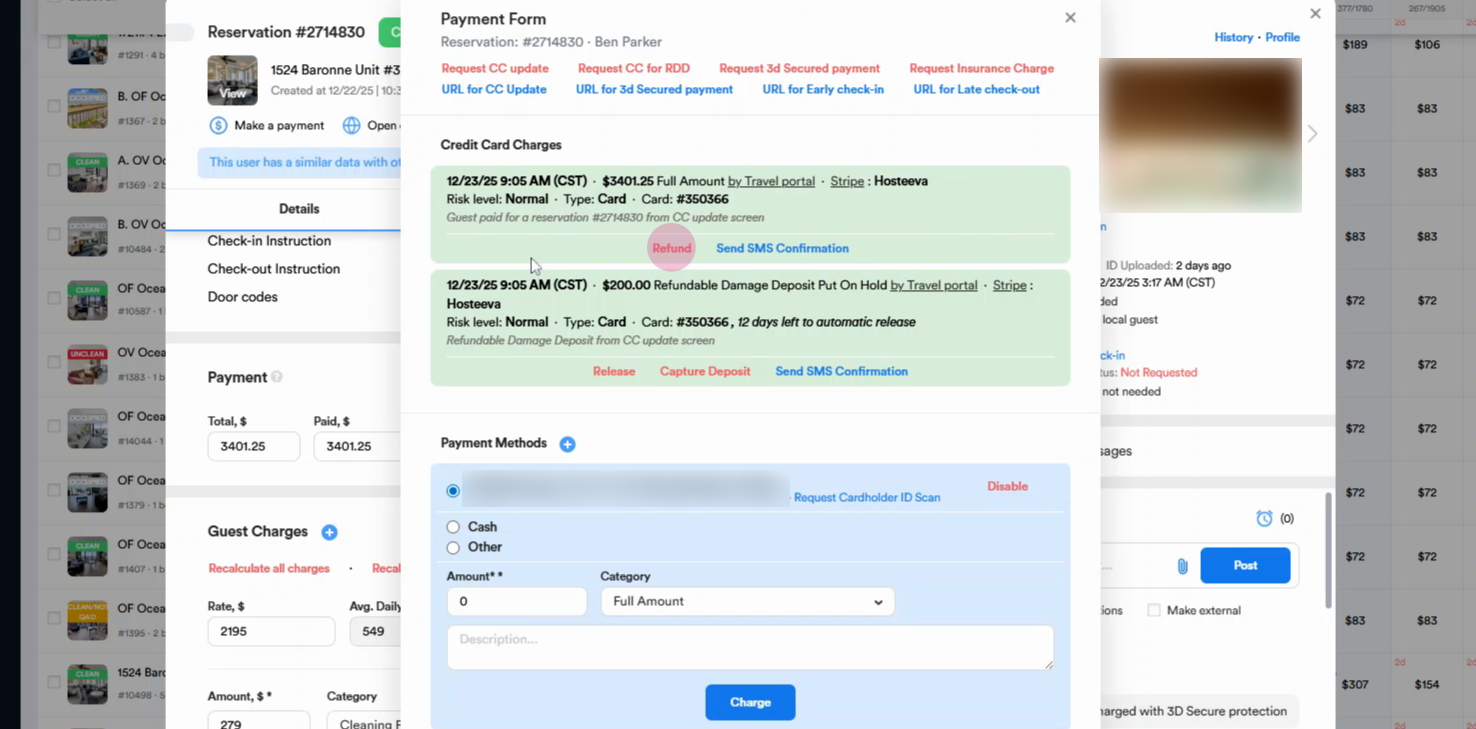
Step 3: In the transaction list, locate the guest’s payment. The amount should match the reservation total. Click the Refund button to issue the refund.
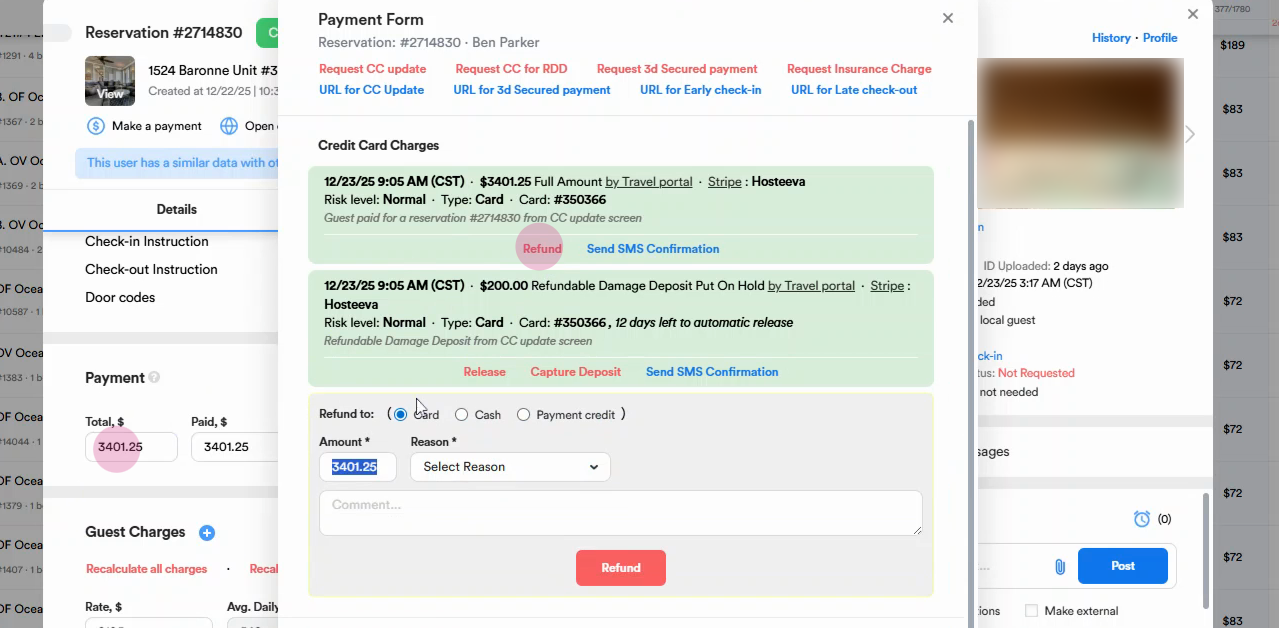
Step 4: To issue a full refund, leave a comment if needed and click Refund.
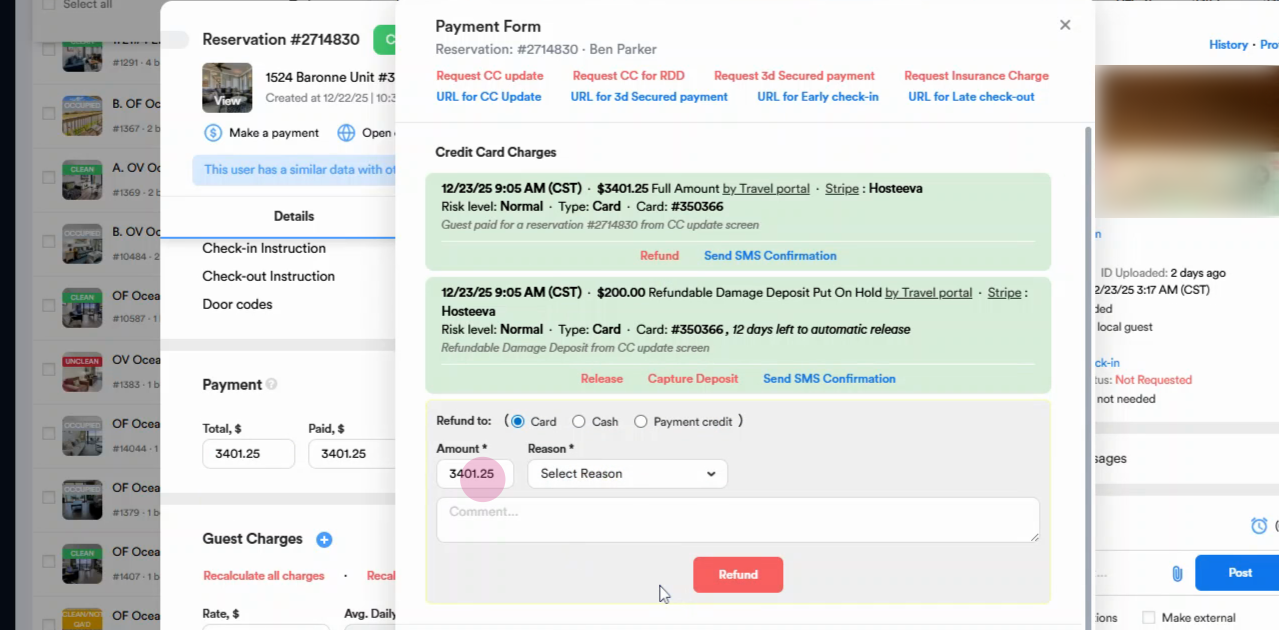
Step 5: For partial refunds, enter the refund amount, add a comment, then click Refund.
Refunds for VRBO reservations follow the same process as Hostiva direct and back office reservations. Since the system is fully synced, you don’t need to manage each channel separately.