This guide outlines the process from the initial guest report to the creation of a work order, ensuring a seamless and efficient workflow.
Guest Report:
-
When guests report an issue, whether through a call or message, gather as many details as possible.
-
Troubleshoot the reported issue to determine the nature and severity. Use the troubleshooting guide below:
Troubleshooting guide -
Ask the guest to provide pictures if possible.
-
Check with guests if they are comfortable with maintenance teams entering the unit without their presence.
-
Make sure to leave a comment in the reservation dialogue.
-
Create a Work Order
-
Mark the reservation as attention needed/challenging/urgent challenging depending on the severity of the issue.
-
Report in the proper chat (if needed)
Work Order Creation:
-
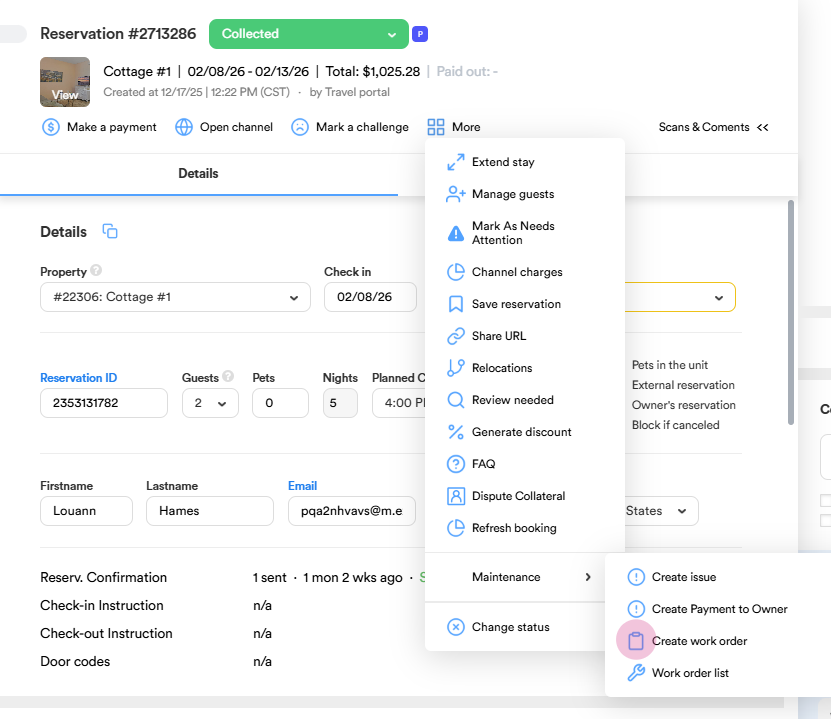
Click on the “More” section in the reservation dialog.
-
Choose “Maintenance” then “Create work order”.
3. You need to add a “Title”, “Category”, “Status”, and” Priority”.
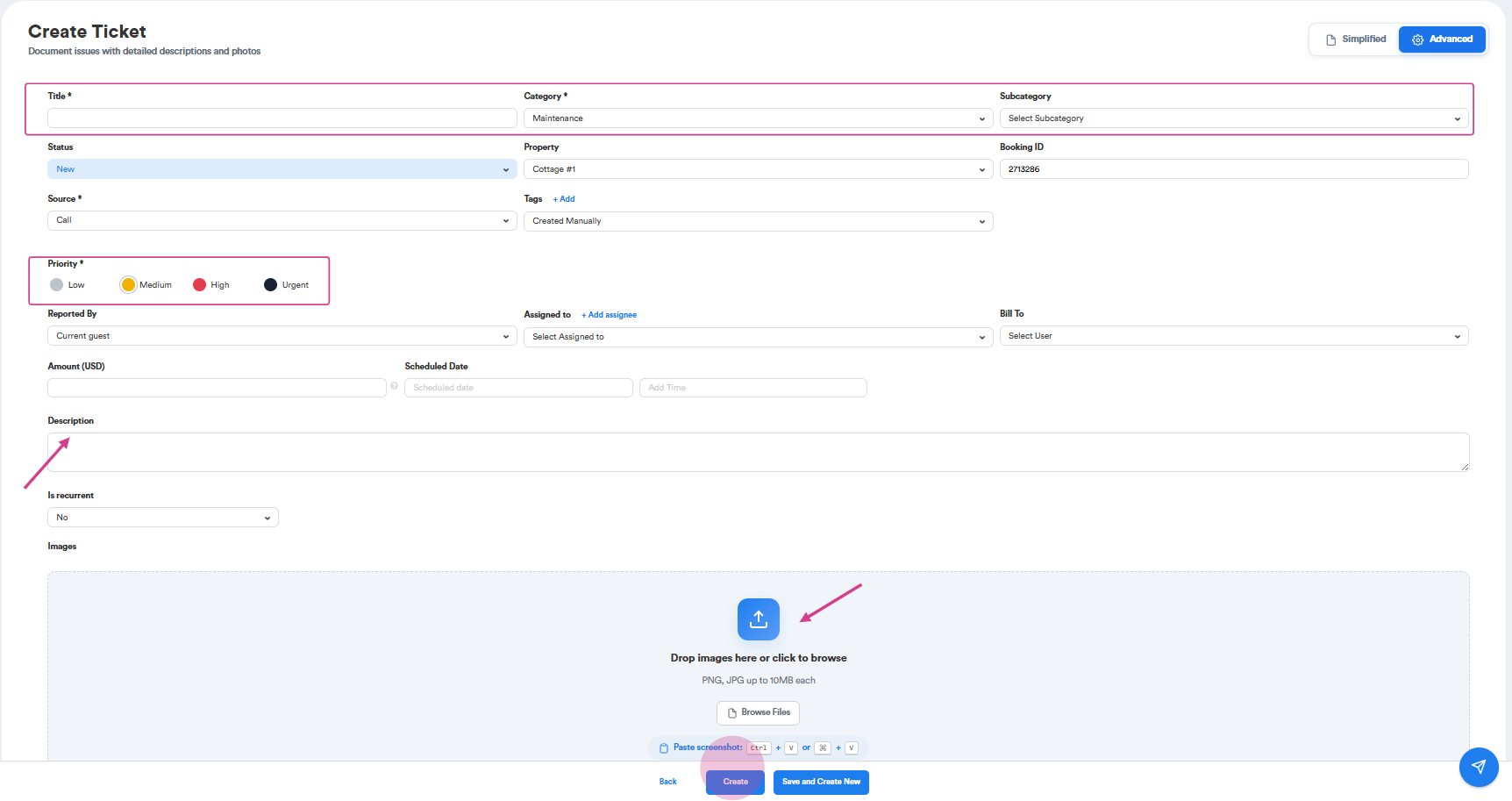
4. When creating a work order, it is essential to select the correct category to ensure efficient handling and accurate reporting.
If a guest reports multiple issues that belong to the same category, only one work order should be created. All related issues should be clearly described within that single work order.
Example:
-
The toilet flush is not working
-
There is a water leak
Since both issues are maintenance-related, create one work order under the Maintenance category and list both problems in the description.
However, if a guest reports issues that fall under different categories, separate work orders must be created for each category.
Example:
-
The room is not clean → Housekeeping
-
Air conditioning is not working → Maintenance
In this case, create two separate work orders:
-
One under the Housekeeping category for the cleanliness issue
-
One under the Maintenance category for the air conditioning issue
Correct categorization helps ensure that each issue is assigned to the appropriate team, resolved efficiently, and tracked accurately. In the “Description,” include detailed information from the guest report, such as the nature of the issue, location within the unit, and any relevant troubleshooting steps taken.
5. After securing the guest's approval for maintenance to enter the unit, ensure to include this information in the description of the work order.
6. Add the pictures (if provided).
By following this guide, we can streamline the process of creating work orders, ensure guest consent for maintenance access, and provide efficient resolution to reported issues, ultimately enhancing guest satisfaction and experience.
Thank you!