In this article, you'll learn how to navigate and use the Zendesk platform for guest communication, including calls, messages, and inquiries.
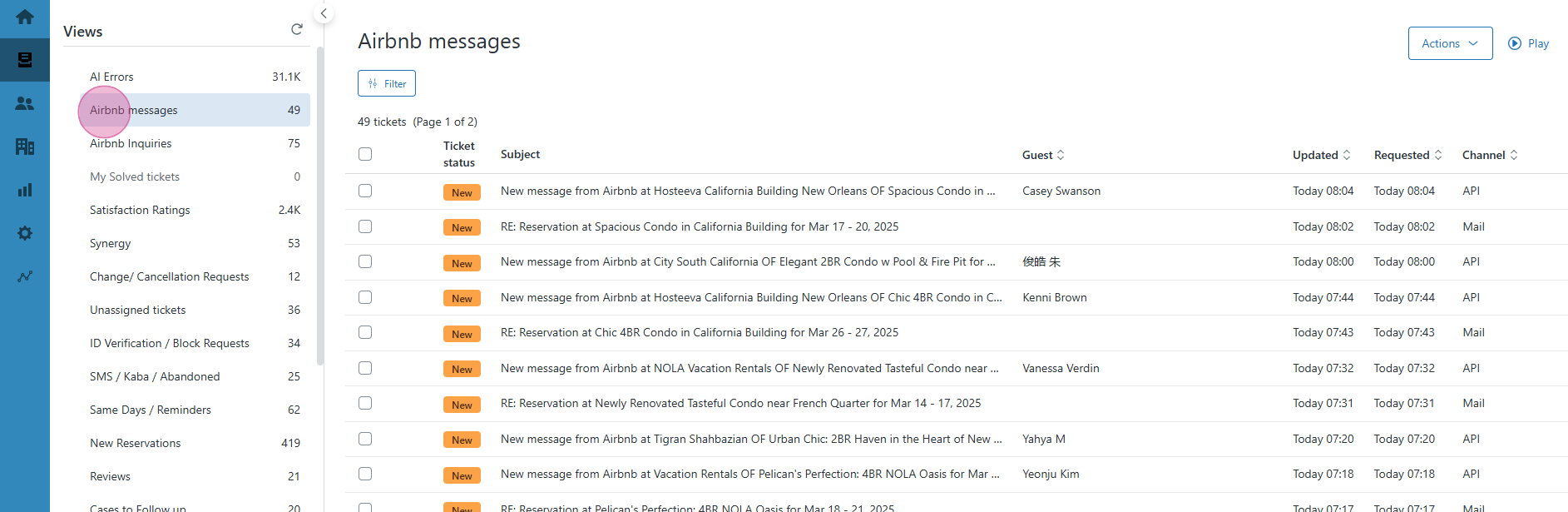
Step 1: Zendesk is the main platform where we keep the communication with the guest via calls and messages and enquiries. Click on the message button to access the various tabs for Zendesk.
In Airbnb messages we receive messages from guests who have active reservations, whereas inquiries are any questions regarding properties or about availability of dates to make a reservation. In the Id verification tab we receive Id scan copies from the guests and also unit block requests from area managers.
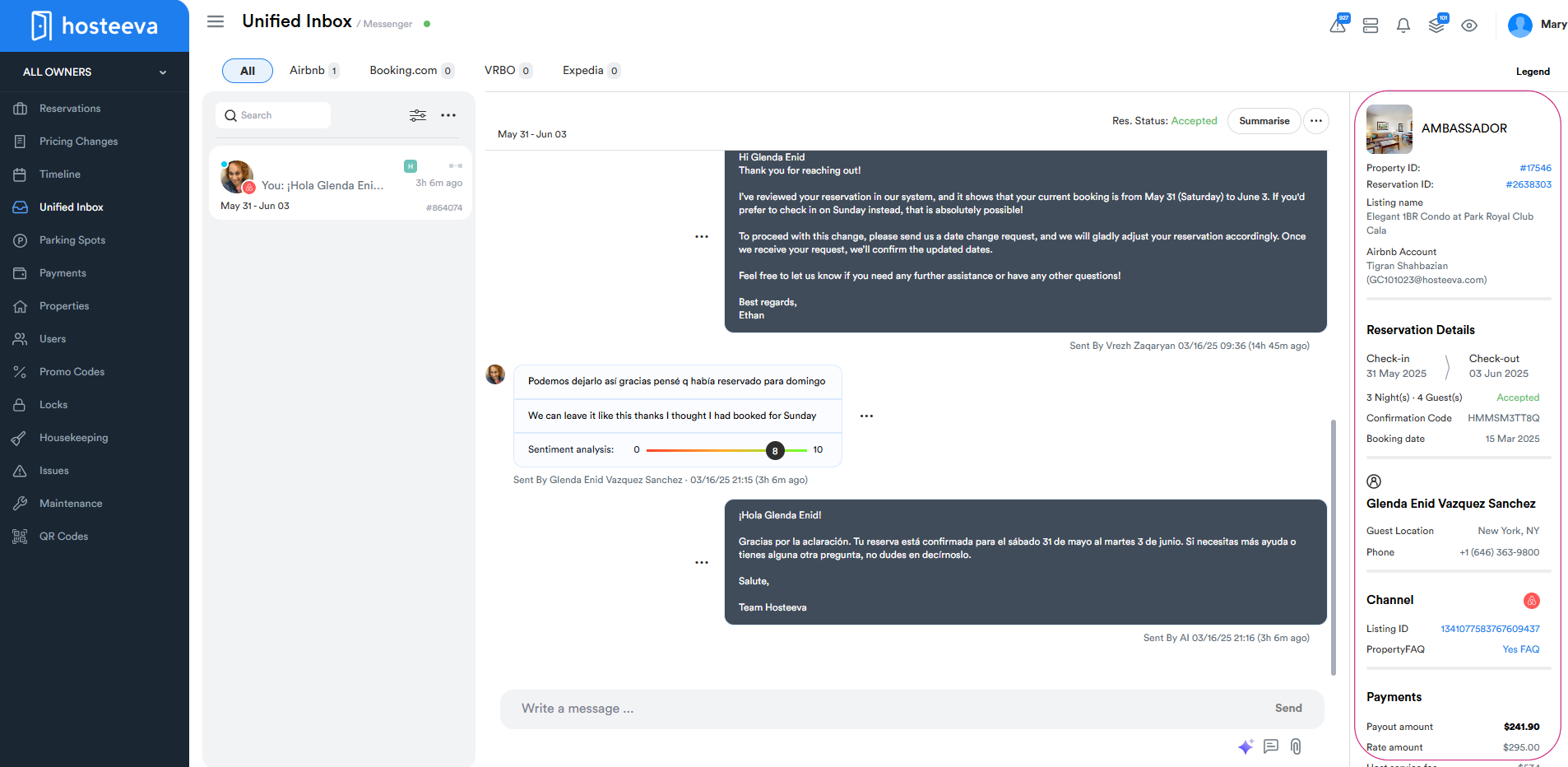
By clicking on any of the tickets, the system will redirect you to the unified inbox, where you can reply to the message. On the right side of the screen, you'll find key details about the reservation, such as the property ID, reservation ID, check-in and check-out times, number of guests, and other relevant information.
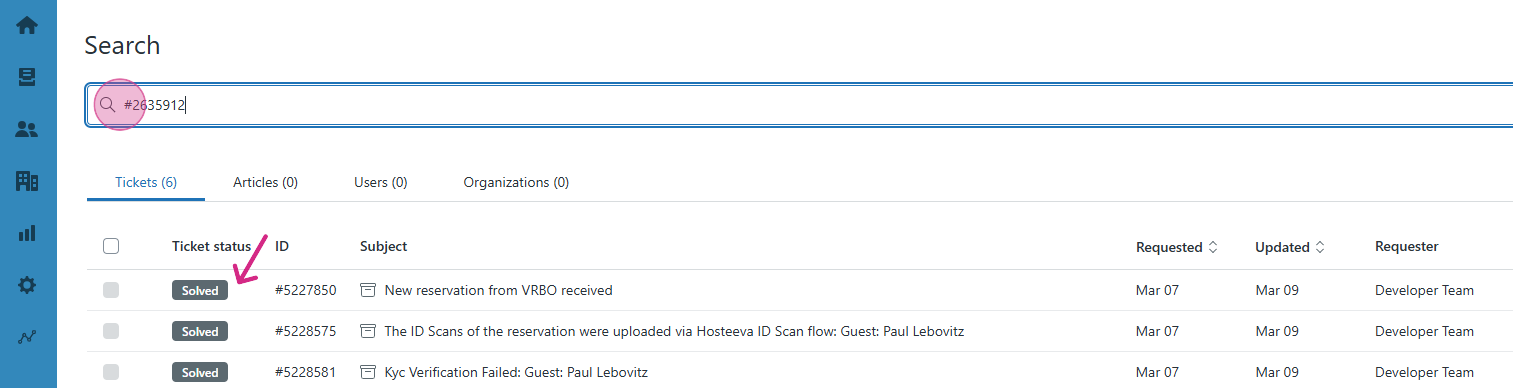
Step 2: With a help of search bar we can search any ticket with reservation ID, ticket number or content keywords. Here is an example of a ticket search with reservation ID.
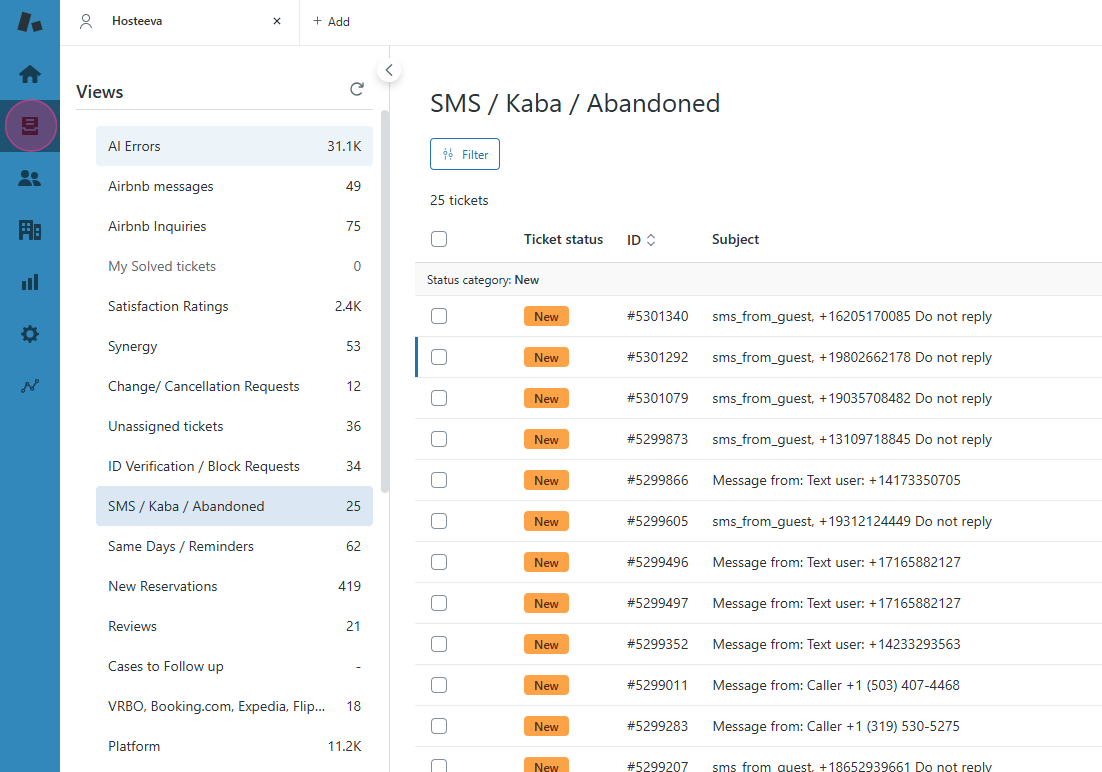
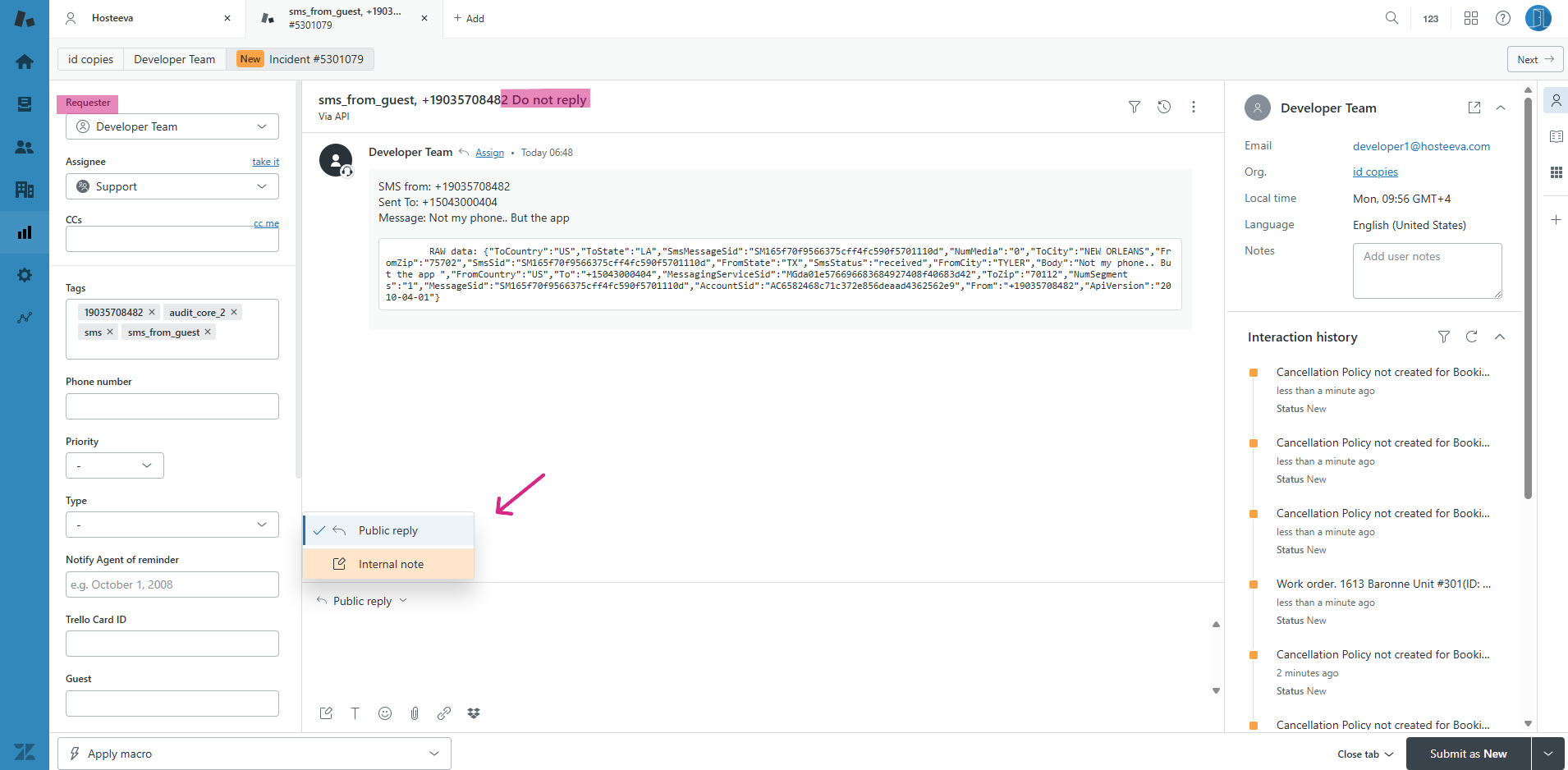
Step 3: Let's navigate to the SMS/Kaba and Abandoned tabs to review some tickets and understand how they should be handled. Understand the different reply types: an internal note or a public reply. Generally, we avoid using public replies; however, in certain cases, if we do use a public reply, we consider the requester's identity. For instance, if the requester’s email is developer1@hosteeva.com, we do not respond publicly. Instead, copy the number from the SMS sent by the guest, search for the reservation in the admin portal, and respond directly from the reservation dialog. We use internal notes when we need to leave comments or instructions for Hosteeva users regarding the ticket, especially for follow-up actions.
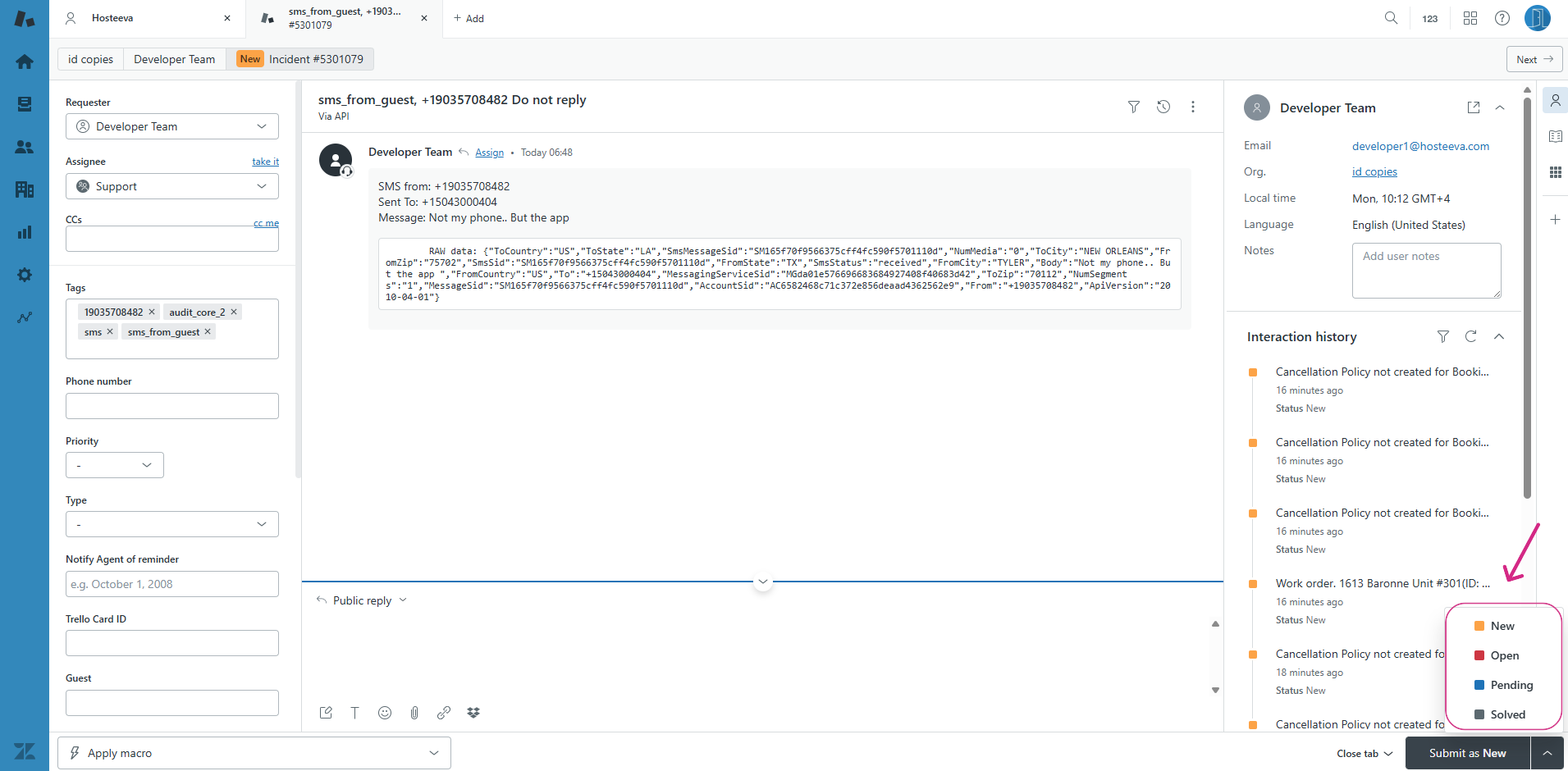
Step 4: There are several statuses for tickets: New, Open, Pending, and Solved. When a ticket is first received, its status is set to 'New.' Once we click on a ticket it changes the status to 'Open' and we can leave the status 'Open' when we need to quickly review information before replying. If we need to verify details with the local team or supervisors, we mark the ticket as 'Pending.' Once we respond to the message, we set the status to 'Solved' to indicate that the ticket has been addressed and sent to the guest.
Thank you!